Importing a text file into MS Access very easy as it is completely wizard driven. But the text file needs pre-processing before importing as a text file has only one data type for any of the columns imported. When you generate a text file
The version of MS Access used is Microsoft Access 2016 MSO 32-bit which is a part of the Office 365 subscription.
The import is completely wizard driven as you see in the following steps. I will be using the same text file that I generated from the Norhtwind database on my SQL Server 2012. The details of this are available in this post.
This post considers importing a text file into MS Access table using Wizard and the type of error produced.
The following query was used to provide the data for the text file:
=====
SELECT Products.ProductName, [Order
Details].UnitPrice, [Order Details].Quantity, Orders.OrderDate, Orders.RequiredDate
FROM [Order Details] INNER JOIN
Orders ON [Order Details].OrderID = Orders.OrderID INNER JOIN
Products ON [Order Details].ProductID = Products.ProductID
Where [Order Details].UnitPrice>100
====
This is a sample of the file FFD.txt generated (just two rows reproduced).
ProductName, UnitPrice, Quantity, OrderDate, RequiredDate
Côte de Blaye, 210.8, 49, 1997-01-23 00:00:00, 1997-02-20 00:00:00
Thüringer Rostbratwurst, 123.79, 12, 1997-10-09 00:00:00, 1997-11-06 00:00:00
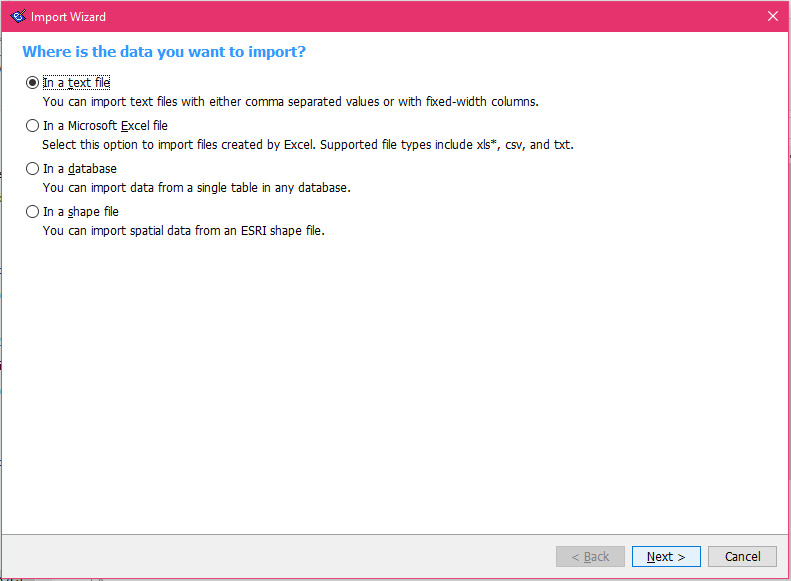
The next images show the various steps of the wizard:
Highlight the default table Table 1 and right click to access the import of a text file as shown below.

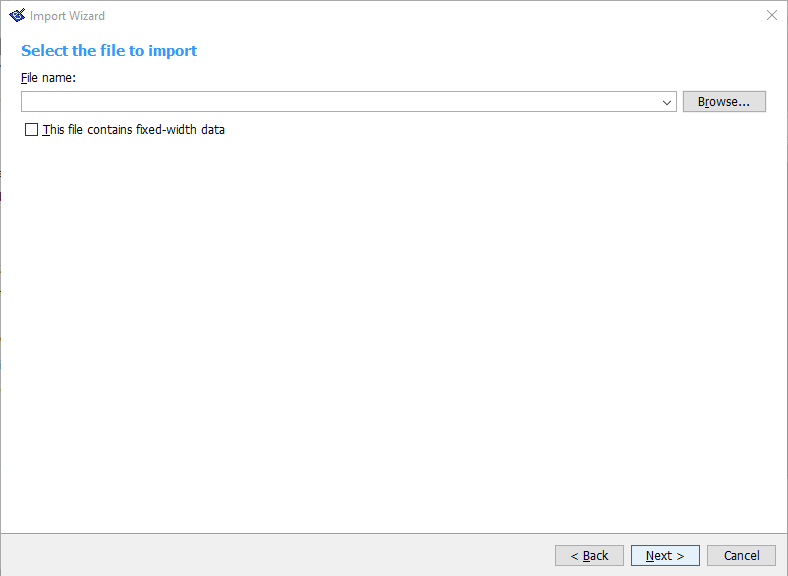
The Get External Data - Text File is displayed as shown. Accept the default to import the text file to a new table in the current database option after Browsing to bring in the FFD.txt file stored in your folder / file system.


The data is immediately (small sample) brought into the Import Text Wizard as shown.


Click Next. Click Advanced to see the field specification. Click OK.

Click Next. Allow Access to provide a Primary Key
 Provide a name for the new table.
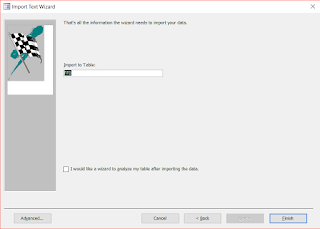 Click Finish. The import is finished and you can save the steps you took to import. As you can see there were data that did not come through cleanly and there were import errors.

MS Access created two tables, the table in which successfully imported data was saved and another table with _ImportErrors appended containing the fields that did not make as shown.

This is not a successful import of the data as two of the columns did not make it to the import. In Part 2 modifications to the import process that would bring in the data correctly.
The version of MS Access used is Microsoft Access 2016 MSO 32-bit which is a part of the Office 365 subscription.
The import is completely wizard driven as you see in the following steps. I will be using the same text file that I generated from the Norhtwind database on my SQL Server 2012. The details of this are available in this post.
This post considers importing a text file into MS Access table using Wizard and the type of error produced.
The following query was used to provide the data for the text file:
=====
SELECT Products.ProductName, [Order
Details].UnitPrice, [Order Details].Quantity, Orders.OrderDate, Orders.RequiredDate
FROM [Order Details] INNER JOIN
Orders ON [Order Details].OrderID = Orders.OrderID INNER JOIN
Products ON [Order Details].ProductID = Products.ProductID
Where [Order Details].UnitPrice>100
====
This is a sample of the file FFD.txt generated (just two rows reproduced).
ProductName, UnitPrice, Quantity, OrderDate, RequiredDate
Côte de Blaye, 210.8, 49, 1997-01-23 00:00:00, 1997-02-20 00:00:00
Thüringer Rostbratwurst, 123.79, 12, 1997-10-09 00:00:00, 1997-11-06 00:00:00
The next images show the various steps of the wizard:
Highlight the default table Table 1 and right click to access the import of a text file as shown below.

The Get External Data - Text File is displayed as shown. Accept the default to import the text file to a new table in the current database option after Browsing to bring in the FFD.txt file stored in your folder / file system.


The data is immediately (small sample) brought into the Import Text Wizard as shown.

Accept the first option as the file is comma delimited. Place check mark for 'First Row Contains Field Names'.

Click Next. Click Advanced to see the field specification. Click OK.

Click Next. Allow Access to provide a Primary Key


MS Access created two tables, the table in which successfully imported data was saved and another table with _ImportErrors appended containing the fields that did not make as shown.