Showing posts with label SAP. Show all posts

Saturday, October 28, 2017

Who is the leader in Operational Database Management System?

This is the definition of Operational Database Management System(ODBMS) according to Gartner (5/10/2016):

"The operational database management system (OPDBMS) market is concerned with relational and nonrelational DBMS (see Note 1) products suitable for a broad range of enterprise-level transactional applications, and DBMS products supporting interactions and observations as alternative types of transactions"

Based on this definition and other considerations Microsoft is the leader edgin higher than the secodn Oracle. This is what you see in the Magic Quadrant. Microsoft shares the vision with others such as Oracle, SAP, AWS and IBM.

Here is copy of the Quadrant:


Detailed report here to download after registering:
https://info.microsoft.com/gartner-odbms-magic-quadrant-register.html?ls=website

Monday, March 27, 2017

Creating a database in Ultralite 17 using SQL Central

In this post I describe the steps to create a database with all the default settings using the SQL Central interface. If you are new to SQL Central (was previously called Sybase Central) you may want to read my older posts here.

Launch SQL Central from All Programs under SQL Anywhere 17.
Click Tools and choose under UltraLite to create a database as shown.


Create_00.png

 Creating a database is driven by the Wizard which appears as soon as you click Create Database... in the above window. The following sequence of windows shows how the database is created. Although you can make many changes to the database settings, all defaults are used in this post.

You start with the welcome window. Read the notes here.


Click Next,


Use the Browse... button to find the location for the database you are going to create and provide a name. Herein the name is Mar25_2017.

Click Next. Accept the default storage settings.

 Click Next.
Next choose the Collation and character set. Herein Ultralite defaults are accepted.

 Click Next.
Accept the default creation parameters. Have a look at what they are (these are Ultralite defaults).
You can change any or all of them.

 Click Next.
You may leave this as is. Synchronization is important for synchronizing the UltraLite with the main server. For the moment you may leave this empty.


 Click Next after placing a check mark for connecting to the new database. This makes the database available in the SQL Central Management interface.


 Click Next. Oh! you get the command line way of creating this database. What the wizard delivered is the execution of the command line with the parameters (Switches) shown here. This is neat. Next time around you may just use the command line.


 Click Close. The database is created and now appears in the SQL Central under Ultralite 17 (Compare this to the very first image in this post)


Here is the Properties page for this database. Presently it has objects such as Tables, Users etc.


Tuesday, March 14, 2017

jTDS -SQL Server and Sybase JDBC driver

Accessing SQL Server using a JDBC driver is implemented in the package RSQLServer which appears to have been archived. Assuming we can get to RSQLServer package we still need jTDS driver.

jTDS driver can be downloaded from here:

https://sourceforge.net/projects/jtds/files/jtds/1.3.1/

The driver description as found on Sourceforge is as follows:

"Open source JDBC 3.0 type 4 driver for Microsoft SQL Server (6.5 up to 2012) and Sybase ASE. jTDS is a complete implementation of the JDBC 3.0 spec and the fastest JDBC driver for MS SQL Server. For more information see http://jtds.sourceforge.net/"

There are other options such as ODBC-JDBC Bridge and Microsoft's JDBC driver which are not totally free.

The latest version is jtds-1.3.1-dist.zip (551.2KB)

Tuesday, January 31, 2017

Importing a CSV file into SAP's SQL Anywhere 17

Importing data in csv files, from excel files and web pages are often required. Each software vendor have their own tools to import such data. In SAP's SQL Anywhere 17 you can import data in text files using the Interactive SQL tool.

For working with this post it is assumed you have installed SAP's SQL Anywhere 17 and you have an available csv file. For this post I will be using a text file created using the export-import wizard tool from a table in the Northwind database on a SQL Server 2012. You can of course use a suitable text file. Generating the FFD.txt file is described here (http://hodentekmsss.blogspot.com/2016/12/creating-csv-file-from-sql-server-2012.html).

The following is the procedure to import the text file into sql Anywhere 17.

From All Programs in Windows 10 click on Interactive SQL under SQL Anywhere 17.


This brings up the window 'Connect to a SQL Anywhere Database'.

Fill in the authentication information (dba\sql) and click Browse on the ODBC Data Source name and pick SQL Anywhere 17 Demo.

Click Tools and Test Connection to ensure you are connected.


SAP_1

Click Connect and you are connected to the demo database. Your personal server is running now as shown.

SAP_2


The Interactive SQL window should now be up with connection established to the demo database as shown.

SAP_3

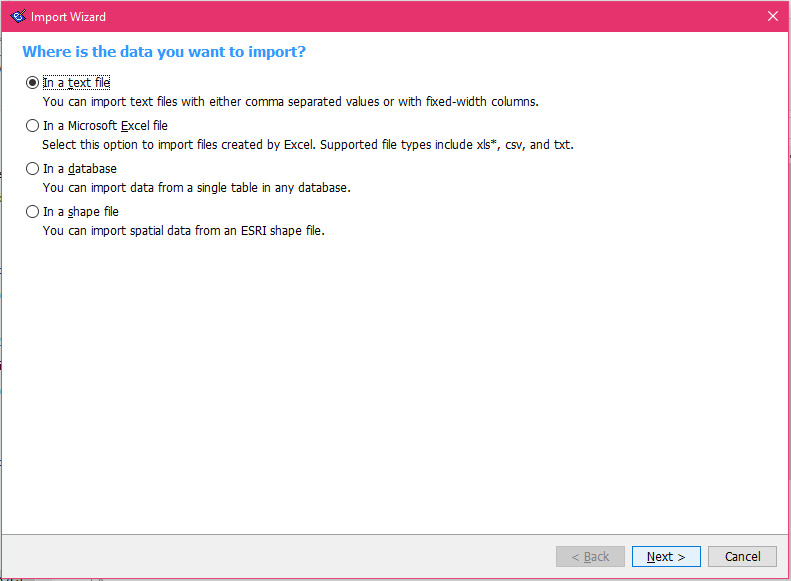
Click Data | Import... to open the Pop-up window Import Wizard as shown.


SAP_4

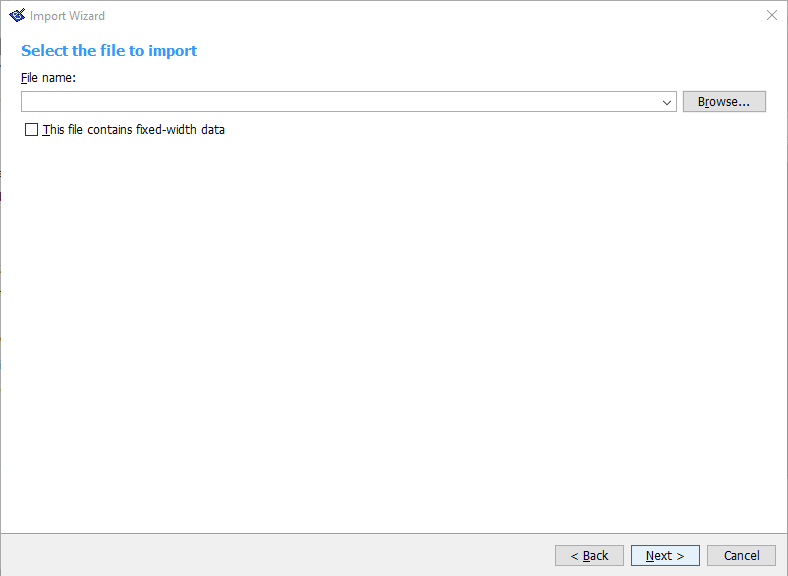
Choose the default 'In a text file' and click Next to open the 'Select the file to import' page of the Import Wizard as shown.

SAP_5
Browse and locate the text file on your computer.

 Click Next.

Click Next.  In the next window use Comma as the field separator and insert check mark for 'The first line contains column names' as shown.

Click Next. The 'Use this panel to associate a database column with each imported column. Change datatype of the two date columns to 'time' from 'varchar'. You may highlight a column and change the data type, if it is not what you want. Here in is the drop-down for the Order Date.


Click Next. The "Where do you want to save data?" window is now open with two options. Choose to get the data into a new table and change default name of table to FFDImport. 

Click Import. The data gets imported.


The text data gets imported into the table FFDImport.

Close the Import Wizard.

The Interactive SQL window shows the SELECT * from the new table as shown.

SAP_11

Although the import was successful, the time related columns did not come through correctly. In the next post we shall see if we can correct this. For this post the 'varchar' data type for the OrderDate and RequiredDate were replaced by the 'time' data type in the Interactive SQL's, import data wizard.

The table is now visible in the SQL Explorer as shown.

SAP_12.png


Sunday, November 27, 2016

Retrieve data from SQL Anywhere 17 in JSON format

SQL Anywhere 17 is a SAP Database.  Some of the earlier versions were released by SYBASE.

In SQL Anywhere 17 you have three different ways of getting JSON formatted data / JSON document.

You can use the FOR JSON clause  with:

  • SELECT Statement
  • Subqueries
  • Queries having Group By clause
  • Aggregate Functions and
  • Views
The result is a JSON array consisting of:

  • Scalar elements
  • Objects
  • Arrays
There are three ways of calling the FOR JSON Clause:

  • For JSON Raw
  • For JSON AUTO
  • For JSON Explicit
Note that SQL Server 2016 did get JSON support for the first time and has only For JSON Auto clause.

You run SQL Queries in Interactive SQL. Here is an example of a query that provides json document using the FOR JSON AUTO clause.


InteractiveSQL17JSON

Tuesday, July 8, 2014

Creating a linked server to SAP/Sybase SQL Anywhere 16 server in SQL Server 2012 Express

Linked servers offer the following advantages as noted in MSDN documentation:

•The ability to access data from outside of SQL Server.
•The ability to issue distributed queries, updates, commands, and transactions on heterogeneous
data sources across the enterprise.

•The ability to address diverse data sources similarly.
There are two ways to create Linked Servers in SQL Server 2012.
  • Using SQL Server Management Studio(SSMS)
  • Using the sp_addlinkedserver stored procedure(T-SQL)
In this post a Linked Server to Sybase(SAP) SQL Anywhere Server 16 will be created using SSMS  
 in SQL Server 2012 Express. Both the servers are installed on Windows 7 Ultimate
(x64bit) Toshiba Laptop computer.

Required information for SQL Anywhere 16
If you do not have SQL Anywhere 16, you can download the free developer version here after
registering:
http://sqlanywhere-forum.sap.com/questions/15828/its-here-sql-anywhere-16-developer-edition--
download

When you install SQL Anywhere 16 on your computer you can access the servers from the shortcut
shown here:


When you double click the Network Server (64-bit) you would be starting the server. The server details can be seen on the starting screen:


From this server  you get the information:

Servername: demo2
Port on localhost: 2638
Name of database: demo.db

SQL Anywhere 16 installation also brings in ODBC drivers, both x32 bit and x64bit. On a Windows
(x64) machine you can access both of them in separate ODBC Manager screens. To access
their shortcuts enter ODBC in the Start | Search screen. From here you can choose either of them.

However if you start from Control Panel | System and Security | Administrative Tools |ODBC Manager the x64bit version is displayed as shown:


During SQL Anywhere 16 installation a  System ODBC DSN - SQL Anywhere 16 DEMO  is also installed as shown.


Creating a linked server in SQL Server 2012 Express

It was not clear that a linked server can be created in SQL Server 2012 Express. Not a word about
Linked Servers in the features supported by SQL Server 2012 was available:
http://msdn.microsoft.com/en-us/library/cc645993(d=printer,v=sql.110).aspx#SSIS

However under Server Objects node in SQL Server you can find Linked Servers with the following providers that allows you to create linked servers with other vendor databases such as SAP, Oracle, DB2 etc.


In order to begin the process of creating a linked server right click Linked Servers node and click New Linked Server...

This opens up a window with three pages (General, Security and Server Options) as shown.


General Page:
In the General page you provide a name (your own: Herein Test_SAP) for the Linked Server.

For provider the default is Microsoft OLE DB Provider for SQL Server. You can click the drop-down
and select Microsoft OLE DB Provider for ODBC or Sybase(SAP)'s SQL Anywhere OLE DB Provider
16 (SAOLEDB.16) from the drop-down list shown.


Although  Microsoft OLE DB Provider for ODBC (aka MSDASQL) can be used for creating a linked
server,  you will not be successful because there is no (x64) version of this for Windows 7 (x64). If you are on a Windows Server 2003, or a Window's Vista machine there are URLs on the Internet where you can download them.

Going forward, the post uses the SAP's SQL Anywhere OLE DB Provider 16.

Choose the SQL Anywhere OLE DB Provider 16  from the drop-down list.

The Product name is optional and you can type in anything.

For the Provider string use the following:
Server: demo16; dbf: demo.db --Info from the server earlier

For the Data source, use the System ODBC DSN: SQL Anywhere 16 DEMO -from ODBC Manager

For Location (which only gets enabled after you choose SQL Anywhere OLE DB Provider 16) enter the following:
Localhost:2638 -- from demo 16 screen

For Catalog: enter demo

The completed screen of the General page is as shown:


Security page:
In the Security page enter the credentials to access the sample database demo (login: dba,
password: sql--case sensitive) on demo 16 server as shown


Server Options:
In the Server Options page make entries as shown here:


You have to enable RPC and RPC-Out options (I am still studying this)  as shown above.

Allow Inprocess option for the provider:

You also need to enable Allow Inprocess option for the SAOLEDB.16 provider.

Access the SAOLEDB.16 provider from Linked Servers | Providers node. Right click SAOLEDB.2 and open the property page as shown and enable 'Allow Inprocess' option.


Now this completes the creation of a linked server. Click OK on the New Linked Server page. 

A new linked server Test-SAP will be created in the Linked Server's node displaying the objects in the 'demo' database on the SQL Anywhere 16 server demo16 as shown.


The first two tables owned by DBA are not in the sample database that you get after installing the
SQL Anywhere 16 server. These were created during another study to connect SQL Anywhere 16
server to OpenOffice and LibreOffice programs. These can be accessed here:

http://hodentek.blogspot.com/2014/02/libreoffice-42-does-better-than.html

This post greatly benefited from discussions and suggestions from moderators (Volker Barth and Breck Carter ) on the SAP forum.

Here are some helpful links;
MSDASQL:
http://social.msdn.microsoft.com/Forums/sqlserver/en-US/46dc0747-4006-429a-85f0-
fd976d75bae9/is-there-a-msdasql-64-provider-on-windows-7-ultimate-x64-bit-os?
forum=sqldatabaseengine#cb4dc072-899e-4689-879f-11312c920c7b

Link to Linked Server for Sybase IQ 16 on Solaris:
http://arbime.wordpress.com/2013/11/14/ms-sql-2005-create-a-link-server-to-sybase-iq-16/

Get all my linked server articles here:
http://hodentek.blogspot.com/search?q=linked+server

Get all my SQL Anywhere articles here:
http://hodentek.blogspot.com/2013/08/looking-at-sql-anywhere-after-long-break.html

Tuesday, May 20, 2014

Microsoft / SAP Alliance & SQL Server

Your employees can now dig deeper to get value out of your business and the Microsoft / SAP alliance makes it lot more flexible, lot easier and more enriching. Now, this alliance makes it possible to have integrated solutions  meshing up these two technologies making the any where, anytime information critical to business available without much effort.

Microsoft / SAP Alliance has many other facets in addition to Microsoft SQL Server and Microsoft BI. Review this link here:
http://hodentek.blogspot.com/2014/05/microsoft-sap-alliance-enriching-cloud.html

This alliance covers all of MSFT, cloud, mobile, office, BI, etc.

Microsoft SQL Server 2012 is the best suited database for mission-critical environment. It offers the lowest total cost of ownership(TCO) for all of SAP's needs. Probably the recently released SQL Server 2014 will follow in due course.

These cost savings come through,
  • Increased flexibility
  • High database productivity
  • Increased hardware utilization,
  • Minimized surface area against attacks, etc.
Follow this link for more details regarding SAP and SQL Server:
http://scn.sap.com/community/sqlserver

Review these important SAP notes on SQL Server:
http://scn.sap.com/docs/DOC-8286

When Identity Security Becomes a Wall — Not a Shield

After a breach that forced a reset of my digital identity, I hit a roadblock I never anticipated: multi-factor authentication (2FA) locked m...