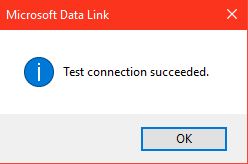
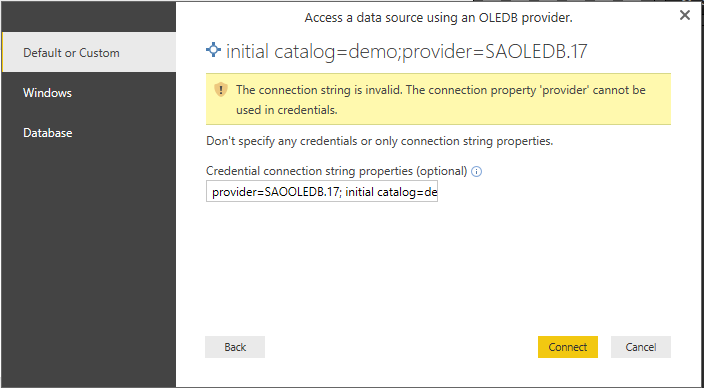
This is a continuation of my previous post wherein the Power BI created connection string spawned an error.
In the previous post we saw that the following connection information did not work.


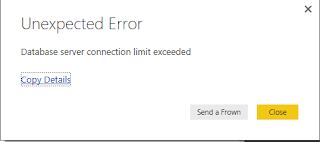

The response was correctly returned as shown.

I believe the From OLE DB stage of the wizard is not working too well unless you use the Advanced Option. Even with SQL Server 2016, the problem was if one did not use the Advanced Option (this has not been tested yet) the connection will open all the objects on the server and not just the one chosen with the Data Link stage of the wizard.
In the previous post we saw that the following connection information did not work.

I changed the connection string by using database instead of Initial Catalog and it seemed to work by displaying the demo database database objects in the Navigator.
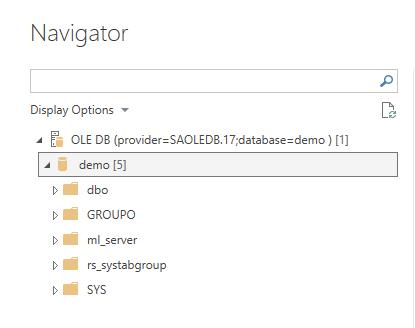
However attempting to expand any of them displayed other error
messages. Also, even without changing initial catalog to database
displayed the same objects in the Navigator.

There are no other connections to this database and it is not to reason out this error.

It was then decided to try out the Advanced Option in the From OLE DB dialog.
Used the same Connection Information and then in the Advanced Option dialog inserted a SELECT query (you can use any other query) and clicked OK. However there was one more dialog requesting Username/Password.

The response was correctly returned as shown.

I believe the From OLE DB stage of the wizard is not working too well unless you use the Advanced Option. Even with SQL Server 2016, the problem was if one did not use the Advanced Option (this has not been tested yet) the connection will open all the objects on the server and not just the one chosen with the Data Link stage of the wizard.