Showing posts with label SQL Operations Studio. Show all posts

Tuesday, August 21, 2018

Querying SQL Server 2017 Version 17.3 using SQLOPS

 There are already system databases. Make sure that the server has started. Start it if it has not started in Control Panel, or otherwise.

I have a default instance of SQL Server 2017 Verion 17.3 and I connect to it as described here.

Launch SQLOPS from its shortcut and click New Connection as shown


SQLServer17SQLOPS_0

The New Connection window opens as shown.


SQLServer17SQLOPS_1

Enter the items as shown.


SQLServer17SQLOPS_3

Click Connect.
You are connected as shown.
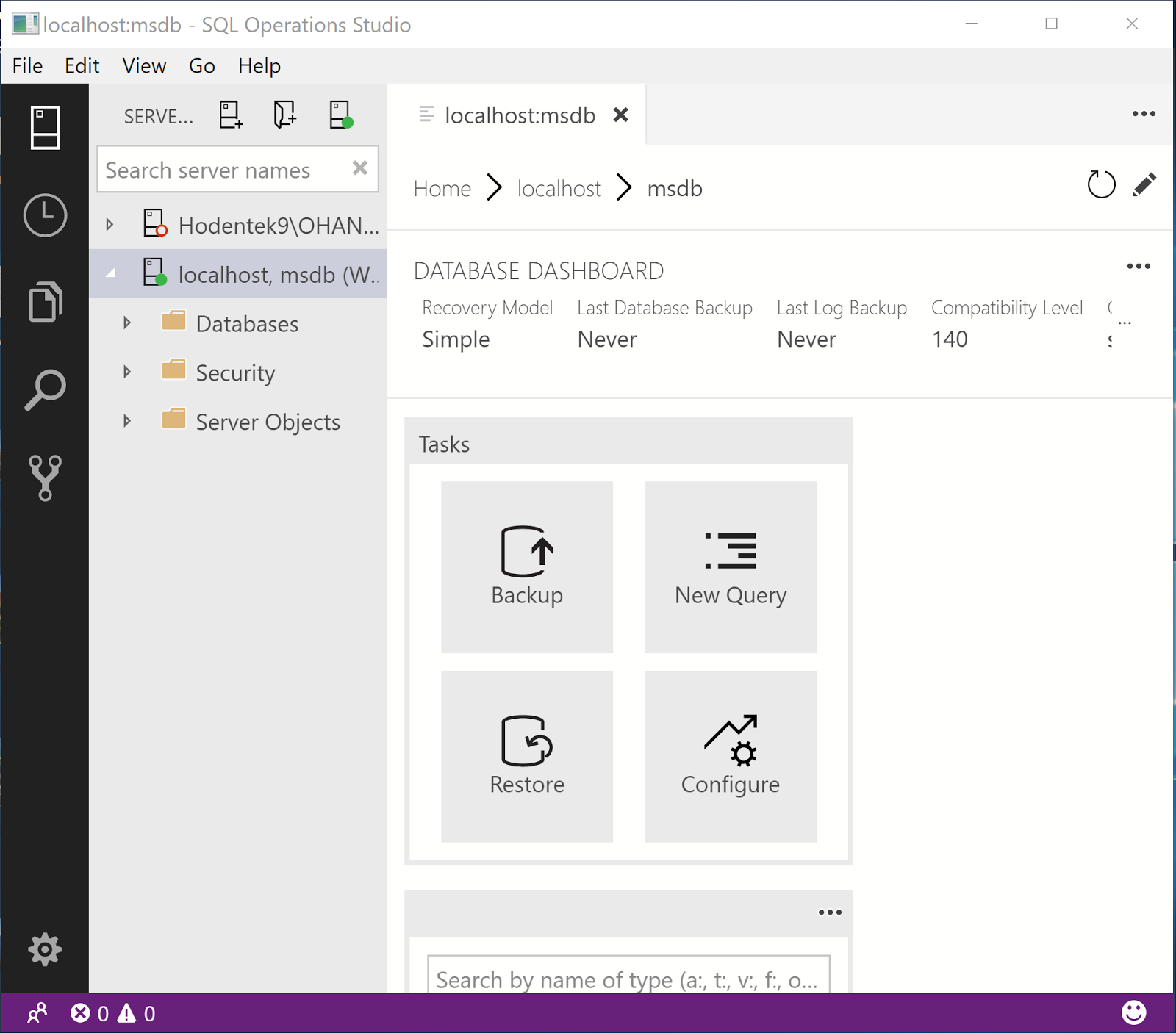


Click New Query to open a new query window as shown.


SQLServer17SQLOPS_6

Type S and a drop-down list appears.


SQLServer17SQLOPS_7

Complete a query as shown:

SELECT @@version


SQLServer17SQLOPS_8

Click Run and review the result as shown:


SQLServer17SQLOPS_9

Right click the result, copy and paste it in Notepad as shown:

Microsoft SQL Server 2017 (RTM) - 14.0.1000.169 (X64)  Aug 22 2017 17:04:49  Copyright (C) 2017 Microsoft Corporation Developer Edition (64-bit) on Windows 10 Pro Insider Preview 10.0 (Build 17025: ) (Hypervisor)

Note: It was mentioned that you type in msdb as a database. In fact just localhost is all that is neccessary to connect.

Tuesday, July 31, 2018

Using SQL Operations Studio

In order to use a program, it is first of all necessary to have a clear understanding of the User Interface for screen driven application.

SQLOPS when invoked brings up the user interface screen. It is here you do most of your development.

As mentioned in previous posts this is a light-weight tool. It provides a much easier interface then the SQL Server Management Studio, a heavy-weight option.

You invoke the program by double clicking the sqlops.exe in the folder where you saved the application files.

The following window is displayed:


The following icon joins the taskbar in Windows 10.


The UI is simple and the main menu items opens the following sub-menus.
The File menu item has the query related and has access to folder/file sysyem


 The Edit meu item is like any other Microsoft application (Word, Excel, ...)


The View menu item has many more important items such as Servers, Explorer,


The Help menu is important as it is here you get he main documentation as well as initial knowledge for you to start using it.


The icons in the panel on the left gives access to the tasks and the keyboard key shortcuts.


I think even non-DBA types can use this interface. It is cool!!


Tuesday, December 5, 2017

SQL Operations Studio User Interface

In order to use a program, it is first of all necessary to have a clear understanding of the User Interface for screen driven application.

SQLOPS when invoked brings up the user interface screen. It is here you do most of your development.

As mentioned in previous posts this is a light-weight tool. It provides a much easier interface then the SQL Server Management Studio, a heavy-weight option.

You invoke the program by double clicking the sqlops.exe in the folder where you saved the application files.

The following window is displayed:


The following icon joins the taskbar in Windows 10.


The UI is simple and the main menu items opens the following sub-menus.
The File menu item has the query related and has access to folder/file sysyem


 The Edit meu item is like any other Microsoft application (Word, Excel, ...)


The View menu item has many more important items such as Servers, Explorer,


The Help menu is important as it is here you get he main documentation as well as initial knowledge for you to start using it.


The icons in the panel on the left gives access to the tasks and the keyboard key shortcuts.


I think even non-DBA types can use this interface. It is cool!!


SQL Operations Studio - Light-weight database management and development tool

Well there is a heavy-weight tool, SQL Server Management Studio that is installed as a separate application from SQL Server installation (used to be a part of the SQL Server installation).

SQL Operations Studio is a lighter tool. It is free and you can carry out database development operations using it. It is available for SQL Server on Windows, Linux and Docker, Azure SQL Database and Azure SQL Data warehouse on Windows, Mac or Linux.
The preview version became available in November of 2017.

If you would like to use it you need to download the version you want from here:


I downloaded the Windows version. You need to extract the files into a folder. 


The executable is sqlops.exe and it is indeed a small file.


SQLOPS user interface in Windows 10


When Identity Security Becomes a Wall — Not a Shield

After a breach that forced a reset of my digital identity, I hit a roadblock I never anticipated: multi-factor authentication (2FA) locked m...