Showing posts with label SSMS. Show all posts

Saturday, November 23, 2024

SQL Server 2025 ready to go

 I have not yet done looking at SQL Server 2022, SQL Server 2025 is ready to go. Microsoft is indeed relentless! 

Microsoft announced SQL Server 2025 at the Microsoft Ignite event in Chicago. Now , AI spans all over the Microsoft Eco system and that includes SQL Server. This time around Microsoft introduced SQL Server 2025 and SQL database on Fabric.


SQL Server is integrated with AI with:

  • Vector search
  • Vector Indexing using DiskANN
  • T-SqL functions to support generation embedding and text chunking

Another useful feature added is the support for calling external REST APIs into SQL Server, a feature that existed in AZURE SQL Database. This AI feature makes it easy to store your AI models on premises and use them right away.

SQL Server 2025 will have optimized locking and will support native JSON datatype and improvements to Always on Availability groups. Also,GIT support for Microsoft Management Studio was announced. With this SSMS has now what is called a dark mode! 

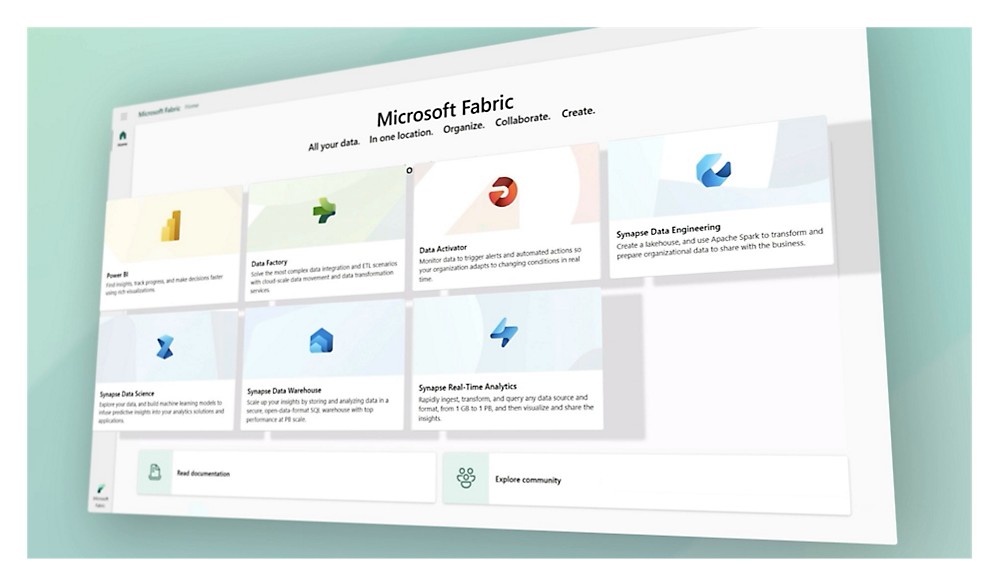
Furthermore, a new product was announced, the SQL Database on Fabric. Microsoft Fabric is its unified analytics platform that integrates various datatools under one title. It is supposed to simplify data analysis and insights for both professionals and business users. 

Hey, Google does not have one such thing under a single title, but it has various functionalities dispersed in its cloud.

Let's move on!

More here:

https://www.microsoft.com/en-us/sql-server/blog/2024/11/19/announcing-microsoft-sql-server-2025-apply-for-the-preview-for-the-enterprise-ai-ready-database/


Tuesday, July 31, 2018

Enabling Machine Learning in SQL Server - 1

The important question is whether Machine Learning (ML) is enabled or not.

You can find if ML is enabled or not by the following:


Launch SQL Server, the version for which you want to use and start a New Query. Run the following in the context of the server:


sp_configure 'external scripts enabled'

Depending on the response to this query, you can find whether Machine Learning is installed or not. If the run_value=0, ML is not enabled.

MachineLearning_0
However the following query gives more information.


MachineLearning_1
You need to install 'Advanced Analytics Extensions' to enable Machine Learning (Using R or Python)

Monday, January 22, 2018

Restoring legacy database to SQL Server 2017 using Microsoft SQL Operations Studio

You can restore a database to SQL Server using the SQL Server Management Studio(SSMS). It is a feature rich tool for restoring and backing up databases. Besides restoring and backing up SSMS can carry out a ton of other tasks.

Here is an example of using SSMS to restore a database to SQL Server.

Why use Microsoft SQL Opertions Studio?

For one thing it has small foot print and it is free (preview now). It is lightweight and can do only a few of the things. You can restore a database with fewer clicks than with SSMS.

On my Windows 10 Professional, I have installed SQL Server 2017 Developer edition. I will restore the Northwind database from its backup file on CodePlex. Being a preview, Microsoft SQL Operations Studio has a few kinks and I have a workaround to bypass the kink and get the result.

Watch the video for the restore opeation:
https://www.youtube.com/edit?o=U&video_id=-KOXjlRACSU

Restore operation using Windows PowerShell
https://hodentekmsss.blogspot.com/2016/03/easy-way-to-backup-sql-server-database.html

Read many more related PowerShell posts here.

Tuesday, December 5, 2017

SQL Operations Studio - Light-weight database management and development tool

Well there is a heavy-weight tool, SQL Server Management Studio that is installed as a separate application from SQL Server installation (used to be a part of the SQL Server installation).

SQL Operations Studio is a lighter tool. It is free and you can carry out database development operations using it. It is available for SQL Server on Windows, Linux and Docker, Azure SQL Database and Azure SQL Data warehouse on Windows, Mac or Linux.
The preview version became available in November of 2017.

If you would like to use it you need to download the version you want from here:


I downloaded the Windows version. You need to extract the files into a folder. 


The executable is sqlops.exe and it is indeed a small file.


SQLOPS user interface in Windows 10


Tuesday, July 25, 2017

Generate database object scripts with mulit-platform tool mssql-scripts

In your SSMS on your computer you can use the Generate Scripts drop-down
menu to create scripts for database objects as shown here for Northwind database on SQL Server 2016 SP1.


The above is for SQL Server on Windows Platform. However, mssql-scripts tool provide the same functionality as Generate Scripts wizard on SQL Servers on Linux and macOS. Of course mssql-scripts would work on Windows as well.

Using mssql-scripts based on Python you can generate T-SQL scripts for objects on SQL Servers, Azure SQL database and Azure SQL Data Warehouse. The generated script is saved to a .sql file or on Linux can be piped to standard Unix utilities (sed, awk and grep). The scripts can be checked into source control systems as well.

The source code for mssql-scripter is found here:
https://github.com/Microsoft/sql-xplat-cli

Saturday, July 15, 2017

Microsoft SQL Server Management Studio 17.1 is generally available

SSMS Version 17.1 became available in June 2017 and you may want to downladd and install. This version will work with all editions of SQL Server so far (2018 to 2017). However some of the older applications written using older versions may still need older versions of SQL Server Management Studio.

Download the latest version of SQL Server Management Studio (version 17.1) here:

https://docs.microsoft.com/en-us/sql/ssms/download-sql-server-management-studio-ssms

If you had had SSMS version 17.0, you may get a notification as to availability of version 17.1 which should facilitate installing the new version.


You need to restart after installing.


These are the enhancements in this version:

  • Profiler: Help > About now displays release version number (e.g 17.1)
  • Analysis Service users can refresh credentials for their datasources for 1200 TM models and above from the context menu on the datasource
  • Built-in SSIS reports now show logs from SSIS scale-out execution in CTP 2.1
  • SSIS scale-out management application
             View basic information about scale-out master.
             Easily add a Worker to the scale-out deployment.
             View all the scale-out workers and basic information about them, and can also enable or disable them easily.

This version will also have toast notifications when new updates are available. It also has a new stand alone web installer.

Sunday, May 21, 2017

SELECT query on OpenJSON using SQL Server 2016


OpenJSON converts an array of objects in a variable in JSON Format to a rowset
that can be queried with standard SQL Select statement.

Here is an example:

We are going to look at a JSON list of my first batch of students who took my course shown here. 

["wclass",
{"student":{"name":"Linda Jones","legacySkill":"Access, VB 5.0"}
},
{"student":{"name":"Adam Davidson","legacySkill":"Cobol, MainFrame"}
},
{"student":{"name":"Charles Boyer","legacySkill":"HTML, XML"}
}]

This is the result of running OpenJSON using the above:


Now you can run a SELECT query with a with clause on the rows returned by OpenJSON as shown here:

The first member "wclass" has nulls for the selected columns. It exists because it actually was in the original XML that got converted to JSON.
Here are my more recent JSON related articles:

JSON validation in SQL Server:
https://hodentekmsss.blogspot.com/2016/11/using-json-validator-in-sql-server.html

Nested JSON using SQL Server 2012:
https://hodentekmsss.blogspot.com/search?q=json

Retrieve JSON formatted data from SQL Anywhere 17
https://hodentekmsss.blogspot.com/2016/11/retrieve-data-from-sql-anywhere-17-in.html

Tuesday, February 28, 2017

Constructing Wide World Importers database - Part 1

In order to get this database first go here ( https://github.com/Microsoft/sql-server-samples ).

There are three releases of which the first one Wide World Importers sample database v1.0 is the one you should get.

Before you begin to do this task, verify that you have done a dependent tass (upgrading to SP1). If not, go here and complete the task.

Click on that link. This should take you to this site here .

I will show you the easy way to get this task done. SQL Server has both Backup / Restore hookups that you can use.
Download WideWorldImporters-Standard.bak

From Databases choose Restore Database....


Restore Database screen gets displayed. Click on Device and click the ellipsis button to locate the backup file.


Go locate the backup file you downlaoded as shown (your location will be different).

Click OK. The file can now be accessed by the processor.


Click OK. After a short while of processing you should see this message.


 Wide World Importers is now in your named instance of SQL Server 2016 SP1 as shown.


It does come with data as shown.


Don't you think it was easy!

Friday, September 23, 2016

The latest update to SQL Server Management Studio does not really update

Most recent upgrade to SSMS was released.

Download the latest here (https://msdn.microsoft.com/en-us/library/mt238290.aspx)

SSMS-Setup_ENU.exe:

New build is supposed to be this:
SQL Server Management Studio (16.4.1, build version 13.0.15900.1).


You probably had this version (13.0.15600.2) like I had.


SSMS_9_23_2016

The latest has some bug fixes as well as some new changes.

The link above gives access to the changelog links to issues fixed and new items or features.

These are new in this update:

New 'Read-SqlTableData', 'Read-SqlViewData', and 'Write-SqlTableData' cmdlets to view and write data using PowerShell.
Trello Read-SqlTableData Card
Microsoft Connect item #2685363

New 'Add-SqlLogin' cmdlet to enable new login management scenarios using PowerShell.
Microsoft Connect item #2588952

I downloaded and executed the downloaded program. I saw the usual splash screen such as this one:


After restarting it takes a while to finish the uploading and completing. I am in no great hurry but for a busy shop this is some what of a problem.

But after all this the program has not made any change to SSMS. This is what I see in the SSMS  | About after upgrading.

SSMS_9_23_2016_NewIsIt
The build version should have been this:
build version 13.0.15900.1
but it is still the old one, 13.0.15600.2

Hello! Microsoft

Sunday, September 18, 2016

String_escape() new in SQL Server 2016

When compared to an earlier version, SQL Server 2016 has two new string functions shown in the next image.


String2016.png

The syntax for the new function:
STRING_ESCAPE(text, type)

text is nvarchar expression representing the object to be escaped and type is the the rule to be applied and presently the rule is only for type 'json'. This was required because SQL Server 2016 supports JSON and some of the special characters in the data may not give the correct JSON format.

The return type of json supported are shown in this table.


String_escape_0

Some of these tested in the SQL Server Management Studio 2016 are shown here:


Form Feed is seldom used and I do not know what the purpose is and the same with backspace.

Read more here:
 https://msdn.microsoft.com/en-us/library/mt684589.aspx


Monday, August 8, 2016

Exporting a Data-tier application from SQL Server using SSMS has a problem

According to MSDN (https://msdn.microsoft.com/en-us/library/hh213241.aspx)  it is quite simple to Export a data-tier application. Here is an overview of exporting a database as a Data-tier .bacpac file which can be deployed to another server.

"Exporting a deployed data-tier application (DAC) or database creates an export file that includes both the definitions of the objects in the database and all of the data contained in the tables. The export file can then be imported to another instance of the Database Engine, or to Azure SQL Database. The export-import operations can be combined to migrate a DAC between instances, to create an archive, or to create an on-premise copy of a database deployed in SQL Database.
"
The steps are very clear as the Export data-tier application task brings up a wizard and you just have to follow the steps.
The following screen shots show the process for exporting from a SQL Server 2012 instance.

Initiating the Export Data-Tier Wizard. Click Export Data-tier Application...


Wizard shows up.

Click Next.


In the above you can save it to a local disk (Folder/File) or save to Microsoft Azure. Here the default is accepted.

The Next is greyed as there was an earlier file. However the database had changes and a new one was created with a different name.


Data in the tables will also be exported.


Click Finish. The Wizard starts processing.


The result of processing is that the operation did not succeed.


The reason is in the error shown below.


Looks like some implied incompatibility with some Microsoft Azure SQL database. It may be noted that the target file was supposed to be saved to the local disk and not Microsoft Azure.

This happens in SQL Server 2014 as well.

According to a recent MSDN forum post, the failure in SQL Server 2012 and SQL Server 2014 for this particular case of Northwind database is perhaps related its


Thursday, July 9, 2015

Notes on installing SQL Server Management Studio June 2015 Preview

SQL Server Management Studio June 2015 Preview released recently (June 27) supports the latest capabilities of Azure SQL Databases and SQL Server 2016 (?CTP). ). This version also has bug fixes to the earlier version as well as customer requested features. You could also work with other versions of SQL Server.

Read more here.

However, in order to install this version on your computer you should first remove the SQL Server 2016 CTP2 (version SQL Server 2016 CTP2 version 13.0.200.172(x64)) as the new version is not compatible.


You need to upgrade your SQL Server version to the new version or remove the old version and install the June 2015 Preview downloading the web installer.


7/12/2015: After installing SQL Server Management Studio 2016 CTP2.1 the version of SSMS you have is the following:

The June 2015 preview is probably an even more recent SSMS version (to be checked).
7/13/2015: Looks like the SSMS version for both SQL Server 2016 CTP 21 and SQL Server Management Studio June 2015 Preview are one and the same.

Friday, April 17, 2015

Can you use Windows Power Shell to find the login you created?

In the previous post you created a login and verified using SQL Server Management Studio but you can also use Windows PowerShell to verify it.
You can do it two-ways. Using Invoke-SQLCMD or use the SQL Server SQL provider -SQLPS

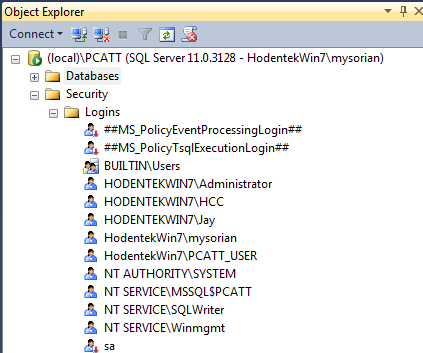
Here are the logins for my instance named PCATT on my laptop Hodentek\Win7 for whim the administrator.


I can use SQLPS after launching as follows:

 
Or I can invoke SQLCMD via Window PowerShell's Invoke as shown here with some sample output:

PS SQLSERVER:\> invoke-sqlcmd -ServerInstance '(local)\PCATT' -Query 'Select * from Sys.syslogins'| export-csv "C:\Users\Public\PCATTLogins"
PS SQLSERVER:\>

The following is a cutout of the PCATTLogins text file on Notepad.


Monday, November 24, 2014

Accessing SQL Server via SMO using PowerShell - A quick workout

In order to understand SQL Server the surest way is to get to understand the SQL Server Management Objects known by its acronym 'SMO'. You can programmatically access and manage SQL Servers with this object model.

I have described with code listing as to how you may access Azure SQL Database in my comprehensive Azure SQL Database related book.
"A step-by-step procedure to connect to SQL Azure using SMO" is described on page 119, Chapter 3 of this book.
Microsoft SQL Azure: Enterprise Application Development, Packt Publishing,  Dec 2010.


SMO is the foundation using which the SSMS was built. The name space for the SMO is Microsoft.SqlServer.SMO.

In a previous post, I showed you how to run PowerShell in SQL Server Management Studio. Here is a quick screen shot to refresh your memory.

As you can imagine the SMO object model is quite large and starts off with the Server at the top. This image shows only a part of this object model.


You should be able to access the complete model at this link:
http://msdn.microsoft.com/en-us/library/ms162209.aspx

In order to access SMO using PowerShell you need to load the assembly as shown in the next image.


With the following you can get all the members as shown.

Once you do that you can access the top-level object, the Server.

SMO is object based and hierarchical. You define the SQL Server as a new object using the next listing where "servername" is your computer or the server and instance name is the SQL Server instance. In the present listing it is "Hodentek\RegencyPark"
-----------
PS C:\Users\Jayaram> $sqlServer = new-object ("Microsoft.SqlServer.Management.Smo.Server") "Hodentek8\RegencyPark"

Since you defined  the server, you can find its version as shown in the following listing:
----
PS C:\Users\Jayaram> $sqlServer.version
Major  Minor  Build  Revision
-----  -----  -----  --------
11     0      2218   -1


---------------
The next two lines of code finds the status of the server as well as the root directory of the instance. 
-------------
PS C:\Users\Jayaram> $sqlserver.status
Online
PS C:\Users\Jayaram> $sqlserver.RootDirectory
c:\Program Files\Microsoft SQL Server\MSSQL11.REGENCYPARK\MSSQL
----------
Accessing the databases:

Databases are also objects and you need declare a variable for them as shown here:
----
PS C:\Users\Jayaram> $sqlDatabase=$sqlServer.Databases
----
The above declaration will not display a response but you have indeed declared the variable $sqlDatabase
Since there are more than one database, you need to get information from this collection as shown in the next listing:
-------------
PS C:\Users\Jayaram> foreach($sqlDatabse in $sqlServer.Databases){$sqlDatabase.name}
AdventureWorks2012
master
model
msdb
ReportServer$REGENCYPARK
ReportServer$REGENCYPARKTempDB
tempdb


These are the databases in my SQL Server Instance named RegencyPark.


In a future post we will see how to query database and other tasks


Tuesday, July 8, 2014

Creating a linked server to SAP/Sybase SQL Anywhere 16 server in SQL Server 2012 Express

Linked servers offer the following advantages as noted in MSDN documentation:

•The ability to access data from outside of SQL Server.
•The ability to issue distributed queries, updates, commands, and transactions on heterogeneous
data sources across the enterprise.

•The ability to address diverse data sources similarly.
There are two ways to create Linked Servers in SQL Server 2012.
  • Using SQL Server Management Studio(SSMS)
  • Using the sp_addlinkedserver stored procedure(T-SQL)
In this post a Linked Server to Sybase(SAP) SQL Anywhere Server 16 will be created using SSMS  
 in SQL Server 2012 Express. Both the servers are installed on Windows 7 Ultimate
(x64bit) Toshiba Laptop computer.

Required information for SQL Anywhere 16
If you do not have SQL Anywhere 16, you can download the free developer version here after
registering:
http://sqlanywhere-forum.sap.com/questions/15828/its-here-sql-anywhere-16-developer-edition--
download

When you install SQL Anywhere 16 on your computer you can access the servers from the shortcut
shown here:


When you double click the Network Server (64-bit) you would be starting the server. The server details can be seen on the starting screen:


From this server  you get the information:

Servername: demo2
Port on localhost: 2638
Name of database: demo.db

SQL Anywhere 16 installation also brings in ODBC drivers, both x32 bit and x64bit. On a Windows
(x64) machine you can access both of them in separate ODBC Manager screens. To access
their shortcuts enter ODBC in the Start | Search screen. From here you can choose either of them.

However if you start from Control Panel | System and Security | Administrative Tools |ODBC Manager the x64bit version is displayed as shown:


During SQL Anywhere 16 installation a  System ODBC DSN - SQL Anywhere 16 DEMO  is also installed as shown.


Creating a linked server in SQL Server 2012 Express

It was not clear that a linked server can be created in SQL Server 2012 Express. Not a word about
Linked Servers in the features supported by SQL Server 2012 was available:
http://msdn.microsoft.com/en-us/library/cc645993(d=printer,v=sql.110).aspx#SSIS

However under Server Objects node in SQL Server you can find Linked Servers with the following providers that allows you to create linked servers with other vendor databases such as SAP, Oracle, DB2 etc.


In order to begin the process of creating a linked server right click Linked Servers node and click New Linked Server...

This opens up a window with three pages (General, Security and Server Options) as shown.


General Page:
In the General page you provide a name (your own: Herein Test_SAP) for the Linked Server.

For provider the default is Microsoft OLE DB Provider for SQL Server. You can click the drop-down
and select Microsoft OLE DB Provider for ODBC or Sybase(SAP)'s SQL Anywhere OLE DB Provider
16 (SAOLEDB.16) from the drop-down list shown.


Although  Microsoft OLE DB Provider for ODBC (aka MSDASQL) can be used for creating a linked
server,  you will not be successful because there is no (x64) version of this for Windows 7 (x64). If you are on a Windows Server 2003, or a Window's Vista machine there are URLs on the Internet where you can download them.

Going forward, the post uses the SAP's SQL Anywhere OLE DB Provider 16.

Choose the SQL Anywhere OLE DB Provider 16  from the drop-down list.

The Product name is optional and you can type in anything.

For the Provider string use the following:
Server: demo16; dbf: demo.db --Info from the server earlier

For the Data source, use the System ODBC DSN: SQL Anywhere 16 DEMO -from ODBC Manager

For Location (which only gets enabled after you choose SQL Anywhere OLE DB Provider 16) enter the following:
Localhost:2638 -- from demo 16 screen

For Catalog: enter demo

The completed screen of the General page is as shown:


Security page:
In the Security page enter the credentials to access the sample database demo (login: dba,
password: sql--case sensitive) on demo 16 server as shown


Server Options:
In the Server Options page make entries as shown here:


You have to enable RPC and RPC-Out options (I am still studying this)  as shown above.

Allow Inprocess option for the provider:

You also need to enable Allow Inprocess option for the SAOLEDB.16 provider.

Access the SAOLEDB.16 provider from Linked Servers | Providers node. Right click SAOLEDB.2 and open the property page as shown and enable 'Allow Inprocess' option.


Now this completes the creation of a linked server. Click OK on the New Linked Server page. 

A new linked server Test-SAP will be created in the Linked Server's node displaying the objects in the 'demo' database on the SQL Anywhere 16 server demo16 as shown.


The first two tables owned by DBA are not in the sample database that you get after installing the
SQL Anywhere 16 server. These were created during another study to connect SQL Anywhere 16
server to OpenOffice and LibreOffice programs. These can be accessed here:

http://hodentek.blogspot.com/2014/02/libreoffice-42-does-better-than.html

This post greatly benefited from discussions and suggestions from moderators (Volker Barth and Breck Carter ) on the SAP forum.

Here are some helpful links;
MSDASQL:
http://social.msdn.microsoft.com/Forums/sqlserver/en-US/46dc0747-4006-429a-85f0-
fd976d75bae9/is-there-a-msdasql-64-provider-on-windows-7-ultimate-x64-bit-os?
forum=sqldatabaseengine#cb4dc072-899e-4689-879f-11312c920c7b

Link to Linked Server for Sybase IQ 16 on Solaris:
http://arbime.wordpress.com/2013/11/14/ms-sql-2005-create-a-link-server-to-sybase-iq-16/

Get all my linked server articles here:
http://hodentek.blogspot.com/search?q=linked+server

Get all my SQL Anywhere articles here:
http://hodentek.blogspot.com/2013/08/looking-at-sql-anywhere-after-long-break.html
When Identity Security Becomes a Wall — Not a Shield

After a breach that forced a reset of my digital identity, I hit a roadblock I never anticipated: multi-factor authentication (2FA) locked m...