Why do we need to import data into MS Excel? If we need to use the number crunching power of
Excel then we need to get the data from the SQL Server to MS Excel.
The following steps show you how to import.
Microsoft Excel [herein using Microsoft Office 2010 Professional Plus (x32bit) on a x64bit
Windows 7 Ultimate] has a Data tab in its ribbon as shown.

There are different ways you can get the data from SQL Server.
In this post importing data from
SQL Server 2012 using MS Query will be described.
Click on From Other Sources and in the drop-down click on From Microsoft Query.
This will require an ODBC Connection information.

How do you create an ODBC connection to SQL Server 2012?
Follow this link for a step-by-step procedure:
http://hodentekmsss.blogspot.com/2013/08/how-do-you-create-odbc-dsn-to-sql.html
When you click on From Microsoft Query the following window, Choose Data Sources window is displayed:

I have created several ODBC datasources over a period of time and the most recent one is to SQL Server 2012 with the name, sqlSrvr2012* at the very bottom.
Click on sqlSrvr2012 and click OK.
The Choose Columns of the Query Wizard will be displayed. You can see many columns even those including from System. Scroll down to the one you want to import (herein, Product Sales for 1997).

Click on that column and click on the symbol > between the two panels to bring over the columns to the right panel as shown.

Click Next to reveal Filter Data of the Wizard as shown:

Accept the default (no filtering) and click Next.
The wizard's Sort Order window is displayed as shown:

Accept the default (no sorting) and click Next.
Query Wizard's Finish screen is displayed as shown. Here you can get the data into MS Query window( open all the time we were working with the Wizard) or get it into Excel as shown.
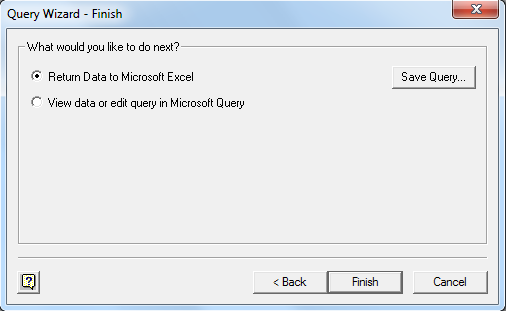
Accept the first option and click Finish. You may also save the query if you like.
The program takes you to the Excel's sheet with the Import Data screen asking you how and where to display the imported data. The options are Table (into a table structure) beginning in the column $A$1. Both of them can be changed.

Click OK and after a brief processing the imported data will appear as shown:
 Enjoy!
Mahalo
Excel then we need to get the data from the SQL Server to MS Excel.
The following steps show you how to import.
Microsoft Excel [herein using Microsoft Office 2010 Professional Plus (x32bit) on a x64bit
Windows 7 Ultimate] has a Data tab in its ribbon as shown.
There are different ways you can get the data from SQL Server.
In this post importing data from
SQL Server 2012 using MS Query will be described.
Click on From Other Sources and in the drop-down click on From Microsoft Query.
This will require an ODBC Connection information.
How do you create an ODBC connection to SQL Server 2012?
Follow this link for a step-by-step procedure:
http://hodentekmsss.blogspot.com/2013/08/how-do-you-create-odbc-dsn-to-sql.html
When you click on From Microsoft Query the following window, Choose Data Sources window is displayed:
I have created several ODBC datasources over a period of time and the most recent one is to SQL Server 2012 with the name, sqlSrvr2012* at the very bottom.
Click on sqlSrvr2012 and click OK.
The Choose Columns of the Query Wizard will be displayed. You can see many columns even those including from System. Scroll down to the one you want to import (herein, Product Sales for 1997).
Click on that column and click on the symbol > between the two panels to bring over the columns to the right panel as shown.
Click Next to reveal Filter Data of the Wizard as shown:
Accept the default (no filtering) and click Next.
The wizard's Sort Order window is displayed as shown:
Accept the default (no sorting) and click Next.
Query Wizard's Finish screen is displayed as shown. Here you can get the data into MS Query window( open all the time we were working with the Wizard) or get it into Excel as shown.
Accept the first option and click Finish. You may also save the query if you like.
The program takes you to the Excel's sheet with the Import Data screen asking you how and where to display the imported data. The options are Table (into a table structure) beginning in the column $A$1. Both of them can be changed.
Click OK and after a brief processing the imported data will appear as shown:
Mahalo