PowerBI 2.0 was released recently (http://blogs.msdn.com/b/powerbi/archive/2015/07/24/power-bi-is-generally-available-today.aspx). According to the link there appears to be two items, Power BI Service and Power BI Desktop. Power BI Visualization framework and its library will be available on GitHub as well. Microsoft seems to have included an unbelievable sources of data which you can use to create and enjoy your visualization (Review screen shots at the conclusion of this post).
Review articles on\using previous version here:
Power BI Unchained
http://hodentek.blogspot.com/2015/02/power-bi-unchained.html
Spin out a cutting edge report with Power BI
http://hodentek.blogspot.com/2015/02/spin-out-cutting-edge-report-with-power.html
Visualizing data on SAP's SQL Anywhere
http://hodentek.blogspot.com/2015/02/powerbi-preview-reporting-from-sql_13.html
Excel data visualization with Power BI
http://hodentek.blogspot.com/2015/02/powerbi-preview-reports-using-data-on.html
Power BI Service: Cloud Hosted Bi and Analytics
Power BI Service download is from this link.
https://powerbi.microsoft.com/?WT.mc_id=Blog_GA_James
I used Sign-in on the above linked page with my personal live.com acccount. It appears you cannot use just your Microsoft account (that anybody can get for free) but the Office 365 or enterprise account.
 PowerBI_01
However this did not work for me. I am trying to resolve this issue with Microsoft.
Well, the mantra, 'five seconds to sign up, five minutes to WOW' did not work for me. I shall WOW later.
Installing the Power BI Desktop
Power BI Desktop can be downloaded from here:
https://powerbi.microsoft.com/desktop
Install double clicking the Windows Installer Package PBIDesktop_x64 (55.6MB).

PBIDesk02.png
Agree to licensing terms. Accept default location. After one or more screens page with Install button will be displayed. Click Install. User Control Access window is displayed. Click OK. Progress page is displayed.
PowerBI Desktop is installed quite rapidly.
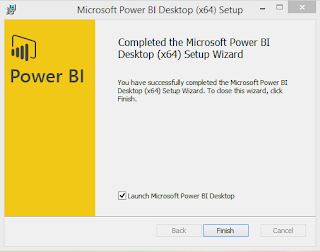
PBIDesk06.png
A new desktop icon replacing the one from the preview version is created.
Launching the application displays the following window.
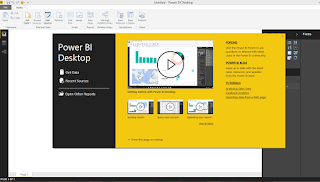
PBIDesk07.png
Dismiss the start up screen and you will see the Power BI Desktop with the 'ribbon'.
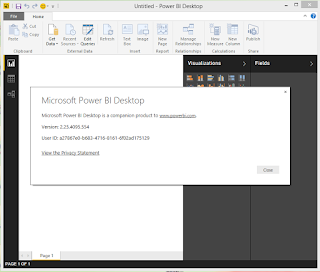
PBIDesk08.png
Happy Visualizing Data!
How does this stack up against Tableau and Qlik?
These are the most popular data sources:
 PBI_getData1
Here is the complete listing
 PBI_getData2
 PBI_getData3

Review articles on\using previous version here:
Power BI Unchained
http://hodentek.blogspot.com/2015/02/power-bi-unchained.html
Spin out a cutting edge report with Power BI
http://hodentek.blogspot.com/2015/02/spin-out-cutting-edge-report-with-power.html
Visualizing data on SAP's SQL Anywhere
http://hodentek.blogspot.com/2015/02/powerbi-preview-reporting-from-sql_13.html
Excel data visualization with Power BI
http://hodentek.blogspot.com/2015/02/powerbi-preview-reports-using-data-on.html
Power BI Service: Cloud Hosted Bi and Analytics
Power BI Service download is from this link.
https://powerbi.microsoft.com/?WT.mc_id=Blog_GA_James
I used Sign-in on the above linked page with my personal live.com acccount. It appears you cannot use just your Microsoft account (that anybody can get for free) but the Office 365 or enterprise account.

However this did not work for me. I am trying to resolve this issue with Microsoft.
Well, the mantra, 'five seconds to sign up, five minutes to WOW' did not work for me. I shall WOW later.
Installing the Power BI Desktop
Power BI Desktop can be downloaded from here:
https://powerbi.microsoft.com/desktop
Install double clicking the Windows Installer Package PBIDesktop_x64 (55.6MB).

PBIDesk02.png
Agree to licensing terms. Accept default location. After one or more screens page with Install button will be displayed. Click Install. User Control Access window is displayed. Click OK. Progress page is displayed.
PowerBI Desktop is installed quite rapidly.

PBIDesk06.png
A new desktop icon replacing the one from the preview version is created.
Launching the application displays the following window.

PBIDesk07.png
Dismiss the start up screen and you will see the Power BI Desktop with the 'ribbon'.

PBIDesk08.png
Happy Visualizing Data!
How does this stack up against Tableau and Qlik?
Sources of data which you can use to create your visualization
These are the most popular data sources:

Here is the complete listing


