Wednesday, January 27, 2016

Find everything about objects and columns in SQL Server 2012

In SQL Server 2012, sys.columns is a view you can find in the node System Views in the msdb database.

The various columns in sys.views are shown in this next image. You can find everything about the Columns in this view.


If you know the ObjectID of the Column of a table in the database, you can find its name from this query, the intellisense gives you an idea of this selection.

SysColumnName.png

A typical query and its output are as shown for finding the column name from ObjectID.

SysColumnName_02.png

If you know the Column_Name then you can find Column_ID, the intellisense gives you an idea of this selection.

SysColumnID.png

A typical query and its output are as shown for finding Column ID from Column Name.

SysColumnID_02.png

Starting from table name you can get the columns from these queries:

You can also get the ObjectID of the table from this query:

Use Northwind
go
Select *
From sys.tables
where tables.name='Employees'

go

The above query returns one value=245575913
Using the above you can get a whole lot of information for the columns from this query:

Select *
from sys.columns
where Columns.object_id=245575913


Tuesday, January 26, 2016

Finding Collation used by the SQL Server objects

Collation is locale specific and you choose while installing the SQL Server. Sorting depends on this as well as case sensitiveness.


Collation.jpg


You can also search to find what kind of collation is supported on your server using the following query for the whole database (this example is for the master database)
Select name, COLLATION_NAME from sys.databases where name=N'master';
Response: SQL_Latin1_General_CP1_CI_AS master
If you have a column that is of varchar data type (something textual) you use this query for the column,
SELECT name, collation_name FROM sys.columns WHERE name = N'optname';
Response: optname SQL_Latin1_General_CP1_CI_AS

Note that there is a column called optname in the master database
You can find all the collations that are supported using this query:


CollationsSQLServer2012.jpg

Thursday, January 21, 2016

Reporting Services 2014 and Windows 10: The way out

Microsoft Edge, or simply Edge is the default browser in Windows 10. It is not designed to start with elevated permissions.

Reporting Services Server is accessed in the default Edge browser and you always end up with access denied for the user, <domain>/<User> for lack of sufficient permissions. One could use another browser such as Firefox but Reporting Services server cannot be accessed even when the browser is launched with elevated permissions. Firefox did not have problems in accessing the Report Server in SSRS 2012.


The way out for this in using the IE 11 browser that comes with Windows 10.

Saturday, January 16, 2016

Jump start getting a handle on Microsoft R Server

Enterprises will benefit enormously if they can get actionable insights into the data they hold in their servers. Analytics of the data is the key, predictive or otherwise. R language is well suited for this task and more and more companies will be looking for folks with this skill.

Analytics will be the beacon to follow by all enterprises in the future. Having mere data and not being able to act on it is something that everyone will rush to avoid. R language, a language meant for statisticss and analytics will be one of the most sought after skills in the near future.

Microsoft has thrown in a lot to be at the forefront, not only acquiring the Revolution Analytics Company but also making it one of the prime features of SQL Server 2016.

Microsoft will be rebranding Revolution Enterprise for Hadoop, Linux and Tera data as R Server.
If you are interested in this growing technology area you could jump start downloading the R Server Developer Edition which is free (as free can be). It's just like all the other developer's stuff, has all the features of enterprise but not production worthy.

Also Revolution R Open has been rebranded as Microsoft R Open which is also free. For those who are already using MicrosoftData Science Virtual will have a preinstalled R Server. It is not a stretch that R Server will be on Azure as well for machine learning and IOT.

Download R Server here.
http://blogs.technet.com/b/machinelearning/archive/2016/01/12/making-r-the-enterprise-standard-for-cross-platform-analytics-both-on-premises-and-in-the-cloud.aspx

Read more here:
http://blogs.technet.com/b/machinelearning/

Students following an acdemic course will be benefitted with the Microsoft DreamSpark Program .

Wednesday, January 13, 2016

Looking for Tables and Columns in SQL Server 2012

In SQL Server 2012, sys.columns is a view you can find in the node System Views in the msdb database.

The various columns in sys.views are shown in this next image. You can find everything about the Columns in this view.


If you know the ObjectID of the Column of a table in the database, you can find its name from this query, the intellisense gives you an idea of this selection.

SysColumnName.png

A typical query and its output are as shown for finding the column name from ObjectID.

SysColumnName_02.png

If you know the Column_Name then you can find Column_ID, the intellisense gives you an idea of this selection.

SysColumnID.png

A typical query and its output are as shown for finding Column ID from Column Name.

SysColumnID_02.png

Starting from table name you can get the columns from these queries:

You can also get the ObjectID of the table from this query:

Use Northwind
go
Select *
From sys.tables
where tables.name='Employees'

go

The above query returns one value=245575913
Using the above you can get a whole lot of information for the columns from this query:

Select *
from sys.columns
where Columns.object_id=245575913


Sunday, January 10, 2016

Creating a ColumnStore Index using the SQL Server Management Studio

ColumnStore index is  described in this post .

Of course you need Enterprise edition of SQL Server 2012 ColumnStore Index as on no other version it is supported. This post uses the SQL Server 2012 Developer Edition for demonstration.

However, if you have a developers edition of SQL Server 2012 you can see a few basic steps as described here.

Here are some step-by-step screen shots to create the  index

We will be creating the ColumnStore index for the Employees table which has already the following indexes.

In order to create a ColumnStore Index (only one per table) right click Indexes node and choose the Non-Clustered Columnstore Index as shown.

This brings up the New Index window as shown. The windows comes up with a default name for the index which you change or modify.


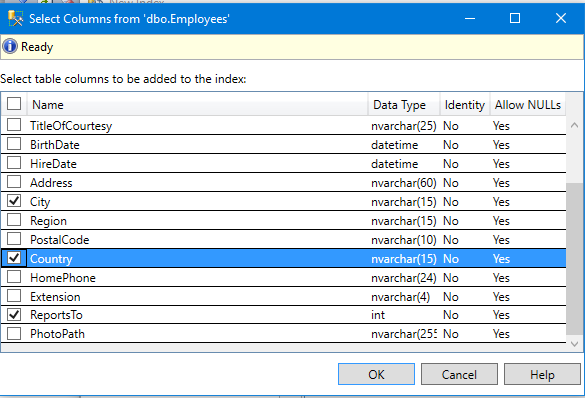
Modify or change name and click on the Add... button as there should be at least one column for the index. When you click on Add... button, the Select Columns from 'dbo.Employees' windows is displayed as shown.


Place check mark for the columns to be included. Here in three columns will be added. Preferably the data types of columns are either int or nvarchar. The one likely to be advantageous are those that are repeated in the table. Here Country, City and Reports to column are added.


Click OK and the information gets into the New Index window.


Click OK on the New Index window and the index is created as shown in the Indexes node in Object Explorer.

 You can look for this in sys.indexes as shown


When Identity Security Becomes a Wall — Not a Shield

After a breach that forced a reset of my digital identity, I hit a roadblock I never anticipated: multi-factor authentication (2FA) locked m...