Showing posts with label SQL Server Management Studio. Show all posts

Saturday, February 1, 2025

Encryption and connecting to SQL Server using SSMS

 This post is describes connecting to SQL Server 2022 using the SQL Server Management Studio and the encryption of connection.

For installing SQL Server 2022 and Microsoft SQL Server Management Studio go here[https://hodentekmsss.blogspot.com/2024/09/installing-sql-server-2022-on-laptop.html],here [https://hodentekmsss.blogspot.com/2024/09/customized-installing-sql-server-2022.html] and here[https://hodentekmsss.blogspot.com/2025/01/install-latest-version-of-sql-server.html].

This post assumes you completed the above two tasks and explores the SQL Server 2022.

Type SQL Server Management Studio App in the search box and click the app in the Search's pop-up.

You should be seeing this image with the Studio interface in the back of the Connect to Server window.

The Server Type:    Database Engine

The Server  Name: Computer name/SQL Server Instance name

Authentication:      Windows Authentication

User name: greyed Computer Name/Computer admin name

These are all the choices you made during installation. Refer to the earlier links in this post.

Connection Security: Early versions did not have this Encryption in this screen and it has three options:

1. Mandatory

2. Optional

3. Strict (SQL Server 2022 and Azure SQL)

This is followed by a checkbox to trust the Server Certificate. Place check mark here and click Connect.

This opens up the Object Explorer, the navigation hub of the SQL Server Management Studio App. 


In earlier versions you would have come across Always Encrypted feature. This feature ensures that sensitive data is always encrypted, even when it is being processed by the SQL Server. It uses client-side encryption to protect data before it is sent to the server, ensuring that the data remains encrypted throughout its lifecycle. 

Mandatory Encryption: This option ensures that the connection to the SQL Server is always encrypted. It uses Transport Layer Security (TLS) to encrypt the data transmitted between the client and the server. This is the default setting in SSMS 20 and later versions.

Optional Encryption: With this option, the connection can be encrypted if the server supports it, but it is not required. If the server does not support encryption, the connection will proceed without encryption. Note: This means that all features of the server can still be accessed, but the data transmitted between the client and the server will not be encrypted, potentially exposing it to security risks.

Strict Encryption: This option is available in SQL Server 2022 and Azure SQL. It enforces the highest level of encryption and does not allow the connection to proceed if the server does not support encryption. This ensures that the connection is always secure.

These encryption options are related to SQL Server encryption in the following ways:

Transport Layer Security (TLS): All three options use TLS to encrypt the data transmitted between the client and the server. TLS is a widely used protocol for securing data in transit and is supported by SQL Server.

Encryption Hierarchy: SQL Server uses a hierarchical encryption and key management infrastructure to protect sensitive data. This includes the use of encryption keys, certificates, and algorithms to secure data at rest and in transit.

The encryption options in SQL Server Management Studio (SSMS) have evolved over time. The "Always Encrypted" feature, which provides client-side encryption to protect sensitive data, was introduced in SQL Server 2016 and became available in SSMS starting with the October 2015 preview version (13.0.700.242) . This feature allows users to encrypt data in their databases without the database system having access to the encryption keys, ensuring that sensitive data remains protected even if the database is compromised.


wyatt from atlas
wyatt from atlas

Mandatory Encryption: This option ensures that the connection to the SQL Server is always encrypted. It uses Transport Layer Security (TLS) to encrypt the data transmitted between the client and the server. This is the default setting in SSMS 20 and later versions.


Optional Encryption: With this option, the connection can be encrypted if the server supports it, but it is not required. If the server does not support encryption, the connection will proceed without encryption. Note: This means that all features of the server can still be accessed, but the data transmitted between the client and the server will not be encrypted, potentially exposing it to security risks.


Strict Encryption: This option is available in SQL Server 2022 and Azure SQL. It enforces the highest level of encryption and does not allow the connection to proceed if the server does not support encryption. This ensures that the connection is always secure.


These encryption options are related to SQL Server encryption in the following ways:


Transport Layer Security (TLS): All three options use TLS to encrypt the data transmitted between the client and the server. TLS is a widely used protocol for securing data in transit and is supported by SQL Server.


Encryption Hierarchy: SQL Server uses a hierarchical encryption and key management infrastructure to protect sensitive data. This includes the use of encryption keys, certificates, and algorithms to secure data at rest and in transit.


The encryption options in SQL Server Management Studio (SSMS) have evolved over time. The "Always Encrypted" feature, which provides client-side encryption to protect sensitive data, was introduced in SQL Server 2016 and became available in SSMS starting with the October 2015 preview version (13.0.700.242) . This feature allows users to encrypt data in their databases without the database system having access to the encryption keys, ensuring that sensitive data remains protected even if the database is compromised.


Tuesday, January 14, 2025

Install the latest version of SQL Server Management Studio 20.2

This is the latest version of SQL Server Management Studio [build no:20.2.30.0, released July 9,2024]. Note: it is not an upgrade to SQL Server 19.x

  • SQL Server Management Studio (SSMS) is an integrated environment for managing any SQL infrastructure, from SQL Server to Azure SQL Database. 
  • SSMS provides tools to configure, monitor, and administer instances of SQL Server and databases. 
  • Use SSMS to deploy, monitor, and upgrade the data-tier components used by your applications and build queries and scripts.

You may download the executable from this link:

https://learn.microsoft.com/en-us/sql/ssms/release-notes-ssms?view=sql-server-ver16

You will find the following (SSMS-ENU) in your download:


You can doble-click the application to start installing. It takes a very short time to install as shown in these screenshots:


Click Install and installation begins.


These are some new features of the SQL Server Management Studio (from the Microsoft documentation).


Connecting to an existing SQL Server 2022:

Kindly follow the links for installing the SQL Server 2022:


If your SSMS 20.2 installation is successful you should be seeing in the Windows Control Panel  several additional components to ensure a smooth and comprehensive experience in using SQL Server Management Studio:

  • Microsoft Visual Studio Tools for Applications 2019: This is necessary for certain features within SSMS that rely on Visual Studio's development environment.
  • SSMS 20.2: The main application for managing SQL Server instances.
  • Microsoft Help Viewer: Provides access to documentation and help files within SSMS.
  • Microsoft OneDrive: This might have been included to facilitate cloud storage and synchronization of your files.
The SSMS20.2 installation also adds the launch program for the SSMS that you can find in the Search as shown here:

C:\ProgramData\Microsoft\Windows\Start Menu\Programs\Microsoft SQL Server Tools.

This folder has the following files: 

Shortcut to the SSMS 20.2 launch
Shortcut to Analysis Services Deployment Wizard 20
Performance tools folder

You can doble click to launch from this location or on the Search results:


The SSMS 20.2 above when clicked launches the application and the SSMS user interface is displayed as shown:


Although the program connects to the installed version of SQL Server it is looking for a trusted connection by way of a certificate. There is a check box below Encryption (that has three options) shown above.

If you do not check this box and try to connect you get the following exception:


If you do place a checm mark saying you trust and then connect you get the following display:


This connection is now OK and the SSMS is OPEN FOR BUSINESS!!!

If you are looking for working with databases, stay in and learn from over 15 years of blogging on databases here.  http://hodentekMSSS.blogspot.com

You may also have a look at my database related books:


Monday, August 6, 2018

Upgrading SQL Server Management Services to version 17.8.1

Microsoft delivers message such as this one if you are using SQL Server Management (SSMS) of the previous version.


SSMSAug6_00

In SSMS you can get to the menu item easily.

SSMSAug6_0

When you click on this you will be taken to the site shown below next image.


SSMSAug6_1

https://docs.microsoft.com/en-us/sql/ssms/download-sql-server-management-studio-ssms?view=sql-server-2017

You just download the executable (Not the Upgrade Package) shown.

SSMS-Setup-ENU.exe (806 MB)

By double clicking the executable you can install the new version.

Friday, May 18, 2018

Upgrading SQL Server Managment Studio v17.3

SQL Server Management Studio is no longer installed when you install SQL Server. It is a separate installation.

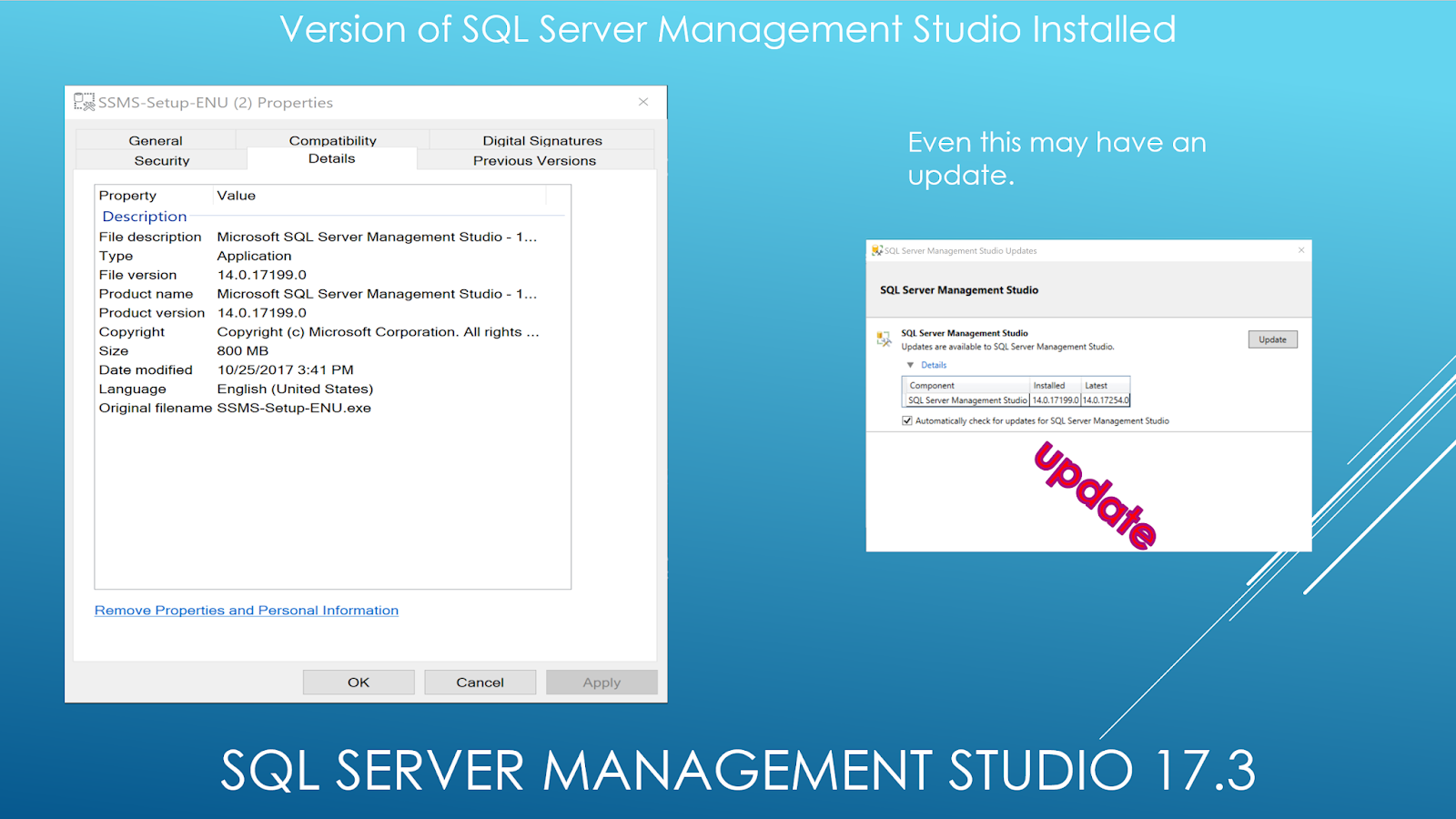
If you have SQL Server Management Studio Installed you may get a pop-up message informing you of an update. Even otherwise you can access the update using the following from your version of SSMS.


This post specifically related to upgrading from v17.3 to v17.7. If you are doing for the first time, you may install v17.7.

Here are some images of the upgrading.


This is also on a video:

Download link for the latest version:

Tuesday, May 2, 2017

SQL Server Management Studio for SQL Server 2016 is a separate Install

Recently downloaded SQL Server 2016 SP1 and to my surprise I did not find SQL Server Management Studio. This is by design that Microsoft wants user to download it separately, it is free however. In addition to SSMS (v17.0) lots of other components related to SQL Server vNext CTP 2.0 are also installed.

Another surprise, SQL Server 2016 SP1 now installs the SQL Server Configuration Manager.

How's that for confusion!


Install SSMS (Release 17) from this link:
https://docs.microsoft.com/en-us/sql/ssms/download-sql-server-management-studio-ssms

 SQL Server 2016 SP1 installation installs the following:


SQL Server Management Studio installs the following shown by arrows:


Thursday, November 3, 2016

Query Store is a new feature in SQL Server 2016

This is a new feature in SQL Server 2016 that provides with an insight into query plan choice and performance. As the query plan changes it helps you find the performance differences caused by the change.

Query store is automatic in that Query Store captures a history of queries, plans and runtime statistics for later review. It separates information chronologically by time windows so that you can view database usage patterns and monitor query plan changes that has taken place.

You need to enable the database to use this feature which an be done using SQL Server Management Studio as well as T-SQL Alter Database Set Option.

How do you turn it on using SQL Server Management Studio?

Since it is database related right click the database node after launching the SQL Server Management Studio and connecting to the server instance. The next image shows the result of right clicking the AdventureWorks 2014 database in SQL Server 2014.

QS_00.png

Click Properties to open the next window as shown.


QS_01

The Query Store Property has the following items:
General:
    Operation mode(actual)       default Off(disabled)
    Operation mode (Requested)   default Off but can be Read only or Read/write
Monitoring
    Data Flush Interval (Minutes)
    Statistics Collection Interval
Query Store Retention
    Max Size(MB)
    Query Store Capture Mode
    Size-based cleanup Mode
    Stale query Threshold(Days)

The previous window also shows the Current Disk Usage for database as well as Query Store.
As it is not enabled, the Query Store used is 0.0. You also have the option to purge the data.

You enable the Query Store feature by changing the Operation Mode(requested) from OFF to ON as shown.

QS_02

After it is enabled, a Query Store is added to the database as shown:

QS_03a.png


When Identity Security Becomes a Wall — Not a Shield

After a breach that forced a reset of my digital identity, I hit a roadblock I never anticipated: multi-factor authentication (2FA) locked m...