Showing posts with label Reporting Services. Show all posts

Sunday, September 30, 2018

SQL Server 2019 is in Public Preview now

Users as well as enterprises will be looking more and more at security and compliance features and SQL Server 2019 in Public Preview is just the thing they would love. Of course, it has the usual features of mission-critical availability; industry-leading performance and advanced analytics. Of course, you have to keep in mind that Power BI has become a part and parcel of SQL Server.

This is how Microsoft introduces SQL Server 2019:
"
Transform your business with a unified data platform. SQL Server 2019 comes with Apache Spark and Hadoop Distributed File System (HDFS) for intelligence over all your data.
"

Here are some highlighted description:

Intelligence over any data:
'SQL Server is a hub for data integration. Deliver transformational insights over structured and unstructured data with the power of SQL Server and Spark.'

Choice of language and platform:
'Build modern applications with innovative features using your choice of language and platform. Now on Windows, Linux, and containers.
'
Industry-leading performance:
'
Take advantage of breakthrough scalability, performance, and availability for mission-critical, intelligent applications, data warehouses, and data lakes.
'
Advanced security features:
'Protect data at rest and in use. SQL Server has been the least vulnerable database over the last 8 years in the NIST vulnerabilities database.
'
Make faster, better decisions:
'Power BI Report Server gives your users access to rich, interactive Power BI reports, and the enterprise reporting capabilities of SQL Server Reporting Services.
'

You can read more about it here:
https://www.microsoft.com/en-us/sql-server/sql-server-2019

Saturday, May 5, 2018

Reporting Services spawns an error if reporting services database is unavilable

Reporting Services databases are stored in the Reporting Services engine and for SQL Server 2016, you can find them in SQL Server Managment Studio 2016.

If you try to access Reporting Services URL, you will get the following error if the SQL Server hosting Reporting Services has not started.

Here is the error.


Here is the (start/stop) state of the related Database engine.


Here is the Reporting Services after starting the Database engine.


Saturday, May 13, 2017

Building an ODBC Connection String in Report Builder 3 for SQL Server 2016

ODBC source is one of the many sources that you can connect to in Reporting
Services using the Report Builder.

Here are the steps. It is assumed you have SQL Server 2016 SP1 installed; Report Builder is also
installed on the same machine. For these steps it is assumed that the SQL Server is up and running
and you are the owner of the computer who installed the SQL Server.

1. Launch Report Builder with Administrative Privileges.
2. Right click Data Sources and Click Add DataSource... to bring up the Data Source properties window.
3.  Provide a name for the data source, DS_ODBC
4. Choose Use a connection embedded in my report
5. Select connection type: click handle and choose ODBC at the bottom of list
6. Click Build... to bring up the Connection properties window
7. In the Data source specification section choose Use connection string:
8. Click the Build... button that gets activated to display Select Data Source window
9. Click Machine Data Source
10. In Machine Data Source tabbed page, click New... to display Create New Data Source
11. Accept the default, User Data Source and click Next
12. In the Select a driver for which you want to set up a data source, scroll down and
    select SQL Server (SQLSRV32.dll); click Next to display the next window
13  Click Finish. Create a New Data Source to SQL Server is displayed
14. Provide a name of your choice (ODBC_DSN); Description:(ODBC for Report Builder); Server
    use handle to locate: Hodentek9\OHANA. Click Next
15. Accept the default in the displayed page: with Windows NT authentication using the
    Network login id. Click Next
16. Change the default database by clicking handle to Northwind. accept all other
    defaults. Click Next
17. Accept all defaults on the displayed page. Click Finish
18. In the ODBC Microsoft SQL Server Setup page test the connection and make sure it works. Click OK
19. ODBC_DSN enters the Machine Data Source tabbed page. Click OK
20. SQL Server Login window gets displayed. Enter creator owner's credentials
21. Copy the connection string from the connection properties window.
Dsn=ODBC_DSN;description=ODBC for Report Builder;trusted_connection=Yes;app=Microsoft SQL Server;wsid=HODENTEK9;network=DBNMPNTW
22. Test Connection to make sure it works
23. Click OK
The Connection string enters the Data Source Properties window as shown.


Wednesday, May 3, 2017

Hands-on training event in Honolulu: SQL Server Reporting Services 2012 in Native Mode


Updated information: SQL Server 2016 SP1 will be used

This hands-on course will provide you with the ability to create cutting edge reports using Microsoft's latest reporting services product, SQL Server 2012.
The course is offered by the Pacific Center for Advanced Technology Training(PACTT): http://pcatt.hawaii.edu/home
Report writing is one of the most important IT related jobs in an enterprise. This course is for you if you would like to master report writing/authoring using SQL Server Reporting Services. The course begins with a presentation of essential technical background, after which you will work through guided hands-on exercises.
At the end of the course you will have gained:
• A solid understanding of how to interact with SQL Servers
• Knowledge and experience installing and configuring reporting Services
• A working knowledge of using Report Builder to author reports and deploy them to report server
• A working knowledge of Report Manager's ability to carry out administrative tasks related to all aspects of reports; creating shared data sources, folder and folder hierarchies on the report server, and report models; managing security and subscriptions; and configuring data driven subscriptions
• An understanding of how to embed report viewer controls in windows and web projects.


Venue: Honolulu Community College Honolulu Community College
874 Dillingham Blvd Honolulu, HI 96817-4598

Phone: (808) 845-9211

Official Website: honolulu.hawaii.edu/

Recommended Prep:
Computer literacy on a PC and experience using a database
- Section 1 - May 18 - Jun 27; TTh; 5:30 pm - 7:30 pm; 12 mtgs

Thursday, January 21, 2016

Reporting Services 2014 and Windows 10: The way out

Microsoft Edge, or simply Edge is the default browser in Windows 10. It is not designed to start with elevated permissions.

Reporting Services Server is accessed in the default Edge browser and you always end up with access denied for the user, <domain>/<User> for lack of sufficient permissions. One could use another browser such as Firefox but Reporting Services server cannot be accessed even when the browser is launched with elevated permissions. Firefox did not have problems in accessing the Report Server in SSRS 2012.


The way out for this in using the IE 11 browser that comes with Windows 10.

Saturday, October 31, 2015

Download SQL Server Data Tools Preview to work with SQL Server 2016 CTP3

SQL Server Data Tools preview can be used with Visual Studio 2013 or Visual Studio 2015 to work with SQL Server 2016 CTP3. However the preview for Visual Studio 2015 covers most of the features and this post describes downloading and installing the preview.

SQL Server Data Tools can be installed standalone or integrated into an existing Visual studio installation. If you have Professional or higher version of Visual Studio 2013 or 2015 and did not opt out off installing SSDT during setup the computer used must have an existing version of SSDT.

Here is your master reference for SSDT.

If you are using Community editions then standalone is your only option. You can download the SSDT Preview from these links:

  • SSDT Preview for Visual Studio 2013
    SQL Platform Support:
    SQL Server 2005 – 2016 CTP 3.0
    Azure SQL Database
    Azure SQL Data Warehouse

  • SSDT Preview for Visual Studio 2015
    SQL Platform support:
    SQL Server 2005 – 2016 CTP 3.0
    Analysis Services for SQL Server 2008 - 2016 CTP 3.0
    Integration Services for SQL Server 2016 CTP 3.0
    Reporting Services for SQL Server 2008 - 2016 CTP 3.0
    Azure SQL Database
    Azure SQL Data Warehouse
Getting the SSDT Preview for Visual Studio 2015 should cover most of the ground. In preparing for SQL Server 2016 CTP3, the SSDT Preview was installed. Here are some installation screen shots.

Double click the downloaded SSDT Setup.exe to start downloading and installing


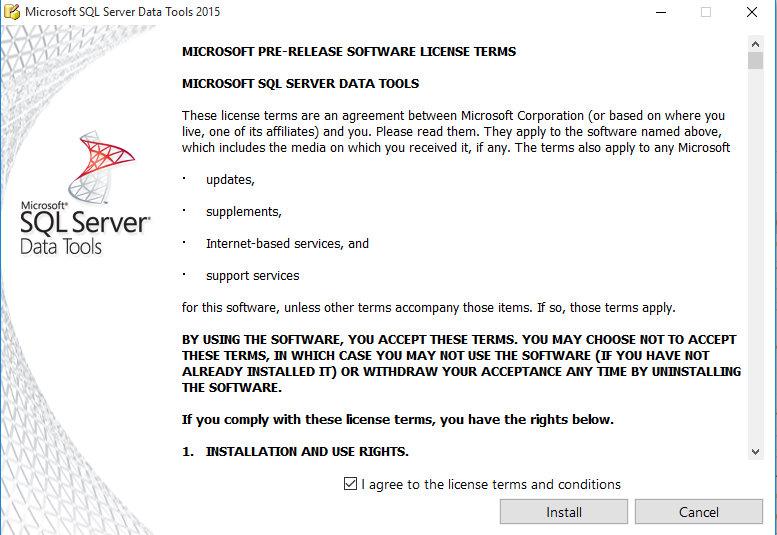
Click Next. Accept license terms as in the following


Click Install. This is going to be a slow process. It starts off like this.


 Downlaods everything needed for CTP3.


It's done.


Lots of programs are added to the computer. Have a look at Programs in the Control Panel's Programs and Features..


Looks like the Analysis Services, Reporting Services and Integration services get integrated with the Visual Studio 2015 Community.


Launching Visual Studio 2015 Community.

The start screen appears after a very long time and I hope it will be faster in the future.  It starts off with Object Browser.


The New Project window appears as shown with the BI | Analysis Services highlighted. 


OK. This is it. Now you can create BI projects with SQL Server 2016 CTP3 and other supported SQL Server Platform items.

Tuesday, April 1, 2014

SQL Server 2014 is ready to download. Download and Install now

SQL Server 2014 has lots of new stuff. If you worked with SQL Server  2012 it is time to upgrade. If you experimented with  SQL Server 2014 CTP1, you need to completely uninstall it.
 
 
Here are some highlights of this edition:


You can download SQL Server 2014 from the Technet Evaluation Center here:
http://technet.microsoft.com/en-US/evalcenter/dn205290.aspx

You can also download the express version here:
http://msdn.microsoft.com/en-US/evalcenter/dn434042.aspx

You get the following programs in the express edition:
  • LocalDB (SqlLocalDB)
  • Express(SQLEXPR)--Database Engine only
  • Express with Tools(SQLEXPRT)---Install & Configure database server+ SSMS
  • SQL Server Management Studio Express(SQLManagementStudio)
  • Express with Advanced Services(SQLEXPRADV)--includes Full Text Search & Reporting Services
Summary of some basic requirements:
  • .NET 3.5 SP1 is a requirement and is not installed by set up.
Download the above from here:
  • .NET 4.0 is also a requirement but the installaiton program downlaods and installs it.
  • PowerShell 2.0 is also a prerequisite and you have to install it if it is not present.
Operating Systems on which you can install:

Full list can be accessed here:
http://msdn.microsoft.com/en-us/library/ms143506(v=sql.120).aspx#hwswr
  • Enterprise and Business Intelligence versions installs only on Windows Servers (2012 and 2008 R2)
  • Standard Edition can be installed on Windows 7(x32 and x64) and windows 7 SP1(Ultimate to Professional)
  • SQL Developer covers the widest Windows operating Systems.
  • SQL Express can be installed on above mentioned Servers as well Windows 8, Windows 8.1 and windows 7 SP1


Sunday, October 20, 2013

SSDT for SQL Server 2014 CTP2

You will get SQL Server 2014 CTP2 Data Tools BI Project templates if you install Microsoft SQL Server 2014 Data Tools BI for Microsoft Visual Studio 2012, CTP2. Note that this does not work with Microsoft SQL Server 2012. It is supported only on x64 architecture of Windows Servers 2208 R2 and 2012 but on both X32 and X64 for Windows 7 and Windows 8.

Download link here
http://www.microsoft.com/en-us/download/details.aspx?id=40736

This is the file that is installed and is strictly to support CTP2 only:
SSDTBI_VS2012_x86_ENU.exe(537.1 MB), Version:12.0.15240 Published date:10/14/2013

This installs the Microsoft SQL Server 2014 CTP2 Data Tools Business Intelligence project templates for Analysis Services, Integration Services, and Reporting Services.

Make sure you have these on the computer as prerequisites:
•Microsoft .NET Framework 4.5
•Microsoft Visual Studio 2012 Shell (Isolated) Redistributable Package
•Microsoft Visual Studio 2012 Shell (Integrated) Redistributable Package
•Microsoft Visual Studio Tools for Applications 2012
•Microsoft Report Viewer 2012 Runtime

Details of December 2012 update here.

SSDT 2012 news here.


When Identity Security Becomes a Wall — Not a Shield

After a breach that forced a reset of my digital identity, I hit a roadblock I never anticipated: multi-factor authentication (2FA) locked m...