In my previous post I showed you how easy it is to bring the Wide World Importers (WWI) database into a named instance of SQL Server 2016 SP1 on your computer(desktop / laptop).
In this post I describe how you may construct the database on the named instance using a BacPac file.
If you have not used this kind of file please review the following link here.
In what follows I describe using the .bacpac file to construct the WWI database
Go here:
https://github.com/Microsoft/sql-server-samples/releases/tag/wide-world-importers-v1.0
Get this bacpac file:
Azure SQL Database Standard tier
WideWorldImporters-Standard.bacpac - standard edition OLTP sample database in bacpac format. For Azure SQL Databases in the Standard tier.
Download the 58.4 MB file from the above site.
SQL Server 2016 SP1 like the other versions has a wizard to bring the database using a .bacpac file such the one you downloaded.
You invoke the wizard as shown in the next image and follow through.
 bakpacWWI_01.png
Click Import Data-tier Applicaiton... to open the window shown in the next image. Read the steps in this introductory page.

bakpacWWI_02.png
Click Next. You click the Browse... button to locate the indicated file. This is the location to which I saved the WideWorldImporters-Standard.bacpac file.
It does not matter it is for Azure SQL Database.

bakpacWWI_03.png
After getting the file location from the location as shown in the next image proceed to next step.

bakpacWWI_04.png
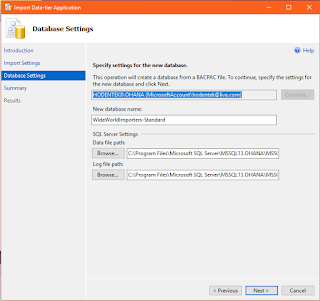
After getting the file location in the wizard's interface (the image one above the previous) click Next.
bakpacWWI_05.png
Just verify that the location for files are what you want. Herein defaults are accepted. You could browse and park elsewhere.
The database name was changed to WWI_Bacpac.
Click Next. The Summary of processing is presented as shown.
 bakpacWWI_06.png
Click Next. The next four images shows the progress captured in images. Indexes are dropped and created, etc.
 bakpacWWI_07.png
 bakpacWWI_08.png
 bakpacWWI_09.png
 bakpacWWI_10.png
Object explorer refreshed - last processing step.
The WWI database is imported successfully.
Here is the final verification of the import into the named instance.

In this post I describe how you may construct the database on the named instance using a BacPac file.
If you have not used this kind of file please review the following link here.
In what follows I describe using the .bacpac file to construct the WWI database
Go here:
https://github.com/Microsoft/sql-server-samples/releases/tag/wide-world-importers-v1.0
Get this bacpac file:
Azure SQL Database Standard tier
WideWorldImporters-Standard.bacpac - standard edition OLTP sample database in bacpac format. For Azure SQL Databases in the Standard tier.
Download the 58.4 MB file from the above site.
SQL Server 2016 SP1 like the other versions has a wizard to bring the database using a .bacpac file such the one you downloaded.
You invoke the wizard as shown in the next image and follow through.

Click Import Data-tier Applicaiton... to open the window shown in the next image. Read the steps in this introductory page.

bakpacWWI_02.png
Click Next. You click the Browse... button to locate the indicated file. This is the location to which I saved the WideWorldImporters-Standard.bacpac file.
It does not matter it is for Azure SQL Database.

bakpacWWI_03.png
After getting the file location from the location as shown in the next image proceed to next step.

bakpacWWI_04.png
After getting the file location in the wizard's interface (the image one above the previous) click Next.

bakpacWWI_05.png
Just verify that the location for files are what you want. Herein defaults are accepted. You could browse and park elsewhere.
The database name was changed to WWI_Bacpac.
Click Next. The Summary of processing is presented as shown.

Click Next. The next four images shows the progress captured in images. Indexes are dropped and created, etc.


Object explorer refreshed - last processing step.
The WWI database is imported successfully.
Here is the final verification of the import into the named instance.

bakpacWWI_10.png


