Showing posts with label JSON. Show all posts

Thursday, February 20, 2025

Is Vector Search in SQL Server 2025 the Key to Unlocking New Data Insights?

 The advent of AI has ushered in ground breaking changes in most areas of technology. AI is synonymous with a humongous amount of data, data of all types including text, image, audio and video. The databases of the future needs to cater to this changing vista of data and yet compatible with existing technologies.

Microsoft SQL Server has always catered to the technological changes and along its developmental path has introduced many data types to handle diverse data varieties and in recent years has introduced data types such as, "Json', "Stock" and "Geographical" data types. These address  the stock market and the geographical data that accompanies all global operations. 

In addition to data types, it has also changed itself to accommodate not only relational data but also non-relational NoSQL type of data using integration with polyphase technology.

Vector Data Type

SQL Server 2025 has introduced a new **vector data type** designed to store vector data optimized for operations like similarity search and machine learning applications. This is quite a leap for a relational database management system (RDBMS), as it traditionally handles structured data but can handle NoSQL Data.

How is Vector datatype stored in the SQL Server 2025?

A vector in SQL Server is typically stored as a JSON array of floating-point values. Here's an example of how you might define and use a vector in SQL Server:

-- Create a table with a vector column

CREATE TABLE dbo.vectors (

    id INT PRIMARY KEY,

    v VECTOR(3) NOT NULL

);

-- Insert data into the table

INSERT INTO dbo.vectors (id, v) VALUES 

(1, '[0.11, 2, -35]'), 

(2, '[-100.2, 0.0123, 9.876]'

-- Select data from the table

SELECT * FROM dbo.vectors;

This table with two columns has a column of vector data type not null. The vectors are [0.11, 2, -35] and [-100.2, 0.0123, 9.876]

The columns store three dimensional vectors with each dimension stored as a single-precision floating point (float type).

Vector Data Type is not available in 2022

The vector data type is not available in SQL Server 2022. You may have to store vector data type in a JSON column or something customized.

Image Processing and AI

In recent times image processing has been intensely studied. One may ask how to store the dimensional representation of an image. Well, images can have a very high dimensional representation.

• Grayscale Image: A 100x100 pixel grayscale image can be represented as a 10,000-dimensional vector (100x100 = 10,000).

• Color Image: A 100x100 pixel color image with RGB channels can be represented as a 30,000-dimensional vector (100x100x3 = 30,000).

In SQL Server 2025, the maximum number of dimensions that can be stored using the vector data type is 1998. Each element of the vector is stored as a single-precision (4-byte) floating-point value.

Can image dimensions be stored in SQL Server 2025?

The short answer for storing image dimensions in SQL Server is that it is not possible to store image dimensions without reducing the number of dimensions. There are techniques to reduce the dimensions with various pay offs in quality. We shall discuss them in a later post using a programming language such as python with the use of certain libraries.

Going forward in populating vector data type into the server the SQL Server Integration services can be used to preprocess the image data and then populate the database. This will also be for a future post.


If you are looking for working with databases, stay in and learn from over 15 years of blogging on databases here.  http://hodentekMSSS.blogspot.com

You may also have a look at my database related books:


Tuesday, March 20, 2018

Hands-on Learning Event in Honolulu 1 : Introduction to Structured Query Language


Database skills are essential in whatever organization and in whatever position and it is crucial that you have this in your arsenal (Resume')
Databases, organized repositories of information, have become indispensable in today's world. In this introductory course you will learn about relational databases and the basics of Structured Query Language (SQL) including sorting; grouping result sets; using DDL, DML, DCL, and TCL. All SQL statements will initially be written for one table. Most practical, modern and relational databases will include a large number of tables and SQL queries have to access information from several tables. This course will introduce you to querying more than one table. With this skill you will be able to query two or more tables in a database.
This is a hands-on course which will take you from installing SQL Server 2016 to learning the ins and outs of SQL Server Management Studio and of course a full dose of SQL. The course covers most of the requirements to take Microsoft's certification (98-364), the Microsoft Technology Associate. During each meeting, you will be assessed for your knowledge, competency and proficiency in SQL.

What's new in this session:

SQL Server Using Powershell
JSON and XML

 Section 1 - Apr 24 - May 24; TTh; 5:30 pm - 7:30 pm; 10 meetings (Register Online)

Thursday, January 25, 2018

JSON response from a SQL Query in SQL Server 2016

JSON is supported in SQL Server and it is very easy to obtain JSON formatted response from a query easily. For example,

while connected to Northwind database you get the JSON formatted data by running a query such as this one using the Products table:
---------------------------------
SELECT        ProductName, QuantityPerUnit, UnitPrice
FROM            Products FOR JSON Auto;
---------------------------------
The response will be as shown:


JSON_0

You could also return a single row of data as shown by running this query:
-----------------------
SELECT [ProductID]
      ,[ProductName] 
FROM [Northwind].[dbo].[Products]
WHERE ProductID=5
For JSON AUTO
-------------------------


JSON_1

The result comes in an array even if the returned data is just one row.

You could remove the array wrapper ([ ]) surrounding the result set by the following query:
-------------------
SELECT [ProductID]
      ,[ProductName] 
FROM [Northwind].[dbo].[Products]
For JSON AUTO, WITHOUT_ARRAY_WRAPPER
---------------------------------------

JSON_2

Notice that the array wrapper is gone in the result set.

You can further qualify where the data (Which table, for example) by adding a 'root' element by issuing this query:
------------------------
SELECT [ProductID]
      ,[ProductName] 
FROM [Northwind].[dbo].[Products]
For JSON AUTO, Root('Products')
------------------------

JSON_3

You are not allowed to use WITHOUT_ARRAY_WRAPPER and Root in the same sql query because you get the following message, if you do:

Msg 13620, Level 16, State 1, Line 5
ROOT option and WITHOUT_ARRAY_WRAPPER option cannot be used together in FOR JSON. Remove one of these options.

I am using SQL Server 2016 Developer's edition on my Windows 10 Pro laptop.

If you are new to JSON read the following:


If you are motivated to learn there are more here:


Wednesday, January 17, 2018

Hands-on Learning Event in Honolulu 1 : Introduction to Structured Query Language


Database skills are essential in whatever organization and in whatever position and it is crucial that you have this in your arsenal (Resume')

Databases, organized repositories of information, have become indispensable in today's world. In this introductory course you will learn about relational databases and the basics of Structured Query Language (SQL) including sorting; grouping result sets; using DDL, DML, DCL, and TCL. All SQL statements will initially be written for one table. Most practical, modern and relational databases will include a large number of tables and SQL queries have to access information from several tables. This course will introduce you to querying more than one table. With this skill you will be able to query two or more tables in a database.

This is a hands-on course which will take you from installing SQL Server 2016 to learning the ins and outs of SQL Server Management Studio and of course a full dose of SQL. The course covers most of the requirements to take Microsoft's certification (98-364), the Microsoft Technology Associate. During each meeting, you will be assessed for your knowledge, competency and proficiency in SQL.

What's new in this session
  • SQL Server Using Powershell 
  • JSON and XML
The class runs from Feb 6 to March 13 at Honolulu Community College.
(Register Online)

Feb 6 - March 13; TTH: 5:30 pm to 7:30 pm; 10 Mtgs

Sunday, November 27, 2016

Retrieve data from SQL Anywhere 17 in JSON format

SQL Anywhere 17 is a SAP Database.  Some of the earlier versions were released by SYBASE.

In SQL Anywhere 17 you have three different ways of getting JSON formatted data / JSON document.

You can use the FOR JSON clause  with:

  • SELECT Statement
  • Subqueries
  • Queries having Group By clause
  • Aggregate Functions and
  • Views
The result is a JSON array consisting of:

  • Scalar elements
  • Objects
  • Arrays
There are three ways of calling the FOR JSON Clause:

  • For JSON Raw
  • For JSON AUTO
  • For JSON Explicit
Note that SQL Server 2016 did get JSON support for the first time and has only For JSON Auto clause.

You run SQL Queries in Interactive SQL. Here is an example of a query that provides json document using the FOR JSON AUTO clause.


InteractiveSQL17JSON

Sunday, November 20, 2016

Creating a report using JSON formatted data with Power BI - Part 1

Power BI supports retrieving data from a variety of data sources that includes data in JSON format.

In the post you will learn how to retrieve JSON data from SQL Server 2016. You then retrieve this data into Power BI to create a report.

Creating a report requires massaging the JSON data retrieved using the Power BI user interface.

Creating JSON formatted data:

If you want to know how to retrieve JSON formatted data from your database in SQL Server go here:
http://hodentekhelp.blogspot.com/2016/11/how-do-you-retrieve-json-formatted-data.html

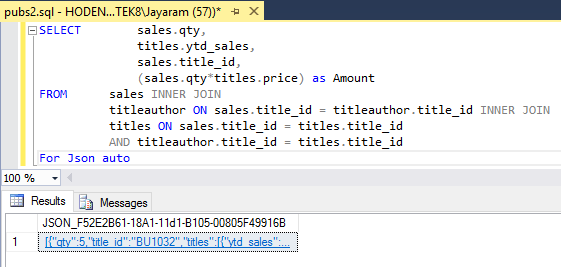
Here is the data that is going to be used in this post. The data is from a query against the pubs database (original compatibility 100) whose compatibility is changed to work with SQL Server 2016.


JsonPowerBI_00

You can run the query and save it as a file. Make sure there are neither extraneous characters in the file (like some sql message) nor does it have white spaces in side the JSON data.

Getting JSON Data into Power BI:


It is very easy to get the JSON data into Power BI. Just use the Get Data menu item in Power BI.

If you want to know details of how to retrieve JSON formatted data into Power Bi go here:
http://hodentekmsss.blogspot.com/2016/11/retrieving-json-data-in-power-bi.html

The data that was created in SQL Server is now retrieved into Power BI.

This is the first step. The data comes into Power BI as a list.
============
JsonPowerBI_01

 This is the formula behind this.
============
Json.Document(File.Contents("C:\Users\Jayaram\Documents\Blog2016\HodentekMSSS2016\Pubs11_20.json"))
==========
You can convert this list into a table using the menu ribbon item To Table in Convert.
After this the UI appears as shown with the list converted to a table.


JsonPowerBI_02.PNG

This is the formula behind this conversion:
=======
= Table.FromList(Source, Splitter.SplitByNothing(), null, null, ExtraValues.Error)
=========
When you click on a single  record this is what you see.
======


JsonPowerBI_03.PNG

The first record has three items shown at the bottom.

Now you can expand the record by clicking on the icon shown on the column 1 to split it into the items by continuously clicking it.

First cancel the dialogue that showed up earlier. Next click on Column1 and then click the icon to expand the column.

This is what happens the first click.
=======


JsonPowerBI_04.PNG
====

After clicking OK, this is what you will see in the Power BI UI.


JsonPowerBI_05
The formula behind the above is as shown here:
========
= Table.ExpandRecordColumn(#"Converted to Table", "Column1", {"qty", "title_id", "titles"}, {"Column1.qty", "Column1.title_id", "Column1.titles"})
============
As you can see that Column1.titles is still a list (and therefore can be expanded).
 ======
This can be further split by clicking on the icon in Column1.titles.

When you click this icon, you will see the following change.
You will observe that the list goes over into Record and the following is displayed.


JsonPowerBI_06

Click OK.
The display changes to this.


JsonPowerBI_07

Observe that there are no more columns ot be expanded.
The formula now appears as shown:
=============
= Table.ExpandRecordColumn(#"Expanded Column1.titles2", "Column1.titles", {"Amount", "ytd_sales"}, {"Column1.titles.Amount", "Column1.titles.ytd_sales"})
=============

Renaming the columns

You can right click on a column and from the drop-down menu rename it. The renamed columns appear like this as shown below. while renaming a column, you may get a message Insert Step. Just click Insert for the message and go to the next column.


JsonPowerBI_08

The formula behind the above is this:
==============
= Table.RenameColumns(#"Expanded Column1.titles3",{{"Column1.qty", "qty"}, {"Column1.title_id", "title_id"}, {"Column1.titles.Amount", "titles.Amount"}, {"Column1.titles.ytd_sales", "titles.ytd_sales"}})
============
The various steps to get to this stage is shown here:


JsonPowerBI_09

Now we have prepared the query and ready to create a report.

Continued in Part 2 here:
Creating a report using JSON formatted data with Power BI - Part 2

Sunday, November 6, 2016

Accessing a nested json formatted text using OpenJSON in SQL Server 2016

OpenJSON function is available for database compatibility levle is 130. That means you have a SQL Server 2016 installed.

Here is the syntax for OpenJSON tabled valued function.


OpenJson is a table-valued function that parses JSON text and returns objects in rows and columns.  You can use OpenJson function in a FROM clause of a Transact-SQL Statements like any table, view or table-value function.

Here is a simple example of a JSON text:
{"wclass":{"student":["jay", "john", "sam"]}}

Here is a code to use the OpenJson funtion.
------
declare @json nvarchar(150)
SET @json=N'{"wclass":{"student":["jay", "john", "sam"]}}';
SELECT * From OPENJSON(@json)
-----------------
This returns a table with three columns: key, value and type for 'wclass'
The type is the JSON type of the value.
In the above case the type=5 represents that {"student":["jay", "john", "sam"]} is Json Object.

Now we access the 'student' key of the json text as shown:
-------------
declare @json nvarchar(150)
SET @json=N'{"wclass":{"student":["jay", "john", "sam"]}}';
SELECT * From OPENJSON(@json,'$."wclass"')
-----------
This returns a table with the following:

Key: student
value: ["jay', "john", "sam"]
type: 4 which means it is a Json Array

Now we go into the array and look into it as shown:
========
declare @json nvarchar(150)
SET @json=N'{"wclass":{"student":["jay", "john", "sam"]}}';
SELECT * From OPENJSON(@json,'$."wclass"."student"')
=============
Now we get the Key, value and type as shown.


OpenJsonTypeColumn2.PNG
Each of the values are of type 1 ( that is they are of type string).

Here is table showing the type (an integer) of the return value of OpenJson function.


Tuesday, November 1, 2016

Change compatibility level of the database and JSON in SQL Server 2016

Working with SQL Server and  JSON  requires a compatibility level of 130 (SQL Server 2016). The post here describes how you can convert a JSON String and format a table in SQL Server.

The TestPubs (copy of pubs legacy database from Microsoft) database in an instance of SQL Server 2016 brought over by a data-tier related process does not change its compatibility level. However you can change its compatiblity level from 100 to 130 and with compatibility 130, the following query takes in a JSON string and converts it to a table with defaults. Here type 5 means it is an object.

declare @json nvarchar(150)
SET @json=N'[{"color": "red","value":"#f00"},{"color":"green","value":"#0f0"},{"color":"blue","value":"#00f"},{"color":"cyan","value":"#0ff"}]';
SELECT * From OPENJSON(@json)


Json130Open_00

Now if I revert the compatibility level to 100 and try the same query as before, I spawn an error as shown.


Json100Open_00


Friday, October 21, 2016

Parsing a nested JSON object using PowerShell

Parsing a JSON object using PowerShell can give quick and fast results without too much coding and navigating objects and this is especially true in the case of nested JSON objects.

For example consider this example:
{
  "name": "donut",
  "image":
    {
    "fname": "donut.jpg",
    "w": 200,
    "h": 200
    },
  "thumbnail":
    {
    "fname": "donutThumb.jpg",
    "w": 32,
    "h": 32
    }
}

In order to parse this using PowerShell you formulate this in a Here string and use the ConverstFrom-JSON cmdlet. The rest is easy as you see in this:


JSONNested_01

Compare with this method using a stored procedure in SQL Server.

This next one appeared in StackOverflow.com. The question was, how to get to the value item of slots (which is req1) in the following JSON formmated string.

{"request": {
  "locale": "en-US",
  "timestamp": "2016-09-25T00:36:14Z",
  "type": {
    "name": "request",
    "slots": {
      "RequestTypeItem": {
        "name": "RequestTypeItem",
        "value": "req1"
      }
    }
  }
}
}

One of the answers using JavaScript can be found here. It is correct and gets you to the value as 'req1'.

However, PowerShell provides quite an elegant answer using the ConvertFrom-JSON cmdlet as shown here:


NestedJson_2.png

Read many more related PowerShell posts here.

Sunday, September 18, 2016

String_escape() new in SQL Server 2016

When compared to an earlier version, SQL Server 2016 has two new string functions shown in the next image.


String2016.png

The syntax for the new function:
STRING_ESCAPE(text, type)

text is nvarchar expression representing the object to be escaped and type is the the rule to be applied and presently the rule is only for type 'json'. This was required because SQL Server 2016 supports JSON and some of the special characters in the data may not give the correct JSON format.

The return type of json supported are shown in this table.


String_escape_0

Some of these tested in the SQL Server Management Studio 2016 are shown here:


Form Feed is seldom used and I do not know what the purpose is and the same with backspace.

Read more here:
 https://msdn.microsoft.com/en-us/library/mt684589.aspx


Monday, May 16, 2016

Watch out: SQL Server 2016 General Availability Imminent

Get ready to test out the database server deemed to be the ground-breaking version with numerous new features. It will be available in the near future. Get the free Developer's edition.

In Microsoft's own language,

"SQL Server 2016 seamlessly manages both relational and beyond relational (JSON, XML, Hadoop) data, seamlessly integrates structured data with Hadoop data, and seamlessly integrates on-premises data with cloud data"

It has best of both worlds, "relational and beyond relational).

SQL Server is ideally suited for:

  •     Mission critical intelligent applications delivering real-time operational intelligence by combining built-in advanced analytics and in-memory technology without having to move the data or impact end user performance. 
  •  Enterprise scale data warehousing with enhanced in-memory columnstore that increases query performance by over 100x vs disk based solutions. With SQL Server 2016, you can also access optimized MPP scale out software that can be combined with scale out appliance architecture with our Analytics Platform System (APS).
  • Applications requiring the highest levels of security with new Always Encrypted technology that protects your data at rest and in motion without impacting database performance. 
  • Comprehensive business intelligence solutions on mobile devices with an end-to-end mobile BI solution built-in that can deliver insights on any device. You can also manage all of your KPIs, mobile reports and traditional reports from a modern web portal. 
  • New big data solutions that require combining relational data with non-relational data with PolyBase technology built-in that allows you to query structured and unstructured data with the simplicity of T-SQL. 
  • Hybrid cloud solutions that can reduce storage costs, improve high availability and simplify IT operations with new Stretch Database technology. This keeps more of your historical data at your fingertips by transparently and securely stretching warm and cold OLTP data to Microsoft Azure on-demand without application changes. In addition, faster replicas can be placed in Azure to give you cost effective disaster recovery and backups.
Read this original article from Microsoft blog at MSDN.
Source and italicized text taken from the above article.


Monday, May 11, 2015

Migarting from SQL to JSON using DocumentDB migration tool

Recently Microsoft made it easy to migrate data form certain sources to DocumentDB on Microsoft Azure. Review post here.

The following source data can be migrated to DocumentDB using the migration tool:
  • CSV file or files
  • JSON file or files
  • SQL
  • MongoDB
  • DocumentDB

  • This post shows how you may obtain response to your SQL query in JSON format using the migration tool.

    Although it seems it is not supported on Windows 8.1 from download documents, the present post was created using the DocumentDB run on a Windows 8.1 machine. The download details are here.

    The following steps show how the SQL response is obtained in JSON format, a format more suitable for Internet of Things.

    This screen shows up after launch

     
    Specifying source information. Source chosen here is SQL.

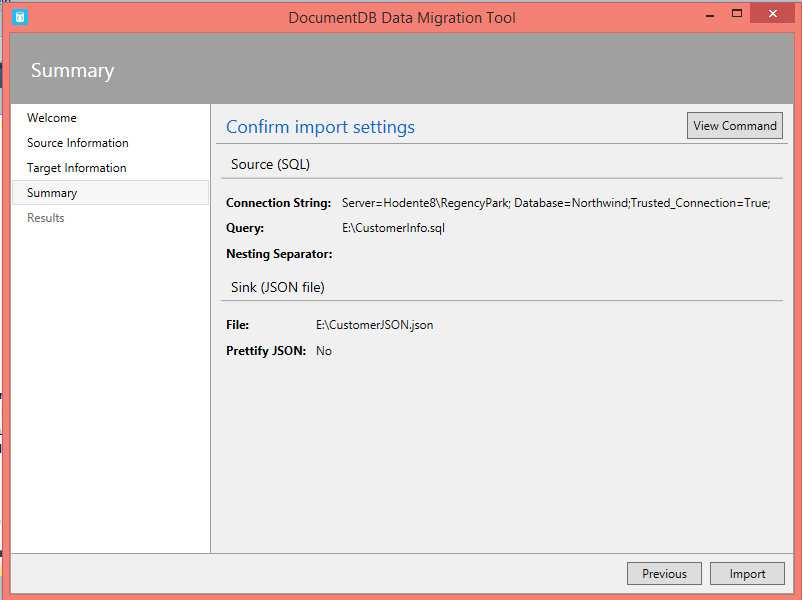
    Source of SQL is an instance of SQL Server 2012 on the local machine and the query is run against the Northwind database. The connection string is OK except it is case sensitive. Type it exactly as shown. Trying to get to read from a .sql file on the drive.


    Locating the file on the drive.

     
    Just before processing.

     
    Processing in progress.

     
    The above process failed.
    -------------------------------------
    New Process to import, this time providing a query as shown.

     
    Providing location for the response from processing.


    Details of processing.

    Processing completed, zero errors.

     
    Sample of response from the migration tool at the specified file location (only a small part is reproduced)
     
     
    SQL Comments are ignored.
     
    Happy migration!


    When Identity Security Becomes a Wall — Not a Shield

    After a breach that forced a reset of my digital identity, I hit a roadblock I never anticipated: multi-factor authentication (2FA) locked m...