Review this previous post http://hodentekmsss.blogspot.com/2014/11/accessing-sql-server-via-smo-using.html
In the above post you will get an introduction to Power Shell and SQL Server maangement Objects. You also learn how to access the SQL Server and carry out a few tasks like listing out all the databases.
In this post you will learn how to create a new database in SQL Server using SMO and Power Shell. Using Transact-SQL or the SSMS you can easily create a database. Using PowerShell is another option to create a database using a script.
Launch Power Shell by right clicking the instnace node as shown.

PS_SMO_DB01
This ensures that you have access to the SQLServer's SMO library.
You will be launching the shell with the following line:
PS SQLSERVER:\SQL\HODENTEK8\REGENCYPARK>
Enter the following code one line at a time. After you enter the line and click enter you may not get any message. Continue with the other lines.
$server= new-object Microsoft.Sqlserver.management.smo.server 'Hodentek8\RegencyPark'
$dbname= "Feb6"
$db=new-object Microsoft.Sqlserver.management.smo.Database ($server,$dbname)
$db.Create()
When the final command line is processed you will have created a new database Feb6 in your SQL Server Instance as shown. It will have default settings.
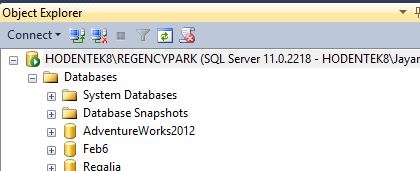
PS_SMO_DB02
In the above post you will get an introduction to Power Shell and SQL Server maangement Objects. You also learn how to access the SQL Server and carry out a few tasks like listing out all the databases.
In this post you will learn how to create a new database in SQL Server using SMO and Power Shell. Using Transact-SQL or the SSMS you can easily create a database. Using PowerShell is another option to create a database using a script.
Launch Power Shell by right clicking the instnace node as shown.
PS_SMO_DB01
This ensures that you have access to the SQLServer's SMO library.
You will be launching the shell with the following line:
PS SQLSERVER:\SQL\HODENTEK8\REGENCYPARK>
Enter the following code one line at a time. After you enter the line and click enter you may not get any message. Continue with the other lines.
$server= new-object Microsoft.Sqlserver.management.smo.server 'Hodentek8\RegencyPark'
$dbname= "Feb6"
$db=new-object Microsoft.Sqlserver.management.smo.Database ($server,$dbname)
$db.Create()
When the final command line is processed you will have created a new database Feb6 in your SQL Server Instance as shown. It will have default settings.
PS_SMO_DB02


