Showing posts with label SQL Server 2016. Show all posts

Monday, August 27, 2018

Install the latest version of SQL Operations Studio (0.31.4)

I was using SQL Operations Studio (SQLOPS) Ver 0.26.7 and I am upgrading to the July 2018 Public Preview version 0.31.4.

It is Available on Windows, macOS and Linux and you can download from here:
https://docs.microsoft.com/en-us/sql/sql-operations-studio/download?view=sql-server-2017


Installation procedute for all the OS's available on the above site.

This is the file for Windows OS:
sqlops-windows-setup-0.31.4.exe (74.3 MB)

Double click the executable to launch the application.
Here are the installation screen shots.


Accept license terms.


 The program is added to the PATH and you can launch soon after installing.


I connected to the SQL Server 2016 named instance after launching.


In the Preview you can see a number extensions that you will be able to access.


Monday, May 28, 2018

Data masked column in a table

If the table belongs to a database, then in the context of the database run the query:

SELECT * FROM sys.columns

If the column(s) is masked you should look for the column 'is_masked' in the response as shown.


Here is an example. The FirstName column in the Employees table in Northwind database is masked using the default masking function. When you run the above query this is what you will see.


Tuesday, March 20, 2018

Hands-on Learning Event in Honolulu 1 : Introduction to Structured Query Language


Database skills are essential in whatever organization and in whatever position and it is crucial that you have this in your arsenal (Resume')
Databases, organized repositories of information, have become indispensable in today's world. In this introductory course you will learn about relational databases and the basics of Structured Query Language (SQL) including sorting; grouping result sets; using DDL, DML, DCL, and TCL. All SQL statements will initially be written for one table. Most practical, modern and relational databases will include a large number of tables and SQL queries have to access information from several tables. This course will introduce you to querying more than one table. With this skill you will be able to query two or more tables in a database.
This is a hands-on course which will take you from installing SQL Server 2016 to learning the ins and outs of SQL Server Management Studio and of course a full dose of SQL. The course covers most of the requirements to take Microsoft's certification (98-364), the Microsoft Technology Associate. During each meeting, you will be assessed for your knowledge, competency and proficiency in SQL.

What's new in this session:

SQL Server Using Powershell
JSON and XML

 Section 1 - Apr 24 - May 24; TTh; 5:30 pm - 7:30 pm; 10 meetings (Register Online)

Friday, January 19, 2018

Generating query output in JSON is easy using Microsoft Operations Studio

Installing the January Preview (latest as of now) Microsoft SQL Operations Studio is easy. Follow the steps here .

Connecting to SQL Server 2016 is explained in details here.

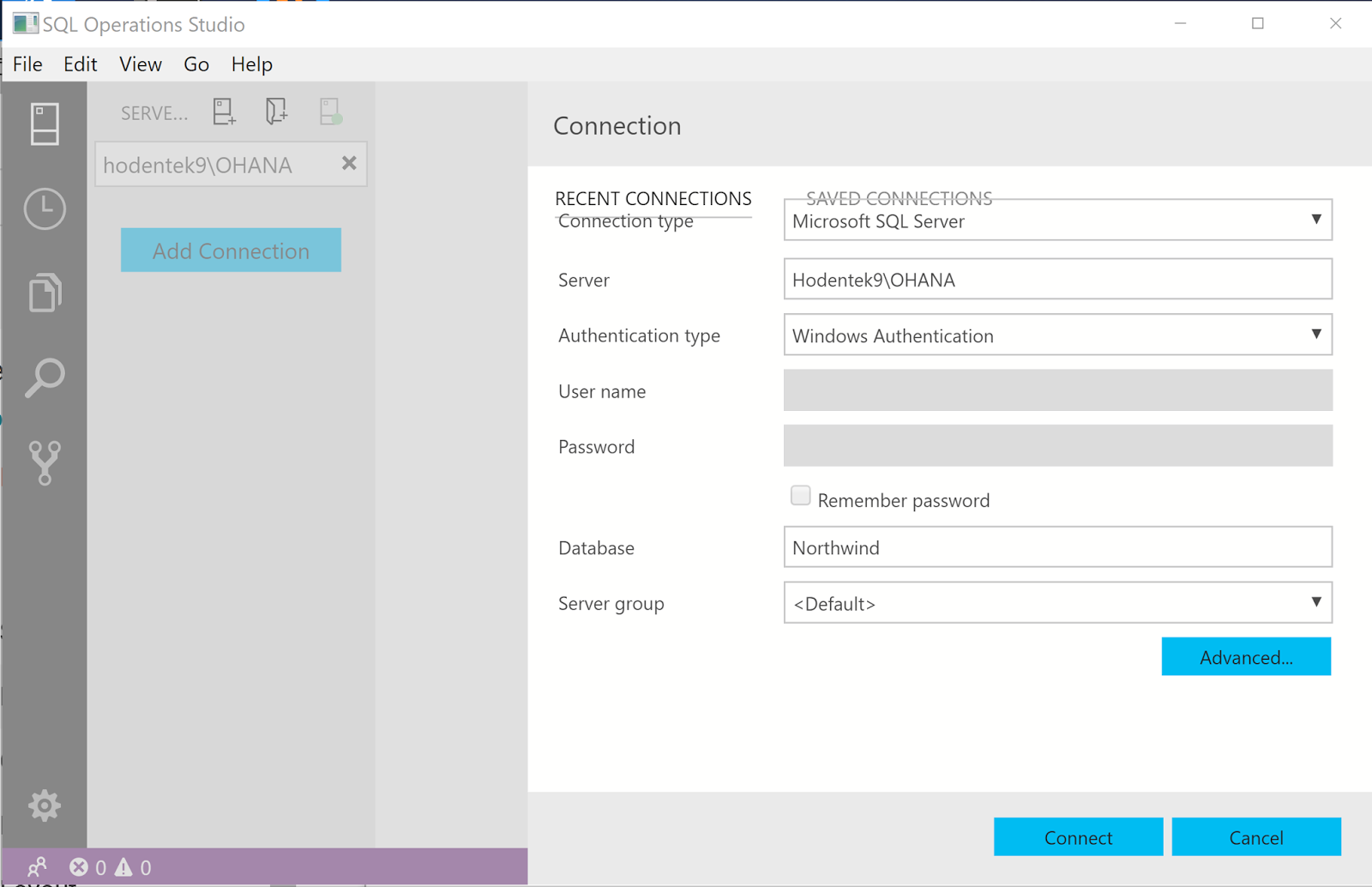
Connection is very easy, especially if you are using Windows Integrated authentication as shown here:


SQLOPS_JanPublicPreview_01

This screen in the January Preview is not quite what I expected. The two tabs (RECENT CONNECTIONS which is active and SAVED CONNECTIONS greyed out) in the background does not do anything.

Just click Connect and you are connected as shown.


SQLOPS_JanPublicPreview_02


Either we can run a new query or browse and get a saved query (with extension .sql).  I am trying a saved query from an earlier connection with an earlier version.


SQLOPSStudio_03

The query is displayed in the MSFT SQLOPS application as shown. But I see a reddish no-no on the connection on the left.


SQLOPS_JanPublicPreview_03
Anyway, just click Run to execute the query and the response appears in a pane below as shown.


SQLOPS_JanPublicPreview_04

Since this is a query from a query using another connection, the connection screen is displayed as shown.

Enter the conneciton information as before. The data entered is accpeted and the query is executed as shown.


SQLOPS_JanPublicPreview_05

Now click on the Save as JSON on the right. You will save it to the default folder that opens. After saving to folder JSON fromatted query result is displayed as shown.


SQLOPS_JanPublicPreview_06

It could not be simpler than this, really.

Read related article here:
https://hodentekmsss.blogspot.com/2016/06/exporting-data-from-sql-server-2016-as.html

Saturday, August 12, 2017

Tuesday, July 25, 2017

Generate database object scripts with mulit-platform tool mssql-scripts

In your SSMS on your computer you can use the Generate Scripts drop-down
menu to create scripts for database objects as shown here for Northwind database on SQL Server 2016 SP1.


The above is for SQL Server on Windows Platform. However, mssql-scripts tool provide the same functionality as Generate Scripts wizard on SQL Servers on Linux and macOS. Of course mssql-scripts would work on Windows as well.

Using mssql-scripts based on Python you can generate T-SQL scripts for objects on SQL Servers, Azure SQL database and Azure SQL Data Warehouse. The generated script is saved to a .sql file or on Linux can be piped to standard Unix utilities (sed, awk and grep). The scripts can be checked into source control systems as well.

The source code for mssql-scripter is found here:
https://github.com/Microsoft/sql-xplat-cli

Sunday, July 16, 2017

Restoring the Northwind database from its backup

A backup of Northwind database was obtained from the Codeplex site and was saved to one of the folders on a Dell computer with Windows 10 OS. The computer also has SQL Server Management Studio (v 17.1). You should be able to restore using the SQL Server Management Studio installed when you installed the SQL Server 2012 Database engine.

Follow these steps to restore the Northwind database to an instance of SQL Server 2012 (x86) installed on the same computer.

Step 1. Start SQL Server Management Studio v17.1 (Run as administrator)

The SSMS is version 17.1 and Hodentek9\PCATT is a SQL Server 2012 Express

Step 2. Right click the Databases node highlighted in the PCATT isntnace as shown.


RestoreDB_01

Step 3: Click Restore Database...

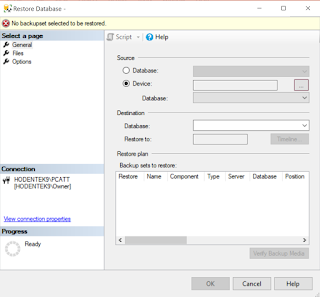
Restore Database window is displayed as shown.


RestoreDB_02

Step 4: The Default Source is Database and it is greyed out as shown. Chnage it to Device. The Restore Database gets changed as shown.


RestoreDB_03

Step 5: Click the ellipsis button along 'Device' in the above image.

Select backup devices window shows on top of Restore Database window as shown.


RestoreDB_04

Step 6: Click Add button in Select backup devices window.
Locate Backup File window gets displayed as shown.


RestoreDB_05

Usually the 'backup files with extension .bak' are found in the following directory in the case of x32 bit SQL Server.
C:\Program Files (x86)\Microsoft SQL Server\MSSQL11.PCATT\MSSQL\Backup

However, for this exercise it is stored in a different location.

Step 7: Now browse to that location and highlight the Northwind.bak (A backup file which came from a Microsoft site) as shown.


RestoreDB_06

Step 8: Click OK. The file path is entered in the Select backup devices window as shown.


RestoreDB_07.png

Step 9: Click OK
You are returned to the Restore Database - Northwind as shown.


RestoreDB_08.png

Step 10: Click OK in the above.

Microsoft SQL Server Managment Studio message reports that the database
'Northwind' restored successfully.


RestoreDB_09.png

Step 11: Click OK to the message. Verify that Northwind database is in the SQL Server 2012 instance Hodentek9\PCATT


RestoreDB_10.png


Bye


Friday, July 14, 2017

New security feature in SQL Server 2016: Dynamic Data Masking

Dynamic Data Masking which is available in SQL Server 2016 allows you provide another level of security to your data, by masking data that you do not want unauthorized (by policies) users to peek into. Data in the database itself is unchanged. SQL Server 2016 has other security features besides dynamic data masking.

Data leaks and hacking has become too common place. SQL Server 2016 provides yet another way to protect data by this new feature, Dynamic Data Masking (DDM).  Developers and administrator should (must) use this feature to mask data from intentional prying eyes.

DDM is a nice feature that you should implement if are dealing with sensitive information (Credit card numbers, Social Security Numbers, etc).

Here is an image of credit card numbers being masked (perhaps not by DDM in this view)


Credit card masking imaged source: http://www.gsapps.com/images/masking2.gif

Read here about masking using JavaScript:

https://stackoverflow.com/questions/25367230/masking-a-social-security-number-input

Do you need special permission to create a table with a dynamic data mask?

No, you do not. Of course you need standard permissions like Create table, Alter on schema permissions.

The Alter Any Mask permission and Alter permission on  a Table are needed, though.

Read more about Dynamic Data Masking here:
https://docs.microsoft.com/en-us/sql/relational-databases/security/dynamic-data-masking

Sunday, June 4, 2017

Hands-on Learning Event in Honolulu 1 : Introduction to Structured Query Language


Course summary:

Databases - organized repositories of information have become indispensable. Knowledge of databases is a must for professionals and in fact even more relevant since the emergence of Big Data in today's world.

In this introductory course you will learn all about relational databases and the basics of Structured Query Language (SQL) including sorting; grouping result sets; using DDL, DML, DCL, and TCL. All SQL statements will initially be written for one table. Most practical, modern and relational databases will include a large number of tables and SQL queries have to access information from several tables. This course will then introduce you to querying more than one table. With this skill you will be able to query two or more tables in a database. This is a hands-on course which will take you from installing SQL Server 2016; learning the ins and outs of SQL Server Management Studio and of course a full dose of SQL. You will be both coding as well using Graphical User Interface during this training.

During each meeting the students will be assessed for their knowledge, competency and proficiency in SQL.


Databases, organized repositories of information, have become indispensable in today's world. In this introductory course you will learn about relational databases and the basics of Structured Query Language (SQL) including sorting; grouping result sets; using DDL, DML, DCL, and TCL. All SQL statements will initially be written for one table. Most practical, modern and relational databases will include a large number of tables and SQL queries have to access information from several tables. This course will introduce you to querying more than one table. With this skill you will be able to query two or more tables in a database.

This is a hands-on course which will take you from installing SQL Server 2012 to learning the ins and outs of SQL Server Management Studio and of course a full dose of SQL. The course covers most of the requirements to take Microsoft's certification (98-364), the Microsoft Technology Associate. During each meeting, you will be assessed for your knowledge, competency and proficiency in SQL.
Section 1 - Jul 6 - Aug 8; TTh; 5:30 pm - 7:30 pm; 10 mtgs (Register Online)

Microsoft SQL Azure Database: SQL Server in Microsoft Cloud
Windows PowerShell for SQL Server
SQL Server 2016


You may also contact the instructor: Dr. Jayaram Krishnaswamy at hodentek@live.com

Sunday, May 21, 2017

SELECT query on OpenJSON using SQL Server 2016


OpenJSON converts an array of objects in a variable in JSON Format to a rowset
that can be queried with standard SQL Select statement.

Here is an example:

We are going to look at a JSON list of my first batch of students who took my course shown here. 

["wclass",
{"student":{"name":"Linda Jones","legacySkill":"Access, VB 5.0"}
},
{"student":{"name":"Adam Davidson","legacySkill":"Cobol, MainFrame"}
},
{"student":{"name":"Charles Boyer","legacySkill":"HTML, XML"}
}]

This is the result of running OpenJSON using the above:


Now you can run a SELECT query with a with clause on the rows returned by OpenJSON as shown here:

The first member "wclass" has nulls for the selected columns. It exists because it actually was in the original XML that got converted to JSON.
Here are my more recent JSON related articles:

JSON validation in SQL Server:
https://hodentekmsss.blogspot.com/2016/11/using-json-validator-in-sql-server.html

Nested JSON using SQL Server 2012:
https://hodentekmsss.blogspot.com/search?q=json

Retrieve JSON formatted data from SQL Anywhere 17
https://hodentekmsss.blogspot.com/2016/11/retrieve-data-from-sql-anywhere-17-in.html

Saturday, May 13, 2017

Building an ODBC Connection String in Report Builder 3 for SQL Server 2016

ODBC source is one of the many sources that you can connect to in Reporting
Services using the Report Builder.

Here are the steps. It is assumed you have SQL Server 2016 SP1 installed; Report Builder is also
installed on the same machine. For these steps it is assumed that the SQL Server is up and running
and you are the owner of the computer who installed the SQL Server.

1. Launch Report Builder with Administrative Privileges.
2. Right click Data Sources and Click Add DataSource... to bring up the Data Source properties window.
3.  Provide a name for the data source, DS_ODBC
4. Choose Use a connection embedded in my report
5. Select connection type: click handle and choose ODBC at the bottom of list
6. Click Build... to bring up the Connection properties window
7. In the Data source specification section choose Use connection string:
8. Click the Build... button that gets activated to display Select Data Source window
9. Click Machine Data Source
10. In Machine Data Source tabbed page, click New... to display Create New Data Source
11. Accept the default, User Data Source and click Next
12. In the Select a driver for which you want to set up a data source, scroll down and
    select SQL Server (SQLSRV32.dll); click Next to display the next window
13  Click Finish. Create a New Data Source to SQL Server is displayed
14. Provide a name of your choice (ODBC_DSN); Description:(ODBC for Report Builder); Server
    use handle to locate: Hodentek9\OHANA. Click Next
15. Accept the default in the displayed page: with Windows NT authentication using the
    Network login id. Click Next
16. Change the default database by clicking handle to Northwind. accept all other
    defaults. Click Next
17. Accept all defaults on the displayed page. Click Finish
18. In the ODBC Microsoft SQL Server Setup page test the connection and make sure it works. Click OK
19. ODBC_DSN enters the Machine Data Source tabbed page. Click OK
20. SQL Server Login window gets displayed. Enter creator owner's credentials
21. Copy the connection string from the connection properties window.
Dsn=ODBC_DSN;description=ODBC for Report Builder;trusted_connection=Yes;app=Microsoft SQL Server;wsid=HODENTEK9;network=DBNMPNTW
22. Test Connection to make sure it works
23. Click OK
The Connection string enters the Data Source Properties window as shown.


Wednesday, May 3, 2017

Hands-on training event in Honolulu: SQL Server Reporting Services 2012 in Native Mode


Updated information: SQL Server 2016 SP1 will be used

This hands-on course will provide you with the ability to create cutting edge reports using Microsoft's latest reporting services product, SQL Server 2012.
The course is offered by the Pacific Center for Advanced Technology Training(PACTT): http://pcatt.hawaii.edu/home
Report writing is one of the most important IT related jobs in an enterprise. This course is for you if you would like to master report writing/authoring using SQL Server Reporting Services. The course begins with a presentation of essential technical background, after which you will work through guided hands-on exercises.
At the end of the course you will have gained:
• A solid understanding of how to interact with SQL Servers
• Knowledge and experience installing and configuring reporting Services
• A working knowledge of using Report Builder to author reports and deploy them to report server
• A working knowledge of Report Manager's ability to carry out administrative tasks related to all aspects of reports; creating shared data sources, folder and folder hierarchies on the report server, and report models; managing security and subscriptions; and configuring data driven subscriptions
• An understanding of how to embed report viewer controls in windows and web projects.


Venue: Honolulu Community College Honolulu Community College
874 Dillingham Blvd Honolulu, HI 96817-4598

Phone: (808) 845-9211

Official Website: honolulu.hawaii.edu/

Recommended Prep:
Computer literacy on a PC and experience using a database
- Section 1 - May 18 - Jun 27; TTh; 5:30 pm - 7:30 pm; 12 mtgs

Monday, March 27, 2017

SQL Server PolyBase engines starts and stops in SQL Server 2016 - Part 2

Tried various suggestions from the SQL Server 2016 forum. However none of the checks / measures reveal the reason for this behavior.
According to documentation one can confirm whether Polybase is installed or, not by running the query:

SELECT SERVERPROPERTY ('IsPolybaseInstalled') AS IsPolybaseInstalled;

You should get 1 if it is installed, or 0 if it is not.


However, the problem arose when there was a third answer to the above query.


The above query runs and the response is as shown.


Immediately after this you get a screen to save the response. If you do indicate a location to save the response, the program saves it to a file with the extension .rpt.

The report file can be opened with Notepad which is just the message in the response to this query shown above.

While this problem was being examined on the machine there was an update to the OS on March 23, 2017.

This morning when I tried again to start the Polybase server, there was no problem. It started without any error messages.

However, after making sure the Polybase was up and running, I tried the 'IsPolybaseInstalled?' query and I still get the same third option.


Saturday, March 25, 2017

Installing Report Builder for SQL Server 2016

Download Report Builder 3 for SQL Server as described in my previous post .

You will have downloaded the ReportBuilder.msi file published on 3/9/3017. Note that there are other Report Builder.msi related to other versions (for example ReportBuilder.msi for SQL Server 2014 etc).

The installation is driven by a wizard and it installs without any problem. You need not indicate a Reporting Services Report Server during installation.


Here are screen shots of the installation:

Welcome Screen


License agreement window. Click I Accept...


 It will be installed on the local hard drive. Note that this product may also work with SQL Server vNext CTP1.3.


SQL Server 2016 reporting services has two modes and you need not have these installed and configured. You may keep this empty. Click Next.


Click Next and you are ready to install.


 Click Install. Begins installing with a progress screen.


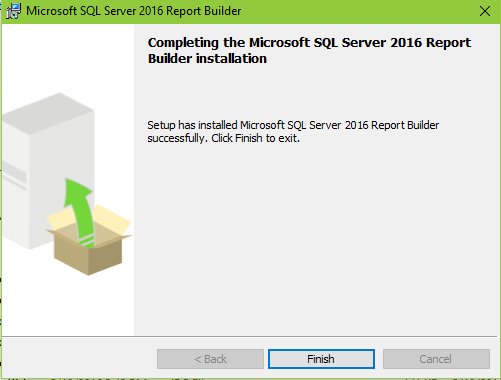
 It is done installing.


 You should see these in All Programs on Windows 10.


Double click and you are ready to Author a report. If you want to put it out on the Report Server, you need a Report Server.

You are ready to go!

When Identity Security Becomes a Wall — Not a Shield

After a breach that forced a reset of my digital identity, I hit a roadblock I never anticipated: multi-factor authentication (2FA) locked m...