Monday, November 14, 2016

Problem installing October update to Power BI

I faced the problem installing October update to Power BI. The problem was that the installer brought up a message regarding an already running Power BI. I did not have any Power BI running although I had the previous version installed. I also looked up the Task Manager and no such program was running.

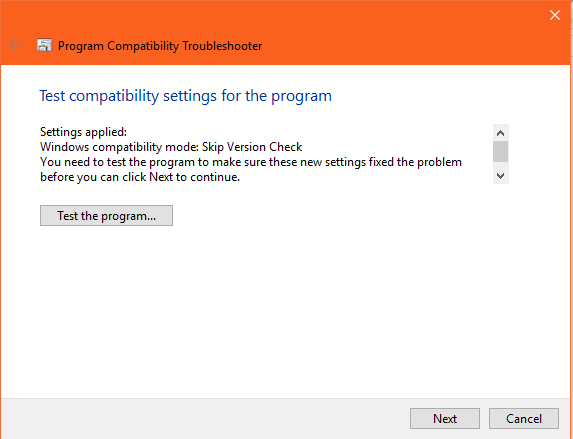
Finally, I tried by right clicking the PBDesktop_x64.msi and picking up the Trouble Compatibility item drop-down menu. After following the wizard I could install Power BI.


PowerBICompatibilityCheck.png

I tested the program and it got installed.

Sunday, November 13, 2016

Creating a OLE DB file connection to SQL Server 2016

OLE DB and ODBC connectivity are useful connectivity options that needs no emphasizing.

This post describes that you can connect to SQL Server 2016 in just a few steps.

Step 1:
Launch SQL Server Instance if it has not started, using Control Panel or otherwise.

Step 2: Create a new text document from desktop. Right click desktop  (empty region) and click New | Text Document.

Rename the document. If it is New Text Document.txt change it to, for example, SQLServer2016.udl (as in the present case).

You may get a warning that changing the file name extension may become unusable. Click Yes.
The document gets saved to the desktop with the name and extension you provided. The icon of the document will also be changed.

Step 3: Configuring the connection

Right click the somename.udl you created to display the following:


DataLink_00

The file properties window has four tabs, Provider, Connection, Advanced and ALL.

In the Provider tabbed page you need to enter the Server Name or use the Refresh button to find all the regsitered servers as shown.


DataLink_02

You have two options in connecting to a SQL Server instance, Use Windows NT Integrated Security or use Specific Username and password.

The SQL Server Instance OHANA is configured for Windows Login. Click the first option. You need not provide username/password (they will be greyed out).

Select the database on the server using the drop-down as shown. Choose AdvenutreWorks2015.


DataLink_03


If the SQL Server has not started you may get these warnings when you try to browse for the SQL Server.


DataLink_02

After choosing the Server and the database you are basically done. You can test the connection by clicking the button and you would get this reply.


DataLink_04

Saturday, November 12, 2016

Power BI October 2016 Update is out

The October Power BI was out on October 31, 2016. Some often requested featurres like date slicing and snapping to grid were added. Also added are the grouping; top N filtering; new data connectors and custom R-visuals.

The complete list of October updates are:
Report View
Date slicer
Report gridlines and snap to grid (Preview)
Data label improvements
Map formatting options
Improved date axis range formatting

Analytics
Grouping
Binning
Top N filter
Include/Exclude data points
R-powered custom visuals

Data Connectors
Microsoft Dynamics 365 for Financials
OLEDB
Mixpanel

Query Editing Improvements
Support for table parameters in “Invoke Function” dialog

Other Improvements
Diagnostic information in the “About” dialog
Read full story here:
https://powerbi.microsoft.com/en-us/blog/

Monday, November 7, 2016

Reviewing Query Store related items in SQL Server 2016

First off you should be using SQL Server 2016 because Query Store is a new feature in SQL Server 2016.

You should enable Query Store for the database you are going to use and you can enable Query Store using SQL Server Management Studio. You may review this post for enabling Query Store.

All objects in the SQL Server can be accessed using the sys.objects as shown:


SysObjcts_00

If you filter the Sys.Objects as shown here you can find Query Store related objects.

Select * from Sys.all_objects
Where name like 'query_store%' or name like 'sp_query%' or name like 'query_context%'


SysObjcts_02

The above query retrieves Views and extended stored procedures related to the Query Store.

Sunday, November 6, 2016

Accessing a nested json formatted text using OpenJSON in SQL Server 2016

OpenJSON function is available for database compatibility levle is 130. That means you have a SQL Server 2016 installed.

Here is the syntax for OpenJSON tabled valued function.


OpenJson is a table-valued function that parses JSON text and returns objects in rows and columns.  You can use OpenJson function in a FROM clause of a Transact-SQL Statements like any table, view or table-value function.

Here is a simple example of a JSON text:
{"wclass":{"student":["jay", "john", "sam"]}}

Here is a code to use the OpenJson funtion.
------
declare @json nvarchar(150)
SET @json=N'{"wclass":{"student":["jay", "john", "sam"]}}';
SELECT * From OPENJSON(@json)
-----------------
This returns a table with three columns: key, value and type for 'wclass'
The type is the JSON type of the value.
In the above case the type=5 represents that {"student":["jay", "john", "sam"]} is Json Object.

Now we access the 'student' key of the json text as shown:
-------------
declare @json nvarchar(150)
SET @json=N'{"wclass":{"student":["jay", "john", "sam"]}}';
SELECT * From OPENJSON(@json,'$."wclass"')
-----------
This returns a table with the following:

Key: student
value: ["jay', "john", "sam"]
type: 4 which means it is a Json Array

Now we go into the array and look into it as shown:
========
declare @json nvarchar(150)
SET @json=N'{"wclass":{"student":["jay", "john", "sam"]}}';
SELECT * From OPENJSON(@json,'$."wclass"."student"')
=============
Now we get the Key, value and type as shown.


OpenJsonTypeColumn2.PNG
Each of the values are of type 1 ( that is they are of type string).

Here is table showing the type (an integer) of the return value of OpenJson function.


Thursday, November 3, 2016

Query Store is a new feature in SQL Server 2016

This is a new feature in SQL Server 2016 that provides with an insight into query plan choice and performance. As the query plan changes it helps you find the performance differences caused by the change.

Query store is automatic in that Query Store captures a history of queries, plans and runtime statistics for later review. It separates information chronologically by time windows so that you can view database usage patterns and monitor query plan changes that has taken place.

You need to enable the database to use this feature which an be done using SQL Server Management Studio as well as T-SQL Alter Database Set Option.

How do you turn it on using SQL Server Management Studio?

Since it is database related right click the database node after launching the SQL Server Management Studio and connecting to the server instance. The next image shows the result of right clicking the AdventureWorks 2014 database in SQL Server 2014.

QS_00.png

Click Properties to open the next window as shown.


QS_01

The Query Store Property has the following items:
General:
    Operation mode(actual)       default Off(disabled)
    Operation mode (Requested)   default Off but can be Read only or Read/write
Monitoring
    Data Flush Interval (Minutes)
    Statistics Collection Interval
Query Store Retention
    Max Size(MB)
    Query Store Capture Mode
    Size-based cleanup Mode
    Stale query Threshold(Days)

The previous window also shows the Current Disk Usage for database as well as Query Store.
As it is not enabled, the Query Store used is 0.0. You also have the option to purge the data.

You enable the Query Store feature by changing the Operation Mode(requested) from OFF to ON as shown.

QS_02

After it is enabled, a Query Store is added to the database as shown:

QS_03a.png


Tuesday, November 1, 2016

Change compatibility level of the database and JSON in SQL Server 2016

Working with SQL Server and  JSON  requires a compatibility level of 130 (SQL Server 2016). The post here describes how you can convert a JSON String and format a table in SQL Server.

The TestPubs (copy of pubs legacy database from Microsoft) database in an instance of SQL Server 2016 brought over by a data-tier related process does not change its compatibility level. However you can change its compatiblity level from 100 to 130 and with compatibility 130, the following query takes in a JSON string and converts it to a table with defaults. Here type 5 means it is an object.

declare @json nvarchar(150)
SET @json=N'[{"color": "red","value":"#f00"},{"color":"green","value":"#0f0"},{"color":"blue","value":"#00f"},{"color":"cyan","value":"#0ff"}]';
SELECT * From OPENJSON(@json)


Json130Open_00

Now if I revert the compatibility level to 100 and try the same query as before, I spawn an error as shown.


Json100Open_00


When Identity Security Becomes a Wall — Not a Shield

After a breach that forced a reset of my digital identity, I hit a roadblock I never anticipated: multi-factor authentication (2FA) locked m...