Showing posts with label LINQPAD. Show all posts

Sunday, January 25, 2015

Learn Querying SQL Server 2012 using LinqPad - Part 4 Stored Procedures_2

In Learn Querying SQL Server 2012 using LinqPad - Part 3 we considered a stored procedure, albeit simple which did not have any output parameters.  LinqPad can also be used for evaluating stored procedures with an out put parameter. Make sure you review Parts 1, 2, and 3.

Let us modify the stored procedure in Part 3 so that the FullName of a Person is returned from the stored procedure as shown here.

Create Procedure PPFull
@fname nvarchar(10),
@lname nvarchar(20),
@fullname nvarchar(25) OUTPUT

as

Select @fullname=FirstName+','+Lastname from Person.person
Where FirstName=@fname and LastName=@lname
go


Note that @fullname varible is declared as an OUTPUT Parameter.

This can be executed in SQL Server Management Studio as shown.


The same can be executed in LinqPad as shown here.


Friday, December 12, 2014

Learn Querying SQL Server 2012 using LinqPad - Part 2

In Part 1 of this series I showed how you can connect to your instance of
SQL Server on your computer. If you have not seen this please go here:
http://hodentekmsss.blogspot.com/2014/12/learn-querying-sql-server-using-linq.html

In this post you will learn how the tables in the SQL Server database
AdventureWorks2012 are represented on the LinqPad and learn to run a few
statements or expressions to fetch information on the SQL Server to display in LinqPad.

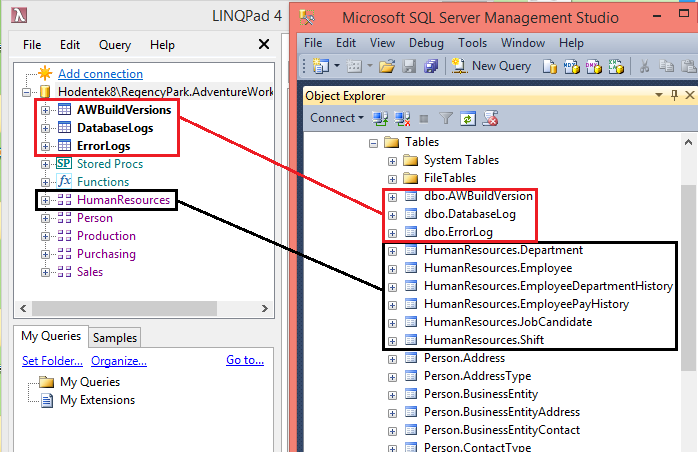
This next image shows how the tables and other objects in SQL Server are
displayed grouped in LINQPad.

All the tables in HumanResources are grouped and you can expand to see
the individual tables in LinqPad. Also all the Stored procedures, Functions
and Views related to the HumanResources are shown under HumanResources in
LinqPad but they are shown under the object nodes Programmability |
StoredProcedures; Programmability | Functions and non-system Views in SSMS.

Evaluating Expressions in LinqPad

When you launch LinqPad and connect to SQL Server Instance as shown in the
previous post, the LinqPad UI appears as shown (only top part shown here).


Here the Green arrow at left (right pane) is a button which executes the statement or
query you enter the pane and it will show Execute(F5) if you hover over the
green button.

The one next to it shown in grey is the Stop button and stops the execution.  The next two icons when clikced displays the results either in rich text (Ctrl+Shift+T),or data grid (Ctrl+shift+G).

The Language drop-down has a number of options and to get the correct result
you should indicate whether it is C# Expression(appears as default) or the
other types shown here.


The Connection drop-down comes up with default <None> which means the query
will not be execcuted since it is not connected despite the fact that you see the connection on the left. When you click on the handle (downward pointing arrow) you will see that you can connect to the database shown in the left.


Querying examples:

1. Click the drop-down for Connection and choose AdventureWorks2012
2. Write an expression to evaluate
1+2+3  as shown and click the green arrow to execute the expression and you
will see the result in the results pane that gets displayed.


This is not really SQL related but the engine evaluates it.

3. Let us say we want to get all the Employees information from the
Employees table in the Human Resources group. Then create a new query by
clicking on the + tab right next to Query1 and enter

Employees

as shown(this will be Query2). Don't forget to click the green arrow to execute. You get the following displayed.


As far the results you have other options to review as shown in the next composite image


4. Let us do some filtering. Let us we need only two columns from the
Customers table
Type in C#Expression the following"

from c in Customers
select new {c.CustomerID, c.StoreID}

Click the green arrow for query execution and you will see the following:


5. Let us say you want to filter further to display fewer rows then you can type in the following and click execute.
from c in Customers
where c.CustomerID <10
select new {c.CustomerID, c.StoreID}


Click Execute and the following will be displayed:

6. Let us say you want it sorted in the increasing order of StoreID then you can do the following:
Type in the following:

from c in Customers.OrderBy(c=> c.StoreID)
where c.CustomerID <10
select new {c.CustomerID, c.StoreID}


Click Execute and after some processing you will see the following:


You have learnt in this post how to recognize the UI and how to run a few simple queries against the SQL Server 2012 database.

In the next Part(s) you will learn a few more topics

Saturday, December 6, 2014

Learn Querying SQL Server using LINQ - Part 1

The easiest way to do this is to use the popular tool, LINQPAD. It is a great tool
and you can download a free version here:
http://www.linqpad.net/

If you want a brief intro to LINQ review this link:
http://hodentekhelp.blogspot.com/2014/12/what-is-linq.html

In this post we will see how to connect to the SQL Server on your Computer. LINQPAD does a lot more than querying, but for now let us limit ourselves to the immediate task.

Download LINQPAD. It is somewhat like WYSIWYG. You create the query or an expression in LINQPAD and the click of a button executes the query/expression/statement etc. LINQPAD brings the whole of .NET Framework to a very easy interface where you interact. It is also a small program and does not slowdown whatever you are doing.

The specifics of connecting to SQL Server

Download LINQPAD and launch the program which typially opens up as shown (don't be
disappointed at this minimal screen, lot more hides behind).


Now click on Add Connection in the top left pane. The Choose Data Context window
is displayed as shown.
 
 
Of the two panes, let us concern ourselves with the top panel. Assume the Default(LINQ to SQL). Click Next. The LINQ to SQL Connection window is displayed as shown.


In the Provider field you have various radio button options and you can connect tot SQL Server, two versions of SQL Compact Edition and SQL Azure. Accept the default SQL Server and that is what this post is about.
  • Since our SQL Server Instance name is Hodentek8\RegencyPark enter this here.(SQL Server 2012)
  • Log on details default is OK because that is what we chose during installation.
  • Also accept that we want to display all in a tree-view
  • For specifying new or existing database, choose Specify new or existing database and click on the drop-down to reveal the databases on the local instance as shown.

 
Choose Adventureworks2012. .Well, well you could include production data.
Now the LINQPAD4 interface changes as shown. Accept all other fields and click the Test button.
You should get a connection successful message as shown.

 
Click OK. Well the LINQPAD4 is  now connected to SQL Server 2012 instance on your computer.


In the next post we look at how to use this tool.
Learn querying SQL Server here:
http://hodentekmsss.blogspot.com/2014/12/learn-querying-sql-server-2012-using.html


When Identity Security Becomes a Wall — Not a Shield

After a breach that forced a reset of my digital identity, I hit a roadblock I never anticipated: multi-factor authentication (2FA) locked m...