In Part 1 of this series I showed how you can connect to your instance of
SQL Server on your computer. If you have not seen this please go here:
http://hodentekmsss.blogspot.com/2014/12/learn-querying-sql-server-using-linq.html
In this post you will learn how the tables in the SQL Server database
AdventureWorks2012 are represented on the LinqPad and learn to run a few
statements or expressions to fetch information on the SQL Server to display in LinqPad.
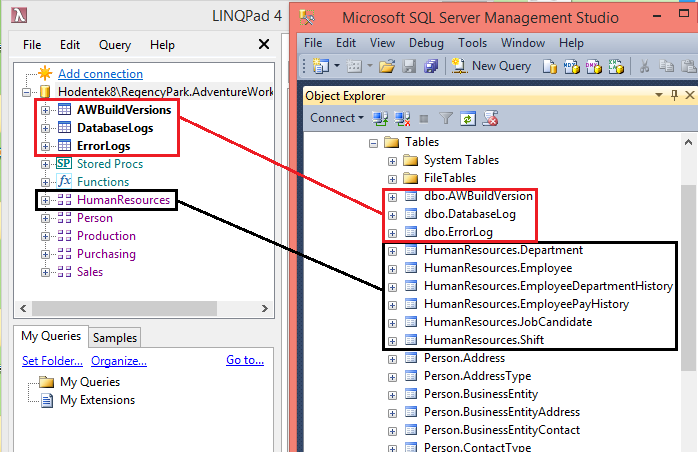
This next image shows how the tables and other objects in SQL Server are
displayed grouped in LINQPad.
All the tables in
HumanResources are grouped and you can expand to see
the individual tables in LinqPad. Also all the Stored procedures, Functions
and Views related to the
HumanResources are shown under
HumanResources in
LinqPad but they are shown under the object nodes
Programmability |
StoredProcedures;
Programmability | Functions and non-system
Views in SSMS.
Evaluating Expressions in LinqPad
When you launch LinqPad and connect to SQL Server Instance as shown in the
previous post, the LinqPad UI appears as shown (only top part shown here).
Here the Green arrow at left (right pane) is a button which executes the statement or
query you enter the pane and it will show
Execute(F5) if you hover over the
green button.
The one next to it shown in grey is the
Stop button and stops the execution. The next two icons when clikced displays the results either in rich text (
Ctrl+Shift+T),or data grid (
Ctrl+shift+G).
The
Language drop-down has a number of options and to get the correct result
you should indicate whether it is C# Expression(appears as default) or the
other types shown here.
The
Connection drop-down comes up with default <
None> which means the query
will not be execcuted since it is not connected despite the fact that you see the connection on the left. When you click on the handle (downward pointing arrow) you will see that you can connect to the database shown in the left.
Querying examples:
1. Click the drop-down for Connection and choose AdventureWorks2012
2. Write an expression to evaluate
1+2+3 as shown and click the green arrow to execute the expression and you
will see the result in the results pane that gets displayed.
This is not really SQL related but the engine evaluates it.
3. Let us say we want to get all the Employees information from the
Employees table in the Human Resources group. Then create a new query by
clicking on the + tab right next to Query1 and enter
Employees
as shown(this will be Query2). Don't forget to click the green arrow to execute. You get the following displayed.
As far the results you have other options to review as shown in the next composite image
4. Let us do some filtering. Let us we need only two columns from the
Customers table
Type in C#Expression the following"
from c in Customers
select new {c.CustomerID, c.StoreID}
Click the green arrow for query execution and you will see the following:
5. Let us say you want to filter further to display fewer rows then you can type in the following and click execute.
from c in Customers
where c.CustomerID <10
select new {c.CustomerID, c.StoreID}
Click Execute and the following will be displayed:
6. Let us say you want it sorted in the increasing order of
StoreID then you can do the following:
Type in the following:
from c in Customers.OrderBy(c=> c.StoreID)
where c.CustomerID <10
select new {c.CustomerID, c.StoreID}
Click Execute and after some processing you will see the following:
You have learnt in this post how to recognize the UI and how to run a few simple queries against the SQL Server 2012 database.
In the next Part(s) you will learn a few more topics