Showing posts with label LINQ. Show all posts

Friday, December 12, 2014

Learn Querying SQL Server 2012 using LinqPad - Part 2

In Part 1 of this series I showed how you can connect to your instance of
SQL Server on your computer. If you have not seen this please go here:
http://hodentekmsss.blogspot.com/2014/12/learn-querying-sql-server-using-linq.html

In this post you will learn how the tables in the SQL Server database
AdventureWorks2012 are represented on the LinqPad and learn to run a few
statements or expressions to fetch information on the SQL Server to display in LinqPad.

This next image shows how the tables and other objects in SQL Server are
displayed grouped in LINQPad.
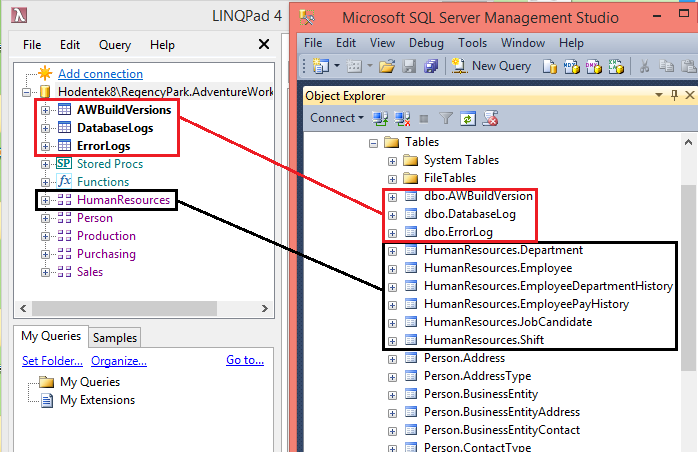
All the tables in HumanResources are grouped and you can expand to see
the individual tables in LinqPad. Also all the Stored procedures, Functions
and Views related to the HumanResources are shown under HumanResources in
LinqPad but they are shown under the object nodes Programmability |
StoredProcedures; Programmability | Functions and non-system Views in SSMS.

Evaluating Expressions in LinqPad

When you launch LinqPad and connect to SQL Server Instance as shown in the
previous post, the LinqPad UI appears as shown (only top part shown here).


Here the Green arrow at left (right pane) is a button which executes the statement or
query you enter the pane and it will show Execute(F5) if you hover over the
green button.

The one next to it shown in grey is the Stop button and stops the execution.  The next two icons when clikced displays the results either in rich text (Ctrl+Shift+T),or data grid (Ctrl+shift+G).

The Language drop-down has a number of options and to get the correct result
you should indicate whether it is C# Expression(appears as default) or the
other types shown here.


The Connection drop-down comes up with default <None> which means the query
will not be execcuted since it is not connected despite the fact that you see the connection on the left. When you click on the handle (downward pointing arrow) you will see that you can connect to the database shown in the left.


Querying examples:

1. Click the drop-down for Connection and choose AdventureWorks2012
2. Write an expression to evaluate
1+2+3  as shown and click the green arrow to execute the expression and you
will see the result in the results pane that gets displayed.


This is not really SQL related but the engine evaluates it.

3. Let us say we want to get all the Employees information from the
Employees table in the Human Resources group. Then create a new query by
clicking on the + tab right next to Query1 and enter

Employees

as shown(this will be Query2). Don't forget to click the green arrow to execute. You get the following displayed.


As far the results you have other options to review as shown in the next composite image


4. Let us do some filtering. Let us we need only two columns from the
Customers table
Type in C#Expression the following"

from c in Customers
select new {c.CustomerID, c.StoreID}

Click the green arrow for query execution and you will see the following:


5. Let us say you want to filter further to display fewer rows then you can type in the following and click execute.
from c in Customers
where c.CustomerID <10
select new {c.CustomerID, c.StoreID}


Click Execute and the following will be displayed:

6. Let us say you want it sorted in the increasing order of StoreID then you can do the following:
Type in the following:

from c in Customers.OrderBy(c=> c.StoreID)
where c.CustomerID <10
select new {c.CustomerID, c.StoreID}


Click Execute and after some processing you will see the following:


You have learnt in this post how to recognize the UI and how to run a few simple queries against the SQL Server 2012 database.

In the next Part(s) you will learn a few more topics

Saturday, December 6, 2014

Learn Querying SQL Server using LINQ - Part 1

The easiest way to do this is to use the popular tool, LINQPAD. It is a great tool
and you can download a free version here:
http://www.linqpad.net/

If you want a brief intro to LINQ review this link:
http://hodentekhelp.blogspot.com/2014/12/what-is-linq.html

In this post we will see how to connect to the SQL Server on your Computer. LINQPAD does a lot more than querying, but for now let us limit ourselves to the immediate task.

Download LINQPAD. It is somewhat like WYSIWYG. You create the query or an expression in LINQPAD and the click of a button executes the query/expression/statement etc. LINQPAD brings the whole of .NET Framework to a very easy interface where you interact. It is also a small program and does not slowdown whatever you are doing.

The specifics of connecting to SQL Server

Download LINQPAD and launch the program which typially opens up as shown (don't be
disappointed at this minimal screen, lot more hides behind).


Now click on Add Connection in the top left pane. The Choose Data Context window
is displayed as shown.
 
 
Of the two panes, let us concern ourselves with the top panel. Assume the Default(LINQ to SQL). Click Next. The LINQ to SQL Connection window is displayed as shown.


In the Provider field you have various radio button options and you can connect tot SQL Server, two versions of SQL Compact Edition and SQL Azure. Accept the default SQL Server and that is what this post is about.
  • Since our SQL Server Instance name is Hodentek8\RegencyPark enter this here.(SQL Server 2012)
  • Log on details default is OK because that is what we chose during installation.
  • Also accept that we want to display all in a tree-view
  • For specifying new or existing database, choose Specify new or existing database and click on the drop-down to reveal the databases on the local instance as shown.

 
Choose Adventureworks2012. .Well, well you could include production data.
Now the LINQPAD4 interface changes as shown. Accept all other fields and click the Test button.
You should get a connection successful message as shown.

 
Click OK. Well the LINQPAD4 is  now connected to SQL Server 2012 instance on your computer.


In the next post we look at how to use this tool.
Learn querying SQL Server here:
http://hodentekmsss.blogspot.com/2014/12/learn-querying-sql-server-2012-using.html


Tuesday, November 12, 2013

Don't miss this huge collection of SQL Server related articles

These were mostly reported during the time SQL Server 2008 was the recent version. The migration related articles and front end related articles basically used SQL Server 2008.


Creating a matrix report using the Analysis Services Cube 


 In this article by Dr. Jayaram Krishnaswamy, we will be authoring a report based on an analysis services CUBE. Reviewing Jayaram's other OLAP related articles may greatly help in understanding this article. Creating the CUBE will be essential to work with this...
  
Manage SQL Azure Databases with the Web Interface 'Houston'
 

version of SQL Server 2008 is R2. This article by Jayaram Krishnaswamy , is based on a project named 'Houston' which is a web based SQL Azure management tool that has not gone into production but can be tested using the SQL Azure Labs portal at http://www.SQLAzureLabs.com . In this article we look at some of the features of this web...
  
Working with Data Application Components in SQL Server 2008 R2
 

Jayaram Krishnaswamy In the August CTP Microsoft introduced Data-Tier Applications and several new features were introduced in the Nov 2009 CTP. Registering, Viewing &amp; comparing and upgrading Data-Tier applications were added. This article by Dr. Jayaram...

Creating an Analysis Services Cube with Visual Studio 2008 - Part 2
 

Jayaram Krishnaswamy As noted in Part 1 , OLAP presents Business Intelligence via what is known as a CUBE. A Cube has many dimensions and it provides a faster method to access the intelligence compared to the structured querying...
 
Creating a Web Page for Displaying Data from SQL Server 2008


Dr. Jay Krishnaswamy This article by Jayaram Krishnaswamy describes how you may connect to SQL Server 2008 and display the retrieved data in a GridView Control on a web page. Trying to establish a connection to the SQL Server 2008 is ...


Jayaram Krishnaswamy SQL 2008 server is the latest in the line of Microsoft database servers and this article by Dr. Jayaram Krishnaswamy discusses the challenges one may face in installing the Developer version of this product  ....


Microsoft Lightswitch Application using SQL Azure Database


on August 23rd for the general public while it has been used by MSDN members and Microsoft insiders for couple of months. This article by Jayaram Krishnaswamy shows how you may download and install this program. The article also shows how you may develop a simple database application using this product retrieving data from the Cloud hosted relational ....
  
MySQL Data Transfer using Sql Server Integration Services (SSIS)
 

Jayaram Krishnaswamy There are a large number of posts on various difficulties experienced while transferring data from MySQL using Microsoft SQL Server Integration Services. While the transfer of data from MySQL to Microsoft SQL Server...
  
MySQL Linked Server on SQL Server 2008
 

Jayaram Krishnaswamy Linking servers provides an elegant solution when you are faced with running queries against databases on distributed servers or looking at your distributed assets on disparate databases. This article by Dr. Jay Krishnaswamy explains how...
 
Migrating from MS SQL Server 2008 to EnterpriseDB


Dr. Jayaram Krishnaswamy In this article by Dr. Jayaram Krishnaswamy , we will learn about migration of data from MS SQL Server 2008 to EnterpriseDB. Migration Studio bundled with the EnterpriseDB download is a collection of tools to...


Creating an Analysis Services Cube with Visual Studio 2008 - Part 1


data. This two part article by Dr. Jayaram Krishnaswamy describes how a Cube is designed using Visual Studio 2008 and how it may be browsed on the Analysis Server. In Part 1, the necessary items for creating the Cube, namely the Data Source and Data Source Views are described.   Reviewing Jayaram's other OLAP...
  
Transferring Data from MS Access 2003 to SQL Server 2008


two non-Microsoft databases. Both Microsoft and proprietary data source providers are available to connect to many different database products. In this article by Dr. Jayaram Krishnaswamy , we will be transferring data from an MS Access database to a database on SQL Server 2008. Both the source of data and the destination database are on the same...
  
Creating a Simple Report with Visual Studio 2008


Jayaram Krishnaswamy Report Services, Analysis Services, and Integration Services are the three pillars of Business Intelligence in Microsoft's vision that continues to evolve. Reporting is a basic activity, albeit one of the...


Displaying SQL Server Data using a Linq Data Source

provided by the Linq to SQL classes, a class generator that maps SQL server objects to the model. The class files generated support CRUD operations. In this article by Dr. Jay Krishnaswamy , we will be adding a LinqDataSource control in Visual Studio 2008 to a ASP.NET website and configuring it by providing a data context. The data context will...
  
Overview of SQL Server Reporting Services 2012 Architecture, Features, and Tools


MDX with Microsoft SQL Server 2008 R2 Analysis Services Cookbook () () This article by Jayaram Krishnaswamy  the author of  Learning SQL Server Reporting Services 2012,  provides a summarized overview of SQL Server Reporting Services 2012 and the background information ...
  
Using the Data Pager Control in Visual Studio 2008


or it can be installed manually after installing the ListView. In this article both of them are described. While the number of items displayed in a list can be declaratively coded, it is possible to set it at page load time as well. This article by Dr. Jayaram Krishnaswamy describes how you may connect to SQL Server 2008 and display the retrieved...
Moving a Database from SQL Server 2005 to SQL Server 2008 in Three Steps


Jayaram Krishnaswamy There are several options if one wishes to move a database from a SQL Server 2005 to SQL 2008 Server. First of all there is a 'Copy Database Wizard' in SQL 2008 Server which is meant for transferring...


Microsoft Lightswitch: Querying and Filtering Data


will not be wrong. Just like you take information out of the table, make changes to it and return it to the table, you do likewise with entity sets. In this article by Jayaram Krishnaswamy , author of Microsoft Visual Studio Lightswitch Business Application Development , we will take a look at querying a single entity...

 
SSIS Applications using SQL Azure
 

Report Server providing full support with a web service frontend for a variety of reporting needs—from web-based reporting to embedded reporting. In this article by Jayaram Krishnaswamy , author of Microsoft SQL Azure Enterprise Application Development , we will be leveraging SSIS, SSRS, and the tools used to address ETL processes, and Report...


Oracle SQL Developer Tool 1.5 with SQL Server 2005
 

party vendor products to Oracle. Please review the following articles on the earlier versions 1.1 and 1.2: MS Access Queries with Oracle SQL Developer 1.2 Tool and Migrating MS Access 2003 Data using the Oracle SQL Developer 1.2 . In the present article by Dr. Jayaram Krishnaswamy the latest version of this tool [Oracle SQL Developer 1...


Jayaram Krishnaswamy In this article by Dr. Jay Krishnaswamy , a Microsoft Chart Control will be bound to a Linq Data Source using LinqDataSource control and a pie chart displays the data. We will be going through the following ...

Ground to SQL Azure migration using MS SQL Server Integration Services

Jayaram Krishnaswamy In this article by Dr. Jayaram Krishnaswamy , you will learn how to migrate a table from your ground based SQL Server 2008 to your cloud based SQL Azure instance using MS SQL Server Integration Services...
 
Copying a Database from SQL Server 2005 to SQL Server 2008 using the Copy Database Wizard


Jayaram Krishnaswamy This article by Jayaram Krishnaswamy shows how to migrate a database from SQL Server 2005 (should work for 2000 as well) to SQL Server 2008 using the Copy Database tool in SQL Server 2008. In an earlier article we saw how this can ...


features 128-bit file level encryption. It is referential integrity compliant; supports multiple connections; has transactions support with rich data types. In this tutorial by Jayaram Krishnaswamy , various scenarios where you may need to connect to SQL Server Compact using Visual Studio IDE (both 2008 and 2010) are described in detail. Connecting ...

Authoring an EnterpriseDB report with Report Builder 2.0

Jayaram Krishnaswamy This article by Dr. Jayaram Krishnaswamy shows step-by-step how you may retrieve data from a database on a Postgres Plus server and display the results in a report generated using Report Builder 2.0. Report ... 
 
  
Term Extraction Tasks in SQL Server Integration Services 

stop the flow review it and turn it on to let the data flow to the next step. You may provide a name to the Data Viewer. There are four types of data viewers (Grid, Histogram, Scatter Plot, and Chart) and the 'Grid' type is used in this article. Build the Project and Execute the Package This is easy. Click on the menu item Build...  


the tools that can be leveraged working with SQL Azure, but a few third-party vendors and others have also created tools for SQL Azure. In this article by Jayaram Krishnaswamy , author of Microsoft SQL Azure Enterprise Application Development , we will discuss the Microsoft Tools.   Microsoft...

  
Data Access with ADO.NET Data Services 


operating on the data. In this article by Dr. Jayaram Krishnaswamy , you will learn how to create a ADO.NET Data Service from scratch. You will also learn how you may access data using the URI constructs. The backend data for this tutorial comes from a copy of Northwind database named TestNorthwind on a named instance of SQL Server 2008. In order...

  
Writing XML data to the File System with SSIS

Jayaram Krishnaswamy This article by Dr. Jayaram Krishnaswamy , shows how you may retrieve XML data from a relational database and write it to a folder on your file system as a text or xml file using Microsoft SQL Server Integration...

  
Working with the Report Builder in Microsoft SQL Server 2008: Part 1 

Jayaram Krishnaswamy Report Builder 2.0 is feature-rich reporting tool with the latest Microsoft Office look and feel. In this two part article by Jayaram Krishnaswamy , we will see how the Report Builder 2.0 provides an extremely ...

  
Programmatically Creating SSRS Report in Microsoft SQL Server 2008
 
Jayaram Krishnaswamy In this article by Dr. Jayaram Krishnaswamy , the process of programmatically creating the SQL Server Reporting Services (SSRS) tabular report is described. You will be creating a very simple report using the...

 
Working with the Report Builder in Microsoft SQL Server 2008: Part 2
 
Jayaram Krishnaswamy In the previous part of the article, we had a look at the Report Builder overview and described the Report Builder 2.0 interface . In this part by Jayaram Krishnaswamy , we will discuss about Enabling and reviewing ...

When Identity Security Becomes a Wall — Not a Shield

After a breach that forced a reset of my digital identity, I hit a roadblock I never anticipated: multi-factor authentication (2FA) locked m...