The option to start up Microsoft SQL Server when you have configuration problems is to use the -f start up option. With this option SQL Server start with a minimum configuration placing the server in single-user mode.
Be aware of the following in this mode:
You can use the SC command line utility as you can use the start up parameters. SC is a command line program for communicating with the Service Control (SC) Manager and Services.
If you do not know how to use SC (Services Control Manager) review this post.
If you now start the SQL Server with a - f option the server with minimum configuration as shown:
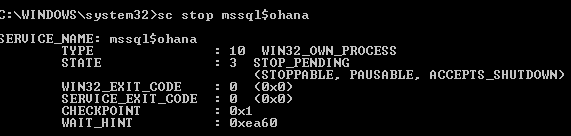
I have a named instance of SQL Server 2016 called OHANA on my computer (Hodentek8) and I will now start it with minimum configuration by running the following. I have stopped this server before running the code:

StartWithMin.png
Verify with the Task Manager (there are other ways as well, Task Manager is open now).
 StartWithMin_2
Be aware of the following in this mode:
- Only a single user can connect, and the CHECKPOINT process is not executed.
- Remote access and read-ahead are disabled.
- Startup stored procedures do not run.
You can use the SC command line utility as you can use the start up parameters. SC is a command line program for communicating with the Service Control (SC) Manager and Services.
If you do not know how to use SC (Services Control Manager) review this post.
If you now start the SQL Server with a - f option the server with minimum configuration as shown:
I have a named instance of SQL Server 2016 called OHANA on my computer (Hodentek8) and I will now start it with minimum configuration by running the following. I have stopped this server before running the code:

StartWithMin.png
Verify with the Task Manager (there are other ways as well, Task Manager is open now).