Installing the January Preview (latest as of now) Microsoft SQL Operations Studio is easy. Follow the steps here .
Connecting to SQL Server 2016 is explained in details here.
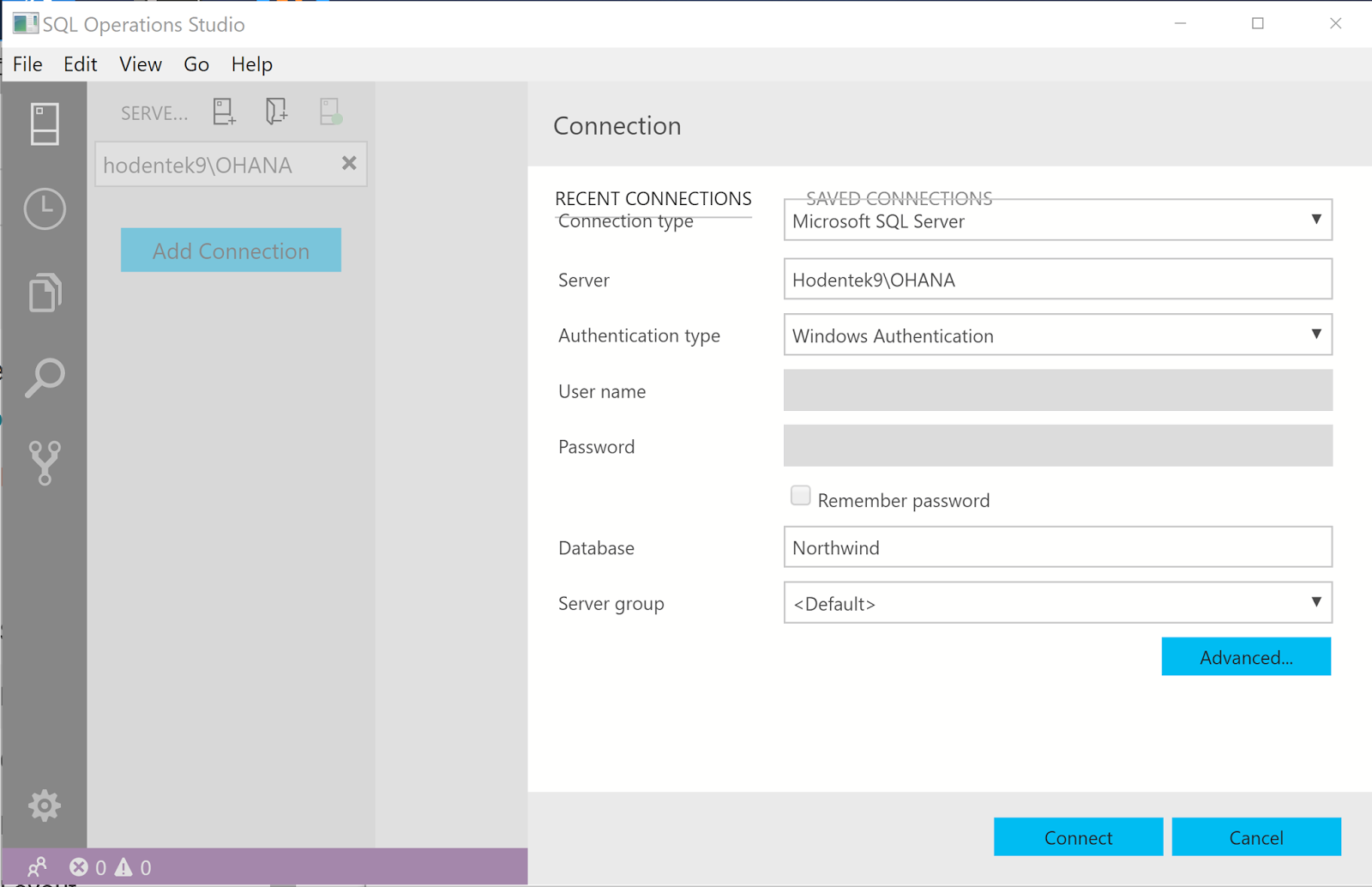
Connection is very easy, especially if you are using Windows Integrated authentication as shown here:

SQLOPS_JanPublicPreview_01
This screen in the January Preview is not quite what I expected. The two tabs (RECENT CONNECTIONS which is active and SAVED CONNECTIONS greyed out) in the background does not do anything.
Just click Connect and you are connected as shown.

SQLOPS_JanPublicPreview_02
Either we can run a new query or browse and get a saved query (with extension .sql). I am trying a saved query from an earlier connection with an earlier version.

SQLOPSStudio_03
The query is displayed in the MSFT SQLOPS application as shown. But I see a reddish no-no on the connection on the left.

SQLOPS_JanPublicPreview_03
Anyway, just click Run to execute the query and the response appears in a pane below as shown.

SQLOPS_JanPublicPreview_04
Since this is a query from a query using another connection, the connection screen is displayed as shown.
Enter the conneciton information as before. The data entered is accpeted and the query is executed as shown.

SQLOPS_JanPublicPreview_05
Now click on the Save as JSON on the right. You will save it to the default folder that opens. After saving to folder JSON fromatted query result is displayed as shown.

SQLOPS_JanPublicPreview_06
It could not be simpler than this, really.
Read related article here:
https://hodentekmsss.blogspot.com/2016/06/exporting-data-from-sql-server-2016-as.html
Connecting to SQL Server 2016 is explained in details here.
Connection is very easy, especially if you are using Windows Integrated authentication as shown here:
SQLOPS_JanPublicPreview_01
This screen in the January Preview is not quite what I expected. The two tabs (RECENT CONNECTIONS which is active and SAVED CONNECTIONS greyed out) in the background does not do anything.
Just click Connect and you are connected as shown.

SQLOPS_JanPublicPreview_02
Either we can run a new query or browse and get a saved query (with extension .sql). I am trying a saved query from an earlier connection with an earlier version.

SQLOPSStudio_03
The query is displayed in the MSFT SQLOPS application as shown. But I see a reddish no-no on the connection on the left.

SQLOPS_JanPublicPreview_03
Anyway, just click Run to execute the query and the response appears in a pane below as shown.

SQLOPS_JanPublicPreview_04
Since this is a query from a query using another connection, the connection screen is displayed as shown.
Enter the conneciton information as before. The data entered is accpeted and the query is executed as shown.

SQLOPS_JanPublicPreview_05
Now click on the Save as JSON on the right. You will save it to the default folder that opens. After saving to folder JSON fromatted query result is displayed as shown.

SQLOPS_JanPublicPreview_06
It could not be simpler than this, really.
Read related article here:
https://hodentekmsss.blogspot.com/2016/06/exporting-data-from-sql-server-2016-as.html