Saturday, September 17, 2016

SQLite using Visual Studio Community 2015 Update 3

SQLite is a relational database well suited for mobile applications.

SQLite was described in a previous post here. As the Internet of Things is the trending area on the Internet, SQLite with its no administration feature is well suited. It is also the relational database for smart devices, cell phones, TVs, cameras etc. If you want fast and reliable data provider than SQLite is recommended. The other option which is gaining in importance and a HTML5 feature supported by many browsers is the IndexedDB. IndexedDB is not relational.
sqlite_00

You can download SQLite from here:

http://sqlite.org/download.html

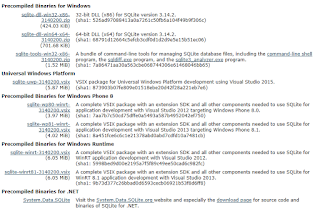
There are many options depending on your operating system. These are the options for Windows alone.
sqlite_01

Connecting/Accessing SQLite from Visual Studio 2015 Community (herein VS for short).

SQLite has no GUI for its management and VS is well suited.

Launch Visual Studio 2015 Community (Update 3 used here).

From Tools click on Extensions and Updates.

Well I seem to have installed the  SQL Server Compact/SQLite toolbox

sqlite_02

Indeed, I can see the SQL Server Compact/SQLite Toolbox as shown. However I see only (SQL Server Compact 4.0) database.


sqlite_03

Right click Data Connections to display the menu as shown.


sqlite_04

Click Add SQLite Connection to open the detailed window for adding a SQLite Connection as shown.


sqlite_05a

I try to Browse for one and It is looking for the shown file types in the default location.


sqlite_05

I try to create one assuming that this toolbox  interface allows me to create. I click the Create... button in the Add SQLite Connection window shown earlier.

It seems to create the file in this directory.

C:\Users\Jayaram\Documents\Blog2015\HodentekMSSS2015\DownloadedPrograms\C#\CSWindowsStoreAppAccessSQLServer\AccessSQLService\bin\System.Data.SqlServerCe.Entity

I choose a different directory (C:\Users\Jayaram\Documents\Blog2016\HodentekMSSS2016\SQLite) with a file name, Sept17-2016) as shown.


sqlite_06

I try to test the connection and it looks like it succeeded. But I do not see all the information except for the few shown in the next image.


sqlite_07

I click OK and close the window. The SQLite connection I created gets added to the Data Connections.


sqlite_08

I expand the Sept17-2016.db file and I see the following default objects (all empty): Tables, Views and Triggers


sqlite_09

Come back to this blog for more on SQLite.


SQLite using Visual Studio Community 2015 Update 3

SQLite is a relational database well suited for mobile applications.

SQLite was described in a previous post here. As the Internet of Things is the trending area on the Internet, SQLite with its no administration feature is well suited. It is also the relational database for smart devices, cell phones, TVs, cameras etc. If you want fast and reliable data provider than SQLite is recommended. The other option which is gaining in importance and a HTML5 feature supported by many browsers is the IndexedDB. IndexedDB is not relational.

sqlite_00

You can download SQLite from here:

http://sqlite.org/download.html

There are many options depending on your operating system. These are the options for Windows alone.

sqlite_01

Connecting/Accessing SQLite from Visual Studio 2015 Community (herein VS for short).

SQLite has no GUI for its management and VS is well suited.

Launch Visual Studio 2015 Community (Update 3 used here).

From Tools click on Extensions and Updates.

Well I seem to have installed the  SQL Server Compact/SQLite toolbox

sqlite_02

Indeed, I can see the SQL Server Compact/SQLite Toolbox as shown. However I see only (SQL Server Compact 4.0) database.


sqlite_03

Right click Data Connections to display the menu as shown.


sqlite_04

Click Add SQLite Connection to open the detailed window for adding a SQLite Connection as shown.


sqlite_05a

I try to Browse for one and It is looking for the shown file types in the default location.


sqlite_05

I try to create one assuming that this toolbox  interface allows me to create. I click the Create... button in the Add SQLite Connection window shown earlier.

It seems to create the file in this directory.

C:\Users\Jayaram\Documents\Blog2015\HodentekMSSS2015\DownloadedPrograms\C#\CSWindowsStoreAppAccessSQLServer\AccessSQLService\bin\System.Data.SqlServerCe.Entity

I choose a different directory (C:\Users\Jayaram\Documents\Blog2016\HodentekMSSS2016\SQLite) with a file name, Sept17-2016) as shown.


sqlite_06

I try to test the connection and it looks like it succeeded. But I do not see all the information except for the few shown in the next image.


sqlite_07

I click OK and close the window. The SQLite connection I created gets added to the Data Connections.


sqlite_08

I expand the Sept17-2016.db file and I see the following default objects (all empty): Tables, Views and Triggers


sqlite_09

Come back to this blog for more on SQLite.


Saturday, September 10, 2016

Power BI Charts 3: Box Plot

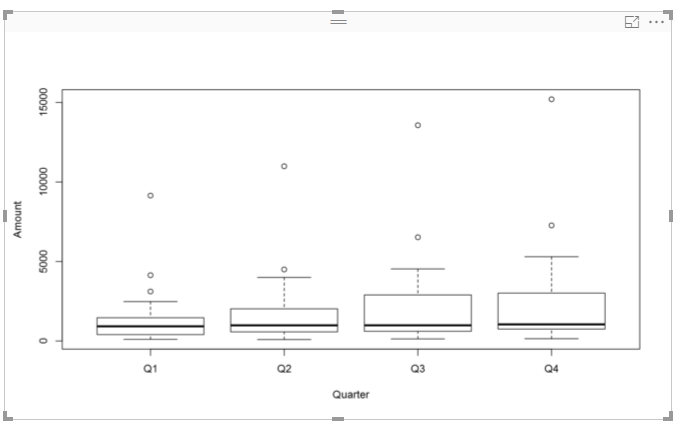
This kind of data plot is required while showing statistical analysis of distributed financial data. It is usually called Box plot and sometimes Box and Box & Whisker plot.

Here is an example of how it looks:


BoxPlot_00


The plot represents some Financial data (Amount) over 4 quarters for three years.

The details of what the plot shows is in the next image:


BoxPlot_01

Here are the details of this plot:

This data is from the demo database on SAP SQL Anywhere 17 server. The data visualization is carried out by using R Script in Power BI.


Power BI Charts 2: Histogram

This is a also a very common basic chart. Histogram plots the frequency of occurrences. The input required for this is just one column of data.

Here is an example of a Histogram of quantity of items ordered from the Northwind databases' [Order Details] column.


Histogram.png
Note that R does not interpret Quantity as a numeric and further processing of data is necessary before it can be plotted using R Script in Power BI.

Note: Without the unlist() dataset1 will be double. With unlist() it becomes a numeric.

===============
dataset1=as.numeric(unlist(dataset))
hist(dataset1, main="Distribution of Quantity")

=============

Source of data: SQL Server 2012 | Northwind Database
Power BI: August 2016 Update


Power BI Charts 1: Strip Chart

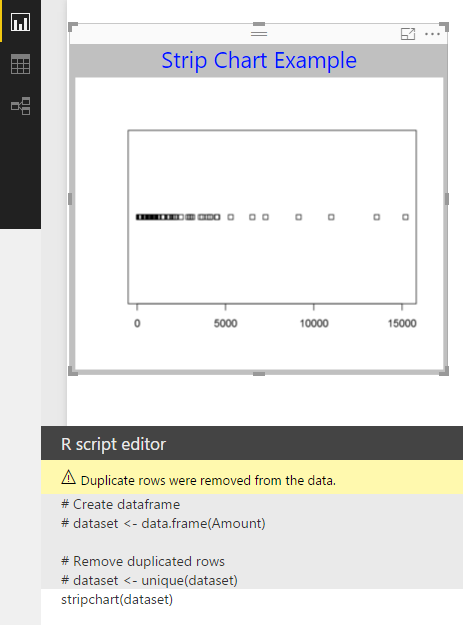
This is a basic chart available in Power BI using R Script. It produces a plot of data, withe each data point a small rectangle along a single axis. The input required for this is just one column of data.

Here is an example of a strip chart of financial data with the Amount column in a table plotted along a line.

Source of data: SAP SQL Anywhere 17
Power BI: August 2016 Update


R Script for this is: straipchart(dataset) for the dataset shown in the image.

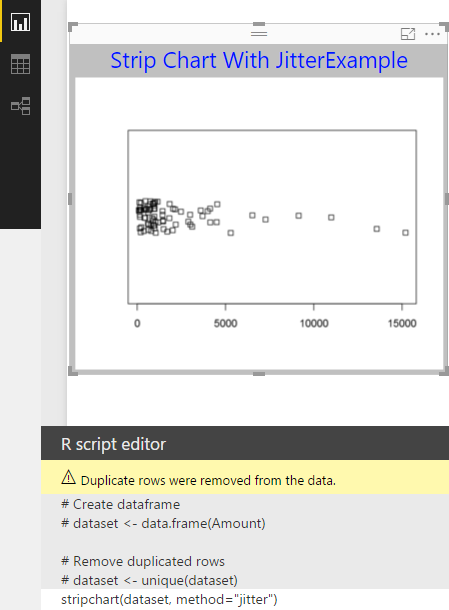
You can add a method to the above to show some separation between the data points as in the next image.


Tuesday, September 6, 2016

Enabling R Service and Verifying Local R script execution

There are several steps  involved in setting up R Services work with SQL Server 2016() and one of which is enabling R Service and Verifying Local R script execution.

In my previous post (http://hodentekmsss.blogspot.com/2016/07/problem-enabling-r-service-in-sql.html) I have completely described the installation of SQL Server 2016 Developer's edition during which the R Server was also installed as shown here:


Rserver_00
In order to run R in SQL Server 2016 you need to use the sp_execute_external_scripts stored procedure. In order to do use this, you need first set the external scripts enabled option, which by default is OFF.
The suggested way is to configure by running the following statement:
============
sp_configure 'external scripts enabled', 1; 
RECONFIGURE; 
============
When run on the named instance on which R Server is also configured (Hodentek8\Ohana) we see the following result:
sp_config_00


Let us see if  running the sp_execute_external_script written in R works:

exec sp_execute_external_script @language=N'R',
@script=N'OutputDataSet <-InputDataset',
@input_data_1=N'select 1 as hello'
with result sets (([hello] int not null));
go

This returns the following error:

Msg 39011, Level 16, State 1, Line 4
SQL Server was unable to communicate with the LaunchPad service.
Please verify the configuration of the service.


You can open up Services window from Control Panel and start the service. This is the Launch Pad services to work with Analytics.


After this run the R script again as shown.

Booyah! It works! This was the response expected and the stored procedure works.


Enabling R Service and Verifying Local R script execution

There are several steps involved in setting up R Services work with SQL Server 2016() and one of which is enabling R Service and Verifying Local R script execution.

In my previous post (http://hodentekmsss.blogspot.com/2016/07/problem-enabling-r-service-in-sql.html) I have completely described the installation of SQL Server 2016 Developer's edition during which the R Server was also installed as shown here:


Rserver_00
In order to run R in SQL Server 2016 you need to use the sp_execute_external_scripts stored procedure. In order to do use this, you need first set the external scripts enabled option, which by default is OFF.
The suggested way is to configure by running the following statement:
============
sp_configure 'external scripts enabled', 1; 
RECONFIGURE; 
============
When run on the named instance on which R Server is also configured (Hodentek8\Ohana) we see the following result:
sp_config_00

Let us see if  running the sp_execute_external_script written in R works:

exec sp_execute_external_script @language=N'R',
@script=N'OutputDataSet <-InputDataset',
@input_data_1=N'select 1 as hello'
with result sets (([hello] int not null));
go

This returns the following error:

Msg 39011, Level 16, State 1, Line 4
SQL Server was unable to communicate with the LaunchPad service.
Please verify the configuration of the service.


You can open up Services window from Control Panel and start the service. This is the Launch Pad services to work with Analytics.


After this run the R script again as shown.

Booyah! It works! This was the response expected and the stored procedure works.


When Identity Security Becomes a Wall — Not a Shield

After a breach that forced a reset of my digital identity, I hit a roadblock I never anticipated: multi-factor authentication (2FA) locked m...