Tuesday, August 21, 2018

Querying SQL Server 2017 Version 17.3 using SQLOPS

 There are already system databases. Make sure that the server has started. Start it if it has not started in Control Panel, or otherwise.

I have a default instance of SQL Server 2017 Verion 17.3 and I connect to it as described here.

Launch SQLOPS from its shortcut and click New Connection as shown


SQLServer17SQLOPS_0

The New Connection window opens as shown.


SQLServer17SQLOPS_1

Enter the items as shown.


SQLServer17SQLOPS_3

Click Connect.
You are connected as shown.
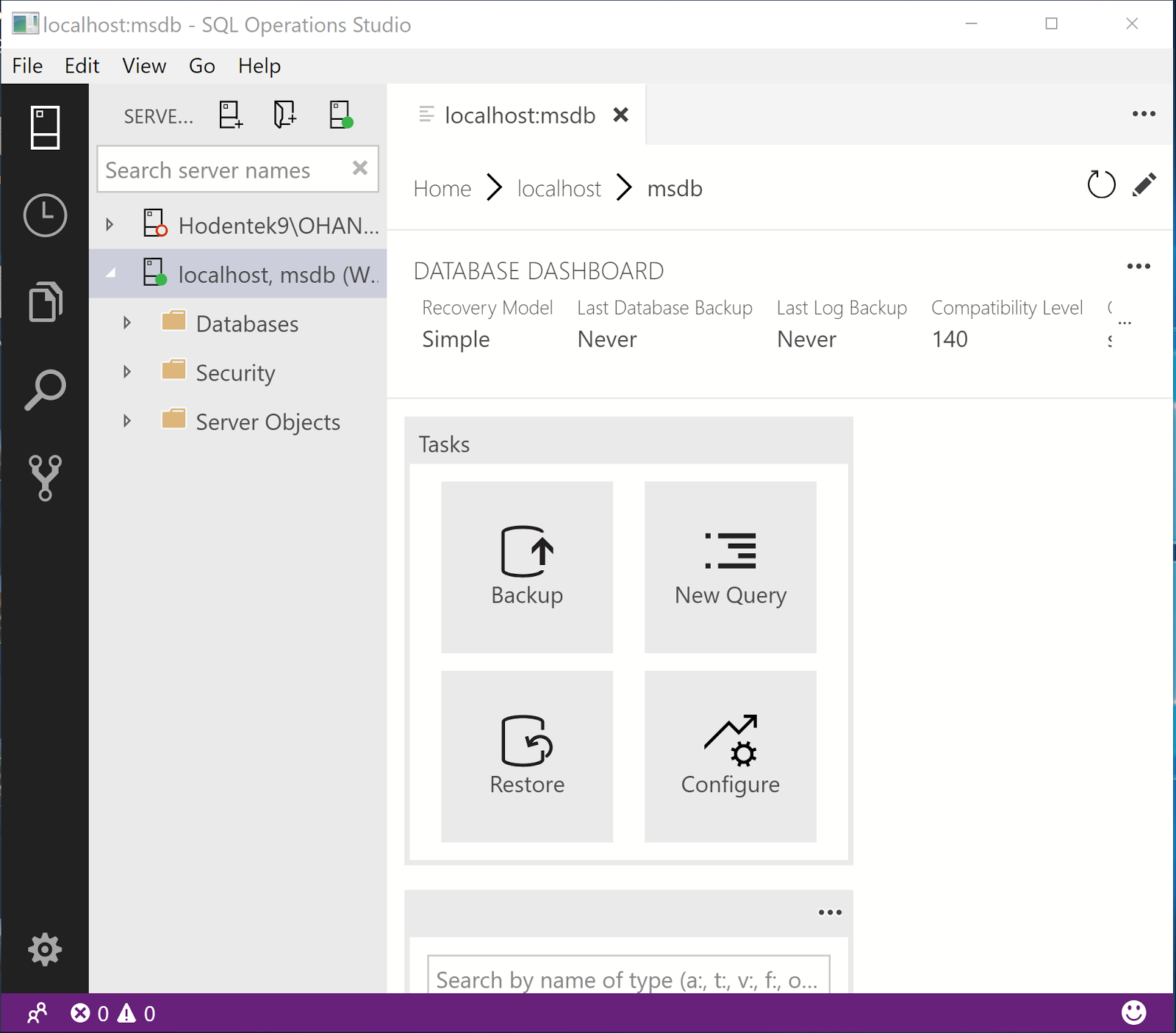


Click New Query to open a new query window as shown.


SQLServer17SQLOPS_6

Type S and a drop-down list appears.


SQLServer17SQLOPS_7

Complete a query as shown:

SELECT @@version


SQLServer17SQLOPS_8

Click Run and review the result as shown:


SQLServer17SQLOPS_9

Right click the result, copy and paste it in Notepad as shown:

Microsoft SQL Server 2017 (RTM) - 14.0.1000.169 (X64)  Aug 22 2017 17:04:49  Copyright (C) 2017 Microsoft Corporation Developer Edition (64-bit) on Windows 10 Pro Insider Preview 10.0 (Build 17025: ) (Hypervisor)

Note: It was mentioned that you type in msdb as a database. In fact just localhost is all that is neccessary to connect.

Friday, August 10, 2018

If you want to learn one programming language, it should be Python

Of course, you want the most popular and the most valuable.

According to the Institute of Electrical and Electronics Engineers (IEEE) , it is Python, the clear winner.

Here are the top ten in its rankings:


Why Python?

The answer appears to the fact that it iss now used for embedded applications and because it has beefed up its repertoire related to AI and Machine learning. It is for this reason R language (somewhat speccialized) has seen some decline.

Microsoft C# is still handing there at 5 and probably its place will be solid 5 for all types of programming - Web, desktop and Mobile. SQL is also there but does not show up as top 10 which is understandable given its area of usage.

Well here is the first 20. Find if your favorite is here


Well, you may want to know the basis for the ranking. You can get to know here.

You can find a lot of posts on R and Python on this site.


You can find a lot of Python and R posts in my blogs.

Monday, August 6, 2018

Upgrading SQL Server Management Services to version 17.8.1

Microsoft delivers message such as this one if you are using SQL Server Management (SSMS) of the previous version.


SSMSAug6_00

In SSMS you can get to the menu item easily.

SSMSAug6_0

When you click on this you will be taken to the site shown below next image.


SSMSAug6_1

https://docs.microsoft.com/en-us/sql/ssms/download-sql-server-management-studio-ssms?view=sql-server-2017

You just download the executable (Not the Upgrade Package) shown.

SSMS-Setup-ENU.exe (806 MB)

By double clicking the executable you can install the new version.

Enabling Machine Learning in SQL Server - 2

Launch SQL Server, the version (herein, SQL Server 2017) for which you want to use and start a New Query. Run the following in the context of the server:


sp_configure 'external scripts enabled'

Depending on the response to this query, you can find whether Machine Learning is installed or not. If the run_value=0, ML is not enabled.

The Advanced Analytics Extensions was enabled and the above query was executed. The value of Value_run is still 0.


However, if you run the query:

sp_configure 'external scripts enabled', 1

The response is as shown (note that the previous script is also included for reference):


This screen shows that the extension is installed. However the run-value will still be 0. You need to start the Windows Service s(SQL Server Launch Pad for MSSQLServer) shown here:


You can start the service from the above screen and it gets started as shown:

After restarting you should restart the MSSQL Server service before the changes are made. Now you run the script:

sp_configure 'external scripts enabled'

Now you get the following response:


If you are using SQL Server 2016, the procedure is slightly different and you should use the related SQL Server Launch Pad service.


Friday, August 3, 2018

Connecting to SQLite using Power BI

Power BI is the Microsoft product for business intelligence. SQLite is well known for its use in mobile platforms and embedded apps.

There is no native way of connecting to SQLite using Power BI, but you could use the ODBC driver which was described in an earlier post.

Read here:

Read here:
Creating ODBC DSN for SQLite3:

Connecting to SQLite3 using Power BI is easy. Here are the steps.

Launch Power BI and open the Get Data menu as shown.


In the list in the Other clic on ODBC.


Highlight the DSN, ODBCSQLite and Click OK. 


Change it to Windows (this may not be necessary) and click Connect.

The From ODBC window is displayed. Click on Advanced Options to display the pane where you can write a SQL Statement.


It goes through from processing and since there is no table by that name, it returns an error.

Now change the SQL Statement to the following:


Select * from Users

After some processing it get connected.


Now you can find the table details in Navigator as shown.


Power BI does not show the tables and write a query you need to know the objects you created in SQLite database.


Thursday, August 2, 2018

Download latest version of LinqPad for your .NET and data related projects

LinqPad is dubbed as the Ultimate Scratchpad for C#, F# and VB. You can do a lot of .NET Programming using LinqPad. I used mostly connecting to data as an SQL Server Management Studio.

You can do all of the following:

Instantly test any C#/F#/VB snippet or program
Query databases in LINQ (or SQL) — SQL/CE/Azure, Oracle, SQLite & MySQL
Enjoy rich output formatting, optional autocompletion and integrated debugging
Script and automate in your favorite .NET language
Super lightweight — single 15MB executable!
Standard edition free, with no expiry

I used LinqPad 4. Check out some of the LinqPad related posts.

https://hodentekmsss.blogspot.com/2014/12/learn-querying-sql-server-using-linq.html


https://hodentekmsss.blogspot.com/2015/01/learn-querying-sql-server-2012-using.html

ver 4.51.03
http://hodentekhelp.blogspot.com/2015/01/can-i-work-on-stored-procedures-using.html

http://hodentekmsss.blogspot.com/2015/01/learn-querying-sql-server-2012-using_25.html

The latest version of LinqPad can be downloaded from here:
https://www.linqpad.net/download.aspx

You can also download LinqPad 4 from the same link above. You can run LinqPad4 and LinqPad5 side-by-side as well.

.NetFramework verions 3.5, 4.0/4.5, and 4.6/4.7 are all covered.
LinqPad5 version uses .NETFramework 4.6/4.7

Bringing US Climate data to Excel is super easy!

You can ge the US climate data from this site.


It has data for all the states, like in this image.


USClimateData

This shows the data for Honolulu.


USClimateData_Honolulu

All you need to do is to highlight the data you want to use in Excel as shown,

Copy it.

Paste it into the first cell of an empty sheet.


Once it is in EXCEL you can use the built-in functionality of charting data.

When Identity Security Becomes a Wall — Not a Shield

After a breach that forced a reset of my digital identity, I hit a roadblock I never anticipated: multi-factor authentication (2FA) locked m...