Showing posts with label SSIS. Show all posts

Thursday, February 20, 2025

Is Vector Search in SQL Server 2025 the Key to Unlocking New Data Insights?

 The advent of AI has ushered in ground breaking changes in most areas of technology. AI is synonymous with a humongous amount of data, data of all types including text, image, audio and video. The databases of the future needs to cater to this changing vista of data and yet compatible with existing technologies.

Microsoft SQL Server has always catered to the technological changes and along its developmental path has introduced many data types to handle diverse data varieties and in recent years has introduced data types such as, "Json', "Stock" and "Geographical" data types. These address  the stock market and the geographical data that accompanies all global operations. 

In addition to data types, it has also changed itself to accommodate not only relational data but also non-relational NoSQL type of data using integration with polyphase technology.

Vector Data Type

SQL Server 2025 has introduced a new **vector data type** designed to store vector data optimized for operations like similarity search and machine learning applications. This is quite a leap for a relational database management system (RDBMS), as it traditionally handles structured data but can handle NoSQL Data.

How is Vector datatype stored in the SQL Server 2025?

A vector in SQL Server is typically stored as a JSON array of floating-point values. Here's an example of how you might define and use a vector in SQL Server:

-- Create a table with a vector column

CREATE TABLE dbo.vectors (

    id INT PRIMARY KEY,

    v VECTOR(3) NOT NULL

);

-- Insert data into the table

INSERT INTO dbo.vectors (id, v) VALUES 

(1, '[0.11, 2, -35]'), 

(2, '[-100.2, 0.0123, 9.876]'

-- Select data from the table

SELECT * FROM dbo.vectors;

This table with two columns has a column of vector data type not null. The vectors are [0.11, 2, -35] and [-100.2, 0.0123, 9.876]

The columns store three dimensional vectors with each dimension stored as a single-precision floating point (float type).

Vector Data Type is not available in 2022

The vector data type is not available in SQL Server 2022. You may have to store vector data type in a JSON column or something customized.

Image Processing and AI

In recent times image processing has been intensely studied. One may ask how to store the dimensional representation of an image. Well, images can have a very high dimensional representation.

Grayscale Image: A 100x100 pixel grayscale image can be represented as a 10,000-dimensional vector (100x100 = 10,000).

Color Image: A 100x100 pixel color image with RGB channels can be represented as a 30,000-dimensional vector (100x100x3 = 30,000).

In SQL Server 2025, the maximum number of dimensions that can be stored using the vector data type is 1998. Each element of the vector is stored as a single-precision (4-byte) floating-point value.

Can image dimensions be stored in SQL Server 2025?

The short answer for storing image dimensions in SQL Server is that it is not possible to store image dimensions without reducing the number of dimensions. There are techniques to reduce the dimensions with various pay offs in quality. We shall discuss them in a later post using a programming language such as python with the use of certain libraries.

Going forward in populating vector data type into the server the SQL Server Integration services can be used to preprocess the image data and then populate the database. This will also be for a future post.


If you are looking for working with databases, stay in and learn from over 15 years of blogging on databases here.  http://hodentekMSSS.blogspot.com

You may also have a look at my database related books:


Friday, January 8, 2016

Creating and Executing a SSIS Project Package - Part 4

This post is about deploying a SSIS package using SQL Server Data Tools.
Before you start on this post review the following:

http://hodentekmsss.blogspot.com/2015/12/creating-and-executing-ssis-project.html
http://hodentekmsss.blogspot.com/2015/12/creating-and-executing-ssis-project_28.html
http://hodentekmsss.blogspot.com/2015/12/creating-and-executing-ssis-project_29.html

There are two modes deployment SSIS 2012:
  • A mode to deploy individual packages
  • A mode to deploy SSIS projects
SSIS Project deployment is the default for SSIS 2012. Verify that the project you created earlier has no problems. For this, bring up the project in Visual Studio and execute the package as shown in Part 3.

In Solution Explorer right click the project and select Deploy Package as shown:


deploy_02

The wizard Integration Services Deployment Wizard gets displayed. There are a couple of steps (5) you need to follow. This wizard will deploy the package to an Integration Services Catalog on an instance of SQL Server 2012.


deploy_03

Click Next. You need to select the destination.


deploy_04

Click in the box under Server name: and click Browse...

Browse for Servers window is displayed as shown displaying the instance name.


deploy_04a

Click OK to Browse for Servers window.  The Browse for Project window is displayed the SSISDB is the only object.


deploy_04b

SSISDB is organized as folders and the Projects are housed in the folders.
Click on New folder...button. The Create New Folder window is displayed as shown.


deploy_04c

Provide a name and a description(Optional) and click OK.

The Browse for Project now contains the folder you created, SSIS_Dec27Pkg.


deploy_04d

Click New project...The Create New Project window us displayed.


deploy_04e

Provide a name and a description and click OK. The Browse for project window now displays the Project (All these names I have given were taken from my SSIS project created in Parts 1, 2 and 3).

deploy_04f

Now click OK. Now the Select Destination page of the wizard has all the needed information as shown.
deploy_04g

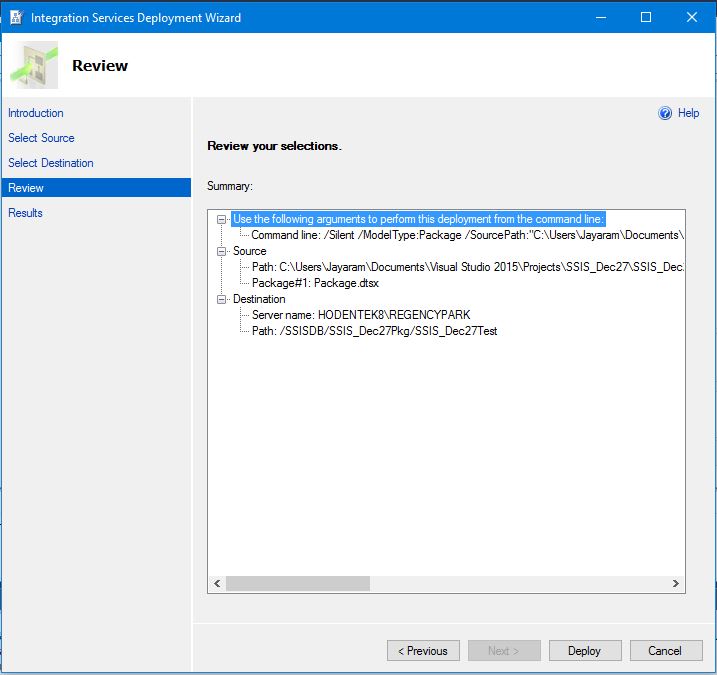
Click Next. The Review you selections section of the Review page is displayed.

deploy_05

Just check the Source and Destination paths and click Deploy.

After some processing the results are displayed in the Result page of the wizard as shown.

deploy_06

Looks like the deployment failed for some reason. Clicking the link Failed brings up the next window.
deploy_07FailedLink.png

The message appears to indicate failing to find a stored procedure. Searching for the package on the SQL Server instance using PowerShell did indicate the creation of folders and projects but did not find the package.
deploy_08.png

On a hunch, the SQL Server Data Tools was closed and opened with administrative privileges and
the package was deployed to the same folder in the SQL Server.

This time the deployment was successful with any errors.


deploy_09.png

The next image shows the package in the Integration Services Catalogs in SQL Server Management Studio.

deploy_10.png

For getting a jump start on SSIS review my popular book and describes some 20 routine tasks that you can configure. The version may be different but the procedures have not changed much.


https://www.packtpub.com/networking-and-servers/beginners-guide-sql-server-integration-services-using-visual-studio-2005

Thursday, December 24, 2015

Integration Services Server (SSIS) in SQL Server 2012 and SSISDB

Integration Services Server is basically the SQL Server Database Engine that hosts a special database that does not allow replication or mirroring, the SSISDB. The database stores the following objects:

  • Packages
  • Projects
  • Parameters
  • Permissions
  • Server Properties
  • Operational History
While installing SQL Server 2012you would have installed SQL Server Integration Services as shown here:


IntSerServ_00

SSISDB provides the public views that allows querying and for manageability, it allows creating stored procedures. SSISDB has to be in place before you deploy SSIS Projects.

The Packages are created using SQL Server Data Tools and deployed to SSIS. It assumes you have created the SSISDB before deploying the SSIS Projects.

Where is the SSISDB or how do you create the database SSISDB?

Assuming you have installed SQL Server 2012 as I the previously mentioned link, you launch the SQL Server Management Studio and change over from connecting to Database Engine to Integration Services  as shown.

IntSerServ_01

Since you installed with Windows Authentication, just click Connect.

Oops! you may get this message.

IntSerServ_02

Now go ahead and launch SQL Server Management Studio with Elevated permissions (As administrator).  Repeat connecting to Integration Services as before. You may get this message if SQL Server Integration Services has not started.

IntSerServ_04

Start the SQL Server Integration Services in Control Panel|..|Services  shown.

IntSerServ_05

Click Start to start the SQL Server Integration Services 11.0. It processes the information and status changes to Running.

Now connect to the Integration Services as before (after launching the SSMS in Administrative mode).

The first of the nodes in the Object Explorer is the Integration Services. This is an expanded view of the Integration Services Server.


This is a named instance of SQL Server that will host the SSISDB.

IntSerServ_06

Creating the SSISDB

Connect to the named instance of SQL Server 2012, herein the Hodentek8\RegencyPark.
Right click the Integration Servies Catalogs and click Create Catalog.. from the drop-down menu as shown above. The following window will be displayed.

IntSerServ_07

Place check mark for Enable CLR Integration. Leave the catalog database name as is and create a password to protect data using encryption (enter and retype password). Save this information in a secure place (under lock and key). Click OK.

Now the SSISDB gets created as shown.

IntSerServ_08
This is an expanded view of the SSISDB in the Object Explorer of the named instance.

IntSerServ_09

In the next post a SSIS Project creation will be described that can be deployed to the Integration Services Server.

Get jump start on SSIS (the version is old but concepts are same)

Read here:


Saturday, November 14, 2015

Tools in SQL Server Integration Services

In 2005 there was no program called SQL Server Data Tools and Microsoft had just come up with .NET based technology. Microsoft Business Intelligence’s SQL Server Integration Services had Visual Studio components that had replaced the Data Transformation Services of SQL Server with tighter integration with SQL Server 2005. It was a big leap. I wrote my first book on SQL Server Integration Services 2005 during 2007. It had a lot of reviews good/bad but it survived and quite a good number of folks thought it was useful and it still sells.


SSIS2005.00
Fast forward to 2015, a lot of data related methodologies has changed. In the interim, I have not paid attention to the details although I am aware of the changes. In the intervening years technology has been on a rapid pace with the advent of Cloud Services, Streaming data, BigData, NoSQL etc.

It is no wonder that Microsoft has worked on their tools to address these developments and fortify Visual Studio Tools. This post is about a comparative look at the Toolbox items then and now.  Of course there is lot more to it than just adding new tools.

In Visual Studio 2005 IDE there were a set of Business Intelligence project templates to address the various needs at that time:

•    Analysis Services Project
•    Integration Services Project
•    Report Model Project
•    Import Analysis Services Database…
•    Report Server Project Wizard
•    Report Server Project

The Visual Studio 2005 IDE, a very thorough discussion of this in video format may be found here.

The full comprehensive and detailed use of the Visual Studio 2005 IDE is described in my book, "Beginners guide to SQL Server Integration Services 2005" published by Packt Publishing Inc. The book has 20 of the more commonly used SSIS tasks that you may come across in your developmental work. Targeted to beginners as well as for those moving from DTS to SSIS, the book is essentially hands-on with screen shots that explains the subject matter. By the end of the book you would have learnt those 20 tasks and ready to probe more on your own.
- See more at: http://www.sswug.org/articlesection/default.aspx?TargetID=44780#sthash.ik4QFFCB.dpuf


In the case of Integration Services, basically the project was based on Packages that used Data Sources, Data Destination and transformations that worked between the Sources and Destinations while Data Flow Tasks did the actual task of moving the data based on the choice of data flow task.
The package was an assembly consisting of several objects and, other packages could be nested as well.

Specifically, a package can consist of:

•    Connections
•    Control Flow Elements
•    Data Flow Elements
•    Event Handlers
•    Variables
•    Configurations

Here are a few images relevant to Integration Services 2005 for Data Flow:
Data Flow Sources
SSIS2005_DataFlowSources.jpg

Control Flow Tasks
 

SSIS2005_ControlFlowTasks.jpg

 Data Flow Transformations
SSIS2005_DataflowDestinations.jpg

Data Flow Destinations
 
SSIS2005_DataflowDestinations.jpg

In Visual Studio the appropriate tool for working with SQL Servers as described here is the SQL Server Data Tools to match the version of Visual Studio edition. A stand-alone version is also available which gives access to Visual Studio Shell.

The download mentioned here gives access to SSDT that can work with SQL Servers from version 2005 to SQL Server 2016 CTP3:

•    SSDT Preview for Visual Studio 2015
SQL Platform support:
SQL Server 2005 – 2016 CTP 3.0
Analysis Services for SQL Server 2008 - 2016 CTP 3.0
Integration Services for SQL Server 2016 CTP 3.0
Reporting Services for SQL Server 2008 - 2016 CTP 3.0
Azure SQL Database
Azure SQL Data Warehouse

The following paragraphs use the above preview installed on a Windows 10 (x64) OS platform on a Toshiba Laptop.

Herein follows a description of the Toolbox of the Integration Services for SQL Server 2016 CTP3.0. The Business Intelligence templates in this version of SSDT is shown in the next image.


SSDT_01.jpg

The two Analysis Services project refer to two modes of working with the services. Examples in my Reporting Services 2012 book provide specific examples of these two types of projects.

The Reporting Services Wizard gives guidance at each step,  you can also use the Report Server Project to fashion your own.

Herein we look at the Toolbox items in the SQL Server Integration Services arsenal to compare with those in SSIS 2005 and identify the new ones.

Common folder in Data Flow  (Click Data Flow tab in designer):

SSIS_02.PNG
Other Transforms group in Data Flow :
SSIS_03.PNG

Other Sources group in Data Flow:
 SSIS_04a.PNG
 Other Destinations group in Data Flow:
SSIS_05.PNG
 Control Flow Tasks (access the following when Control Flow Tab is chosen in the package designer) in SSIS 2005:
The following image shows the Control Flow items in the SSIS 2005 designer:
controlFlow 001.jpg

Visual Studio BI 2005 also had a Maintenance Plan related controls as shown here.
MaintenancePlan 001.jpg

In SSDT 2015 the tasks are divided into two groups, Common and Other Tasks. The following image shows the tasks in the two groups. Those highlighted in light blue are the same ones found in the Maintenance Plan tasks in 2005 and the ones in Yellow are those related to Control Flow Items in SSIS 2005.


SSIS_10_CF3.PNG


SSIS_9_CF5a.PNG

The For Loop Container, ForEach Loop Container and Sequence Container in the Control Flow Items of VS 2005 have been placed in a separate Containers category as shown.

 SSIS_8_CF3.PNG

Visual Studio has gone through many iterations from 2005 to 2015 and some of these changes have entered the IDE during this period.  While there are additions to the toolbox there are no removals with many of the items rearranged or grouped differently.


Saturday, February 21, 2015

Creating a Microsoft SQL Server Integration Services using SSDT in SQL Server 2012

This post describes creating a SQL Server Integration Services using SSDT that installs with the installation of SQL Server 2012

SQL Server  Data Tools(SSDT) installs when you install SQL Server 2012 (even the SQL Server 2012 Express edition). SSDT has all the necessary project templates to start a Business Intelligence project. However it will not have the templates for other language projects such as C#, VB.NET etc.
 
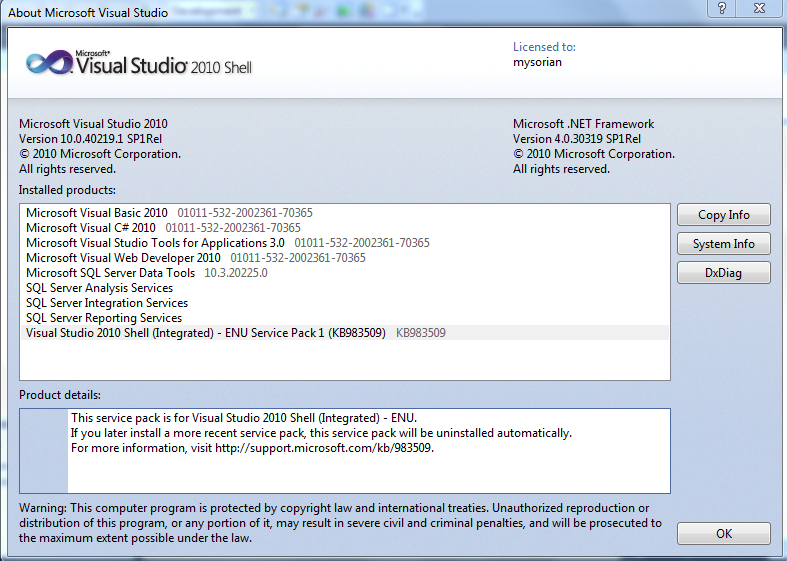
Launch SSDT from its short cut in All Programs. Review the details fo the Visural Studio Shell from File | About Microsoft Visual Studio. The following window will be displayed for Visual Studio 2010 Shell. The programs not available are all greyed out but you can that all the BI related programs are enabled.


SSIAProj01

The Start page gives you access to create a New Project, Open a project and it also lists out the Recent Projects that you can bring up as shown.

SSIAProj02

Click New Project to create a new project. The New Project window opens. Expanding the Business Intelligence node reveals all the BI related projects that you can create including the Integration Services project as shown. Note that the .NET Framework 4.0 is needed.
SSIAProj03

Click on Integration Services..Business Intelligence ant change project name to August. The default that comes up is Interation Services Project1 as shown.
SSIAProj04

A project is a container to develop Integration Services packages. Integration Services manages packages deployed to Microsoft SQL Servers Databases or SSIS Package stores. Integration Services is only available in SQL Servers. Once deployed to the Integration Services servers, the projects are managed by T-SQL and Stored Procedures in the SQL Server Management Studio.
The project may contain all the files needed for an ETL operation (Extraction, Transformation and Load).  The next figure shows the Solution Explorer for a project named August4.

SSIAProj05

SSIS 2012 is based on a project unlike the earlier version which was Package based.
Right click August 4 to access the project properties page as shown (the Common Properties node).
SSIAProj06

The Configuration properties in the debugging mode are as shown here:
SSIAProj07

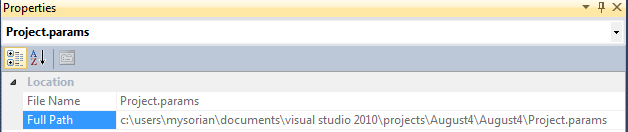
The Project.params is an XML file persisted to the hard drive as shown.

SSIAProj08

SSIAProj09

The XML file has the following entry:

SSIAProj10

Connection Managers folder is a container for connection managers used in the project.

Similarly, the SSIS Packages is a container of SSIS Packages and presently it has the default package Package.dtsx. It can be renamed to a custom name of user’s choice.

Miscellaneous is a folder for other project related items.

Package Properties
 
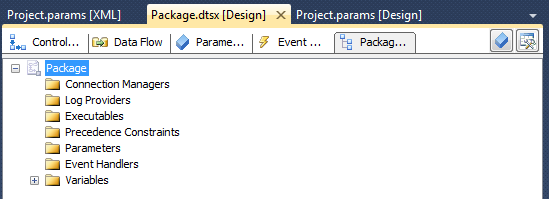
The following components constitute a package and the tabbed pages under Package.dtsx gives access to them as shown. The Package Explorer shows the various folders associated with the Package as shown.

SSIAProj11

At the right extreme is the SSIS Toolbox. If the Toolbox items are not visible this button can be used to make them visible.  The Toolbox components should be visible when any of the Control Flow, Data Flow or Event Handlers pages are active.
The next figure shows the Toolbox items available.

 
Control Flow
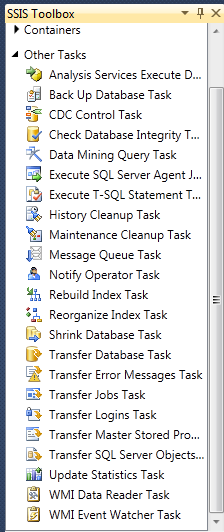
List of tasks available, under ‘Other Tasks’ in the Toolbox, with Control Flow page tab is clicked.


SSIAProj12

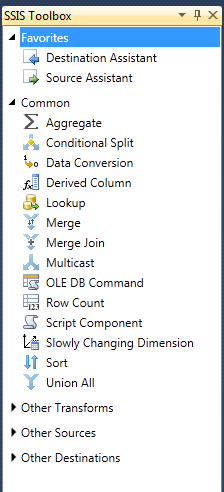
The tasks under  Favorites, Common and Containers with the Control Flow Page active are shown.

SSIAProj13
 

Favorites and Common folders contain the following Components:

SSIAProj14

The ‘Other Transforms’ folder contains the following components:

SSIAProj15

The components in the ‘Other Sources’ and ‘Other Destinations’ are as shown here.
SSIAProj16

You may note that the SQL Server Integration Services in 2012 is much more feature rich with enhancements  when compared to its first time debut in SQL Server Integration Services in SQL Server 2005.

However, the methodology of creating packages follow very similar lines as before.

For a very exhaustive description of the Visual Studio IDE for the 2005 version is available in my book here:


You can buy this book here:
https://www.packtpub.com/networking-and-servers/beginners-guide-sql-server-integration-services-using-visual-studio-2005

or from  Amazon

http://www.amazon.com/Beginners-Server-Integration-Services-Visual-ebook/dp/B005CG8IKQ/ref=asap_bc?ie=UTF8


When Identity Security Becomes a Wall — Not a Shield

After a breach that forced a reset of my digital identity, I hit a roadblock I never anticipated: multi-factor authentication (2FA) locked m...