This post describes creating a SQL Server Integration Services using SSDT that installs with the installation of SQL Server 2012
SQL Server Data Tools(SSDT) installs when you install SQL Server 2012 (even the SQL Server 2012 Express edition). SSDT has all the necessary project templates to start a Business Intelligence project. However it will not have the templates for other language projects such as C#, VB.NET etc.
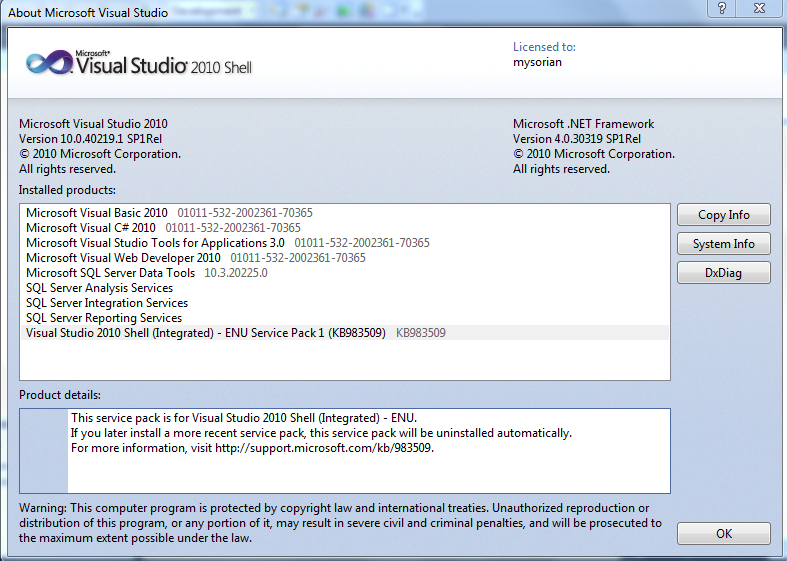
Launch SSDT from its short cut in All Programs. Review the details fo the Visural Studio Shell from File | About Microsoft Visual Studio. The following window will be displayed for Visual Studio 2010 Shell. The programs not available are all greyed out but you can that all the BI related programs are enabled.
 SSIAProj01
The Start page gives you access to create a New Project, Open a project and it also lists out the Recent Projects that you can bring up as shown.
SSIAProj02
Click New Project to create a new project. The New Project window opens. Expanding the Business Intelligence node reveals all the BI related projects that you can create including the Integration Services project as shown. Note that the .NET Framework 4.0 is needed.
SSIAProj03
Click on Integration Services..Business Intelligence ant change project name to August. The default that comes up is Interation Services Project1 as shown.
SSIAProj04
A project is a container to develop Integration Services packages. Integration Services manages packages deployed to Microsoft SQL Servers Databases or SSIS Package stores. Integration Services is only available in SQL Servers. Once deployed to the Integration Services servers, the projects are managed by T-SQL and Stored Procedures in the SQL Server Management Studio.
The project may contain all the files needed for an ETL operation (Extraction, Transformation and Load). The next figure shows the Solution Explorer for a project named August4.
SSIAProj05
SSIS 2012 is based on a project unlike the earlier version which was Package based.
Right click August 4 to access the project properties page as shown (the Common Properties node).
SSIAProj06
The Configuration properties in the debugging mode are as shown here:
SSIAProj07
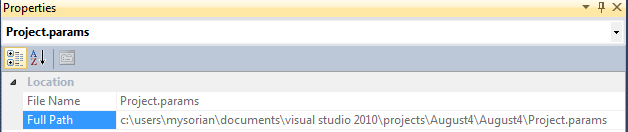
The Project.params is an XML file persisted to the hard drive as shown.
SSIAProj08
SSIAProj09
The XML file has the following entry:
SSIAProj10
Connection Managers folder is a container for connection managers used in the project.
Similarly, the SSIS Packages is a container of SSIS Packages and presently it has the default package Package.dtsx. It can be renamed to a custom name of user’s choice.
Miscellaneous is a folder for other project related items.
Package Properties
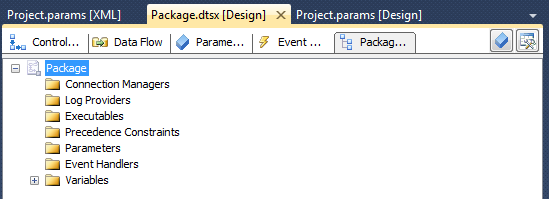
The following components constitute a package and the tabbed pages under Package.dtsx gives access to them as shown. The Package Explorer shows the various folders associated with the Package as shown.
 SSIAProj11
At the right extreme is the SSIS Toolbox. If the Toolbox items are not visible this button can be used to make them visible. The Toolbox components should be visible when any of the Control Flow, Data Flow or Event Handlers pages are active.
The next figure shows the Toolbox items available.
Control Flow
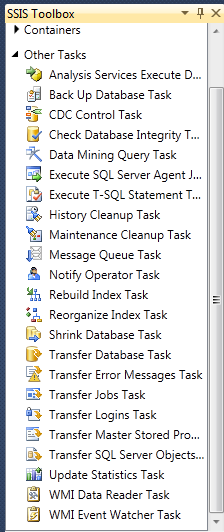
List of tasks available, under ‘Other Tasks’ in the Toolbox, with Control Flow page tab is clicked.
 SSIAProj12
The tasks under Favorites, Common and Containers with the Control Flow Page active are shown.
SSIAProj13
Favorites and Common folders contain the following Components:
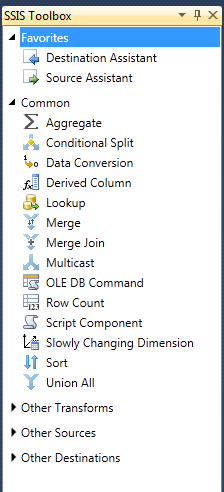 SSIAProj14
The ‘Other Transforms’ folder contains the following components:
SSIAProj15
The components in the ‘Other Sources’ and ‘Other Destinations’ are as shown here.
SSIAProj16
You may note that the SQL Server Integration Services in 2012 is much more feature rich with enhancements when compared to its first time debut in SQL Server Integration Services in SQL Server 2005.
However, the methodology of creating packages follow very similar lines as before.
For a very exhaustive description of the Visual Studio IDE for the 2005 version is available in my book here:
You can buy this book here:
https://www.packtpub.com/networking-and-servers/beginners-guide-sql-server-integration-services-using-visual-studio-2005
or from Amazon
http://www.amazon.com/Beginners-Server-Integration-Services-Visual-ebook/dp/B005CG8IKQ/ref=asap_bc?ie=UTF8