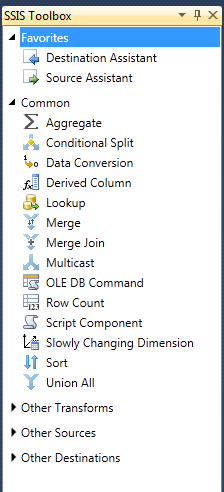
SQL Server Data Tools is a modern development tool which can be used to build:
SQL Server Relational DBS
Azure SQL Databases
Integration Service Packages
Analysis Services Models
Reporting Services Reports
You can, not only build you can also deploy SQL Server content with same ease as you do in Visual Studio. If you already have Visual Studio 2015 Community installing SSDT will add full set of SQL Server tools into existing Visual Studio. If there is no Visual Studio, a shell Visual Studio programe will be installed which will have only SQL Server related BI templates.
You will have a stirling exprience if you all ready have Visual Studio 2015 Community which happens to be free as well. This is highly recommended.
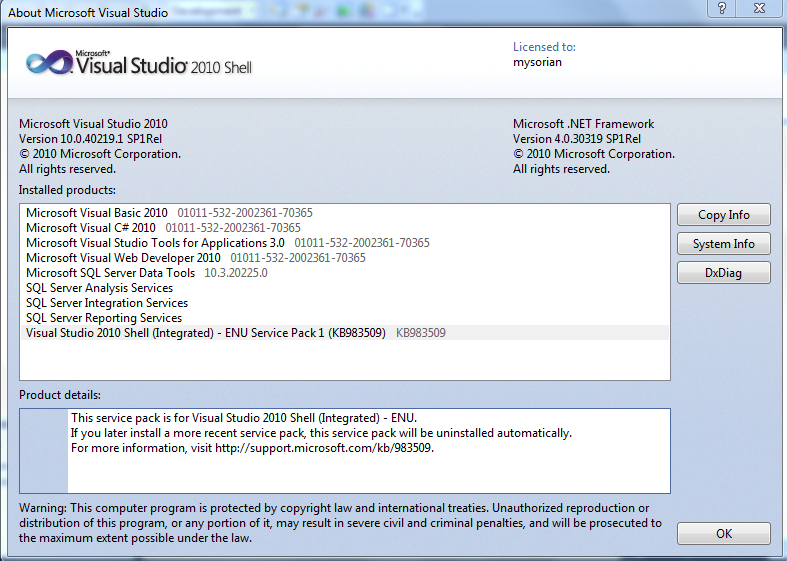
This post is related to the July 7, 2016 update. The new version is 14.0.60812.0.
Here are the older versions on my computer:

SSDT_01
If you already have Visual Studio 2015 Community, you will have received a notification which will show the updates available for you as shown:

SSDT_00
Just hit the Update button and you will be taken to the download URL. If you do not have Visual Studio 2015 Community and you want a copy of SSDT just follow this link.(https://msdn.microsoft.com/en-us/library/mt204009.aspx)
Details of SSDT installation are at this link including links for the .ISO Images and other details:
https://msdn.microsoft.com/en-us/mt186501
The ISO images are available in several languages as well.
Portuguese (Brazil)
https://go.microsoft.com/fwlink/?LinkID=824661&clcid=0x416
Chinese (PRC)
https://go.microsoft.com/fwlink/?LinkID=824661&clcid=0x804
German
https://go.microsoft.com/fwlink/?LinkID=824661&clcid=0x407
English (United States)
https://go.microsoft.com/fwlink/?LinkID=824661&clcid=0x409
Spanish
https://go.microsoft.com/fwlink/?LinkID=824661&clcid=0x40a
French
https://go.microsoft.com/fwlink/?LinkID=824661&clcid=0x40c
Italian
https://go.microsoft.com/fwlink/?LinkID=824661&clcid=0x410
Japanese
https://go.microsoft.com/fwlink/?LinkID=824661&clcid=0x411
Korean
https://go.microsoft.com/fwlink/?LinkID=824661&clcid=0x412
Russian
https://go.microsoft.com/fwlink/?LinkID=824661&clcid=0x419
Chinese (Taiwan)
https://go.microsoft.com/fwlink/?LinkID=824661&clcid=0x404
Supported Operating Systems are:
Windows 10 (x86 and x64)
Windows 8, 8.1 (x86 and x64)
Windows 7 SP1 (x86 and x64)
Windows Server 2012 (x64), R2 (x64)
Windows Server 2008 R2 SP1 (x64)
SQL Server Relational DBS
Azure SQL Databases
Integration Service Packages
Analysis Services Models
Reporting Services Reports
You can, not only build you can also deploy SQL Server content with same ease as you do in Visual Studio. If you already have Visual Studio 2015 Community installing SSDT will add full set of SQL Server tools into existing Visual Studio. If there is no Visual Studio, a shell Visual Studio programe will be installed which will have only SQL Server related BI templates.
You will have a stirling exprience if you all ready have Visual Studio 2015 Community which happens to be free as well. This is highly recommended.
This post is related to the July 7, 2016 update. The new version is 14.0.60812.0.
Here are the older versions on my computer:

SSDT_01
If you already have Visual Studio 2015 Community, you will have received a notification which will show the updates available for you as shown:

SSDT_00
Just hit the Update button and you will be taken to the download URL. If you do not have Visual Studio 2015 Community and you want a copy of SSDT just follow this link.(https://msdn.microsoft.com/en-us/library/mt204009.aspx)
Details of SSDT installation are at this link including links for the .ISO Images and other details:
https://msdn.microsoft.com/en-us/mt186501
The ISO images are available in several languages as well.
Portuguese (Brazil)
https://go.microsoft.com/fwlink/?LinkID=824661&clcid=0x416
Chinese (PRC)
https://go.microsoft.com/fwlink/?LinkID=824661&clcid=0x804
German
https://go.microsoft.com/fwlink/?LinkID=824661&clcid=0x407
English (United States)
https://go.microsoft.com/fwlink/?LinkID=824661&clcid=0x409
Spanish
https://go.microsoft.com/fwlink/?LinkID=824661&clcid=0x40a
French
https://go.microsoft.com/fwlink/?LinkID=824661&clcid=0x40c
Italian
https://go.microsoft.com/fwlink/?LinkID=824661&clcid=0x410
Japanese
https://go.microsoft.com/fwlink/?LinkID=824661&clcid=0x411
Korean
https://go.microsoft.com/fwlink/?LinkID=824661&clcid=0x412
Russian
https://go.microsoft.com/fwlink/?LinkID=824661&clcid=0x419
Chinese (Taiwan)
https://go.microsoft.com/fwlink/?LinkID=824661&clcid=0x404
Supported Operating Systems are:
Windows 10 (x86 and x64)
Windows 8, 8.1 (x86 and x64)
Windows 7 SP1 (x86 and x64)
Windows Server 2012 (x64), R2 (x64)
Windows Server 2008 R2 SP1 (x64)