In 2005 there was no program called SQL Server Data Tools and
Microsoft had just come up with .NET based technology. Microsoft
Business Intelligence’s SQL Server Integration Services had Visual
Studio components that had replaced the Data Transformation Services of
SQL Server with tighter integration with SQL Server 2005. It was a big
leap. I wrote my first book on SQL Server Integration Services 2005
during 2007. It had a lot of reviews good/bad but it survived and quite a
good number of folks thought it was useful and it still sells.

SSIS2005.00
Fast forward to 2015, a lot of data related methodologies has changed. In the interim, I have not paid attention to the details although I am aware of the changes. In the intervening years technology has been on a rapid pace with the advent of Cloud Services, Streaming data, BigData, NoSQL etc.
It is no wonder that Microsoft has worked on their tools to address these developments and fortify Visual Studio Tools. This post is about a comparative look at the Toolbox items then and now. Of course there is lot more to it than just adding new tools.
In Visual Studio 2005 IDE there were a set of Business Intelligence project templates to address the various needs at that time:
• Analysis Services Project
• Integration Services Project
• Report Model Project
• Import Analysis Services Database…
• Report Server Project Wizard
• Report Server Project
The Visual Studio 2005 IDE, a very thorough discussion of this in video format may be found here.
“The full comprehensive and detailed use of the Visual Studio 2005 IDE is described in my book, "Beginners guide to SQL Server Integration Services 2005" published by Packt Publishing Inc. The book has 20 of the more commonly used SSIS tasks that you may come across in your developmental work. Targeted to beginners as well as for those moving from DTS to SSIS, the book is essentially hands-on with screen shots that explains the subject matter. By the end of the book you would have learnt those 20 tasks and ready to probe more on your own.
- See more at: http://www.sswug.org/articlesection/default.aspx?TargetID=44780#sthash.ik4QFFCB.dpuf”
In the case of Integration Services, basically the project was based on Packages that used Data Sources, Data Destination and transformations that worked between the Sources and Destinations while Data Flow Tasks did the actual task of moving the data based on the choice of data flow task.
The package was an assembly consisting of several objects and, other packages could be nested as well.
Specifically, a package can consist of:
• Connections
• Control Flow Elements
• Data Flow Elements
• Event Handlers
• Variables
• Configurations
Here are a few images relevant to Integration Services 2005 for Data Flow:
Data Flow Sources
 SSIS2005_DataFlowSources.jpg
Control Flow Tasks

SSIS2005_ControlFlowTasks.jpg
Data Flow Transformations
 SSIS2005_DataflowDestinations.jpg
Data Flow Destinations
 SSIS2005_DataflowDestinations.jpg
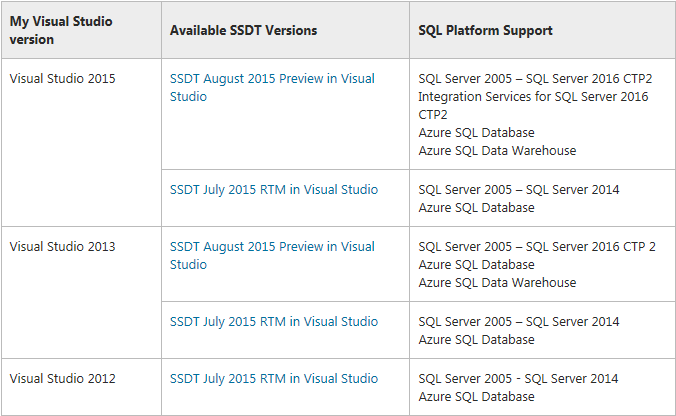
In Visual Studio the appropriate tool for working with SQL Servers as described here is the SQL Server Data Tools to match the version of Visual Studio edition. A stand-alone version is also available which gives access to Visual Studio Shell.
The download mentioned here gives access to SSDT that can work with SQL Servers from version 2005 to SQL Server 2016 CTP3:
• SSDT Preview for Visual Studio 2015
SQL Platform support:
SQL Server 2005 – 2016 CTP 3.0
Analysis Services for SQL Server 2008 - 2016 CTP 3.0
Integration Services for SQL Server 2016 CTP 3.0
Reporting Services for SQL Server 2008 - 2016 CTP 3.0
Azure SQL Database
Azure SQL Data Warehouse
The following paragraphs use the above preview installed on a Windows 10 (x64) OS platform on a Toshiba Laptop.
Herein follows a description of the Toolbox of the Integration Services for SQL Server 2016 CTP3.0. The Business Intelligence templates in this version of SSDT is shown in the next image.

SSDT_01.jpg
The two Analysis Services project refer to two modes of working with the services. Examples in my Reporting Services 2012 book provide specific examples of these two types of projects.
The Reporting Services Wizard gives guidance at each step, you can also use the Report Server Project to fashion your own.
Herein we look at the Toolbox items in the SQL Server Integration Services arsenal to compare with those in SSIS 2005 and identify the new ones.
Common folder in Data Flow (Click Data Flow tab in designer):
 SSIS_02.PNG
Other Transforms group in Data Flow :
 SSIS_03.PNG
Other Sources group in Data Flow:

 SSIS_05.PNG
Control Flow Tasks (access the following when Control Flow Tab is chosen in the package designer) in SSIS 2005:
The following image shows the Control Flow items in the SSIS 2005 designer:
 controlFlow 001.jpg
Visual Studio BI 2005 also had a Maintenance Plan related controls as shown here.
 MaintenancePlan 001.jpg
In SSDT 2015 the tasks are divided into two groups, Common and Other Tasks. The following image shows the tasks in the two groups. Those highlighted in light blue are the same ones found in the Maintenance Plan tasks in 2005 and the ones in Yellow are those related to Control Flow Items in SSIS 2005.

SSIS_10_CF3.PNG

SSIS_9_CF5a.PNG
The For Loop Container, ForEach Loop Container and Sequence Container in the Control Flow Items of VS 2005 have been placed in a separate Containers category as shown.
 SSIS_8_CF3.PNG
Visual Studio has gone through many iterations from 2005 to 2015 and some of these changes have entered the IDE during this period. While there are additions to the toolbox there are no removals with many of the items rearranged or grouped differently.
SSIS2005.00
Fast forward to 2015, a lot of data related methodologies has changed. In the interim, I have not paid attention to the details although I am aware of the changes. In the intervening years technology has been on a rapid pace with the advent of Cloud Services, Streaming data, BigData, NoSQL etc.
It is no wonder that Microsoft has worked on their tools to address these developments and fortify Visual Studio Tools. This post is about a comparative look at the Toolbox items then and now. Of course there is lot more to it than just adding new tools.
In Visual Studio 2005 IDE there were a set of Business Intelligence project templates to address the various needs at that time:
• Analysis Services Project
• Integration Services Project
• Report Model Project
• Import Analysis Services Database…
• Report Server Project Wizard
• Report Server Project
The Visual Studio 2005 IDE, a very thorough discussion of this in video format may be found here.
“The full comprehensive and detailed use of the Visual Studio 2005 IDE is described in my book, "Beginners guide to SQL Server Integration Services 2005" published by Packt Publishing Inc. The book has 20 of the more commonly used SSIS tasks that you may come across in your developmental work. Targeted to beginners as well as for those moving from DTS to SSIS, the book is essentially hands-on with screen shots that explains the subject matter. By the end of the book you would have learnt those 20 tasks and ready to probe more on your own.
- See more at: http://www.sswug.org/articlesection/default.aspx?TargetID=44780#sthash.ik4QFFCB.dpuf”
In the case of Integration Services, basically the project was based on Packages that used Data Sources, Data Destination and transformations that worked between the Sources and Destinations while Data Flow Tasks did the actual task of moving the data based on the choice of data flow task.
The package was an assembly consisting of several objects and, other packages could be nested as well.
Specifically, a package can consist of:
• Connections
• Control Flow Elements
• Data Flow Elements
• Event Handlers
• Variables
• Configurations
Here are a few images relevant to Integration Services 2005 for Data Flow:
Data Flow Sources

Control Flow Tasks

SSIS2005_ControlFlowTasks.jpg
Data Flow Transformations

Data Flow Destinations

In Visual Studio the appropriate tool for working with SQL Servers as described here is the SQL Server Data Tools to match the version of Visual Studio edition. A stand-alone version is also available which gives access to Visual Studio Shell.
The download mentioned here gives access to SSDT that can work with SQL Servers from version 2005 to SQL Server 2016 CTP3:
• SSDT Preview for Visual Studio 2015
SQL Platform support:
SQL Server 2005 – 2016 CTP 3.0
Analysis Services for SQL Server 2008 - 2016 CTP 3.0
Integration Services for SQL Server 2016 CTP 3.0
Reporting Services for SQL Server 2008 - 2016 CTP 3.0
Azure SQL Database
Azure SQL Data Warehouse
The following paragraphs use the above preview installed on a Windows 10 (x64) OS platform on a Toshiba Laptop.
Herein follows a description of the Toolbox of the Integration Services for SQL Server 2016 CTP3.0. The Business Intelligence templates in this version of SSDT is shown in the next image.

SSDT_01.jpg
The two Analysis Services project refer to two modes of working with the services. Examples in my Reporting Services 2012 book provide specific examples of these two types of projects.
The Reporting Services Wizard gives guidance at each step, you can also use the Report Server Project to fashion your own.
Herein we look at the Toolbox items in the SQL Server Integration Services arsenal to compare with those in SSIS 2005 and identify the new ones.
Common folder in Data Flow (Click Data Flow tab in designer):

Other Transforms group in Data Flow :

Other Sources group in Data Flow:
SSIS_04a.PNG
Other Destinations group in Data Flow:
Control Flow Tasks (access the following when Control Flow Tab is chosen in the package designer) in SSIS 2005:
The following image shows the Control Flow items in the SSIS 2005 designer:

Visual Studio BI 2005 also had a Maintenance Plan related controls as shown here.

In SSDT 2015 the tasks are divided into two groups, Common and Other Tasks. The following image shows the tasks in the two groups. Those highlighted in light blue are the same ones found in the Maintenance Plan tasks in 2005 and the ones in Yellow are those related to Control Flow Items in SSIS 2005.

SSIS_10_CF3.PNG

SSIS_9_CF5a.PNG
The For Loop Container, ForEach Loop Container and Sequence Container in the Control Flow Items of VS 2005 have been placed in a separate Containers category as shown.
Visual Studio has gone through many iterations from 2005 to 2015 and some of these changes have entered the IDE during this period. While there are additions to the toolbox there are no removals with many of the items rearranged or grouped differently.