This post provides a tutorial approach to authoring a report with Microsoft PowerBI using data on a SQL Server 2012.
PowerBI is Microsoft's preview software that you can download for free if you are in USA. Probably it will be available to users in other countries as well. It is the latest iteration to provide a toll to the
non-programmer type who desires to create Ad-hoc reports easily without knowing too much of the innards of the data source but knowing all about their business.
Read here for more information:
http://hodentek.blogspot.com/2015/02/power-bi-unchained.html
Before you start authoring the report make sure your SQL Server is running and that you have downloaded and installed the PowerBI software from this location: http://www.powerbi.com/
The installation is very simple and takes only 4 interactive screens.
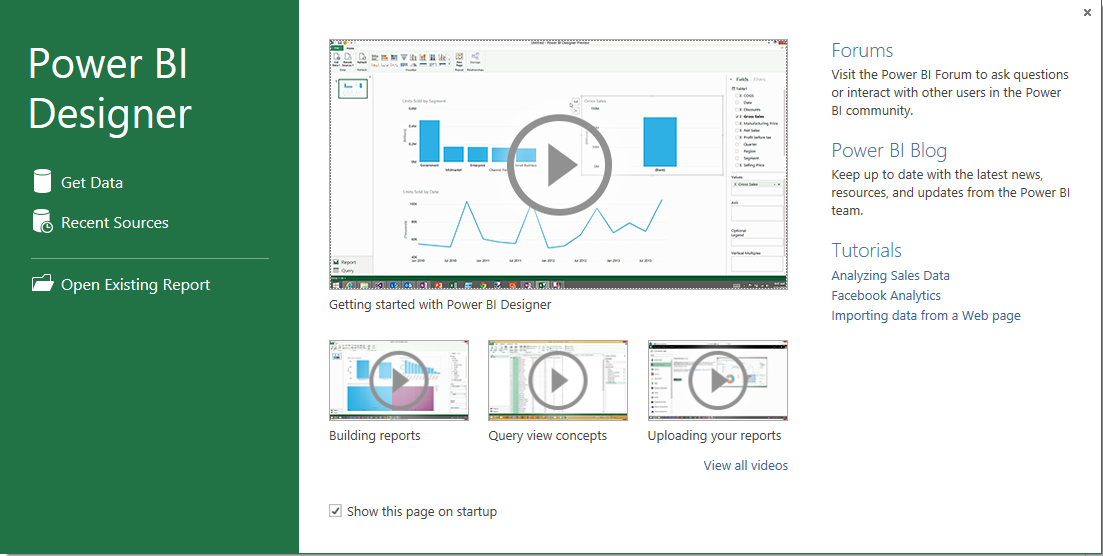
After the download PowerBI gets launched.
PowerBI08.png
On the left you have a navigation pane. You can click on the link and get to the task you want to accomplish. In the right hand pane you have a video you can watch to get started and a few other videos. You also have access to the forums; the PowerBi blog and several tutorials. You may
also opt out to not show this page in subsequent launches,
Click on Get Data. The Get Data page gets displayed as shown.

PowerBI09.png
Notice that you can also access data on your Azure as well as quite a large selection of data sources. The picture shows only half the resources. Scroll down and review the rest.
In this post, you will be connecting to an instance of SQL Server 2012 that contains a AdventureWorks2012 database.
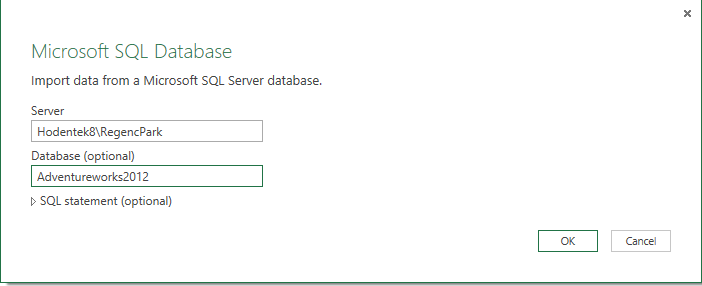
Click SQL Server Database in the above image. You will be displayed a page with ttle Microsoft SQL Database and you will be importing data from a Microsoft SQL Server Database. As I mentioned earlier I will be getting data from an instance of SQL Server called RegencyPark. I will have to give the complete reference to this instance. Since my laptop is named Hodentek8, the complete refeerence is Hodentek8\RegencyPark and the name of the database I will be using.
 PowerBI10.png
Click OK. You get the 'Access a Microsoft SQL Database' page displayed.
 PowerBI11.png
Herein you need to provide authentication information. Windows authentication was used during installation and so just click Connect at the bottom of the screen.
You will be displayed the Navigator pane showing all the tables in your
database as shown.

PowerBI12.png
Clicking on any of the tables you can see the details for that table in the Preview is Blank area as shown. If you remember a table name you can also search.
 PowerBI13.png
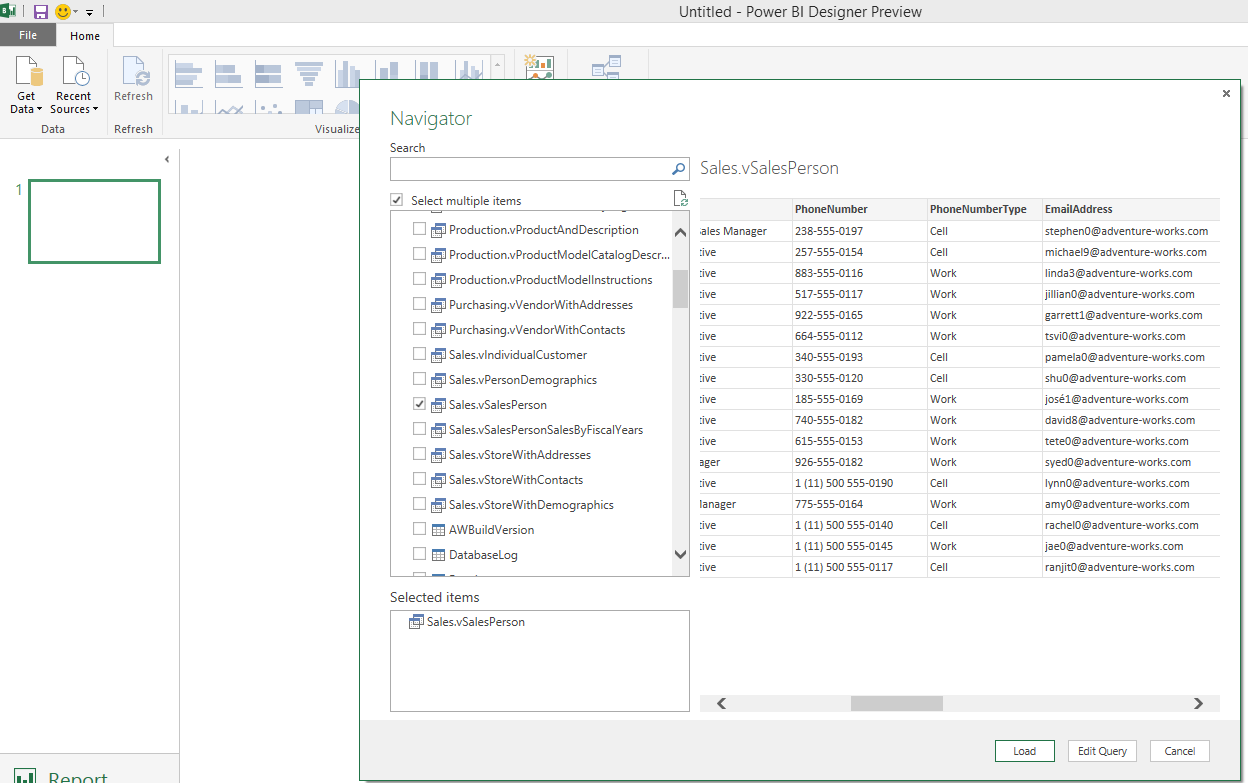
You can select multiple tables to create a report. Here to keep it simple I have chosen the Sales.vSalesperson table and you can see a blank report shown as a rectangle bordered green.
PowerBI14.png
The designer has the typical Office look with Menu and toolbar menu. You can also see various charts design templates for data visualization.
Click Load. You may also use the GetData and Recent Resources links to get
the data.
Hidden behind the image on the top of the above screen you will also find Fields pane at extreme right. It lists out all the columns in the Sales.SalesPerson table. Use the scroll-bar to see more of the fields.
In the fields pane I choose Last Name, SalesLastYear, SalesQuota and
Sales YTD and voila the report is generated. I could choose to create the type chart I like by choosing in the menu bar.

PowerBI16.png
I can immediately create another report (a new one) by choosing other different fields (TeritoryName, SalesYTD and SalesLastYear) as shown here. I need not get out of the designer and the first report also exists to which you can switch into by clicking on it. This is very much like Power View introduced in SQL Server Reporting Services 2012.

A summary veriosn was presented here:
http://hodentek.blogspot.com/2015/02/spin-out-cutting-edge-report-with-power.html
PowerBI is Microsoft's preview software that you can download for free if you are in USA. Probably it will be available to users in other countries as well. It is the latest iteration to provide a toll to the
non-programmer type who desires to create Ad-hoc reports easily without knowing too much of the innards of the data source but knowing all about their business.
Read here for more information:
http://hodentek.blogspot.com/2015/02/power-bi-unchained.html
Before you start authoring the report make sure your SQL Server is running and that you have downloaded and installed the PowerBI software from this location: http://www.powerbi.com/
The installation is very simple and takes only 4 interactive screens.
After the download PowerBI gets launched.
PowerBI08.png
On the left you have a navigation pane. You can click on the link and get to the task you want to accomplish. In the right hand pane you have a video you can watch to get started and a few other videos. You also have access to the forums; the PowerBi blog and several tutorials. You may
also opt out to not show this page in subsequent launches,
Click on Get Data. The Get Data page gets displayed as shown.
PowerBI09.png
Notice that you can also access data on your Azure as well as quite a large selection of data sources. The picture shows only half the resources. Scroll down and review the rest.
In this post, you will be connecting to an instance of SQL Server 2012 that contains a AdventureWorks2012 database.
Click SQL Server Database in the above image. You will be displayed a page with ttle Microsoft SQL Database and you will be importing data from a Microsoft SQL Server Database. As I mentioned earlier I will be getting data from an instance of SQL Server called RegencyPark. I will have to give the complete reference to this instance. Since my laptop is named Hodentek8, the complete refeerence is Hodentek8\RegencyPark and the name of the database I will be using.
Click OK. You get the 'Access a Microsoft SQL Database' page displayed.
Herein you need to provide authentication information. Windows authentication was used during installation and so just click Connect at the bottom of the screen.
You will be displayed the Navigator pane showing all the tables in your
database as shown.
PowerBI12.png
Clicking on any of the tables you can see the details for that table in the Preview is Blank area as shown. If you remember a table name you can also search.
You can select multiple tables to create a report. Here to keep it simple I have chosen the Sales.vSalesperson table and you can see a blank report shown as a rectangle bordered green.
PowerBI14.png
The designer has the typical Office look with Menu and toolbar menu. You can also see various charts design templates for data visualization.
Click Load. You may also use the GetData and Recent Resources links to get
the data.
Hidden behind the image on the top of the above screen you will also find Fields pane at extreme right. It lists out all the columns in the Sales.SalesPerson table. Use the scroll-bar to see more of the fields.
In the fields pane I choose Last Name, SalesLastYear, SalesQuota and
Sales YTD and voila the report is generated. I could choose to create the type chart I like by choosing in the menu bar.
PowerBI16.png
I can immediately create another report (a new one) by choosing other different fields (TeritoryName, SalesYTD and SalesLastYear) as shown here. I need not get out of the designer and the first report also exists to which you can switch into by clicking on it. This is very much like Power View introduced in SQL Server Reporting Services 2012.
PowerBI18.png
That's all. No calculating X-axis, Y-axis etc. The type of tasks you do with Excel. This is as simple as it can get. I took a whole page to describe and I bet you can do it in 10 minutes.A summary veriosn was presented here:
http://hodentek.blogspot.com/2015/02/spin-out-cutting-edge-report-with-power.html