Sunday, January 10, 2016

Creating a ColumnStore Index using the SQL Server Management Studio

ColumnStore index is  described in this post .

Of course you need Enterprise edition of SQL Server 2012 ColumnStore Index as on no other version it is supported. This post uses the SQL Server 2012 Developer Edition for demonstration.

However, if you have a developers edition of SQL Server 2012 you can see a few basic steps as described here.

Here are some step-by-step screen shots to create the  index

We will be creating the ColumnStore index for the Employees table which has already the following indexes.

In order to create a ColumnStore Index (only one per table) right click Indexes node and choose the Non-Clustered Columnstore Index as shown.

This brings up the New Index window as shown. The windows comes up with a default name for the index which you change or modify.


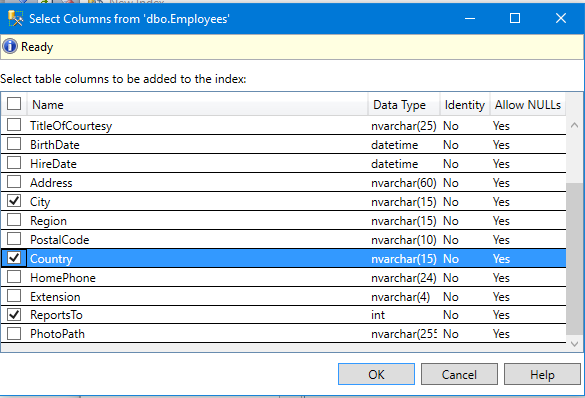
Modify or change name and click on the Add... button as there should be at least one column for the index. When you click on Add... button, the Select Columns from 'dbo.Employees' windows is displayed as shown.


Place check mark for the columns to be included. Here in three columns will be added. Preferably the data types of columns are either int or nvarchar. The one likely to be advantageous are those that are repeated in the table. Here Country, City and Reports to column are added.


Click OK and the information gets into the New Index window.


Click OK on the New Index window and the index is created as shown in the Indexes node in Object Explorer.

 You can look for this in sys.indexes as shown


Friday, January 8, 2016

Creating and Executing a SSIS Project Package - Part 4

This post is about deploying a SSIS package using SQL Server Data Tools.
Before you start on this post review the following:

http://hodentekmsss.blogspot.com/2015/12/creating-and-executing-ssis-project.html
http://hodentekmsss.blogspot.com/2015/12/creating-and-executing-ssis-project_28.html
http://hodentekmsss.blogspot.com/2015/12/creating-and-executing-ssis-project_29.html

There are two modes deployment SSIS 2012:
  • A mode to deploy individual packages
  • A mode to deploy SSIS projects
SSIS Project deployment is the default for SSIS 2012. Verify that the project you created earlier has no problems. For this, bring up the project in Visual Studio and execute the package as shown in Part 3.

In Solution Explorer right click the project and select Deploy Package as shown:


deploy_02

The wizard Integration Services Deployment Wizard gets displayed. There are a couple of steps (5) you need to follow. This wizard will deploy the package to an Integration Services Catalog on an instance of SQL Server 2012.


deploy_03

Click Next. You need to select the destination.


deploy_04

Click in the box under Server name: and click Browse...

Browse for Servers window is displayed as shown displaying the instance name.


deploy_04a

Click OK to Browse for Servers window.  The Browse for Project window is displayed the SSISDB is the only object.


deploy_04b

SSISDB is organized as folders and the Projects are housed in the folders.
Click on New folder...button. The Create New Folder window is displayed as shown.


deploy_04c

Provide a name and a description(Optional) and click OK.

The Browse for Project now contains the folder you created, SSIS_Dec27Pkg.


deploy_04d

Click New project...The Create New Project window us displayed.


deploy_04e

Provide a name and a description and click OK. The Browse for project window now displays the Project (All these names I have given were taken from my SSIS project created in Parts 1, 2 and 3).

deploy_04f

Now click OK. Now the Select Destination page of the wizard has all the needed information as shown.
deploy_04g

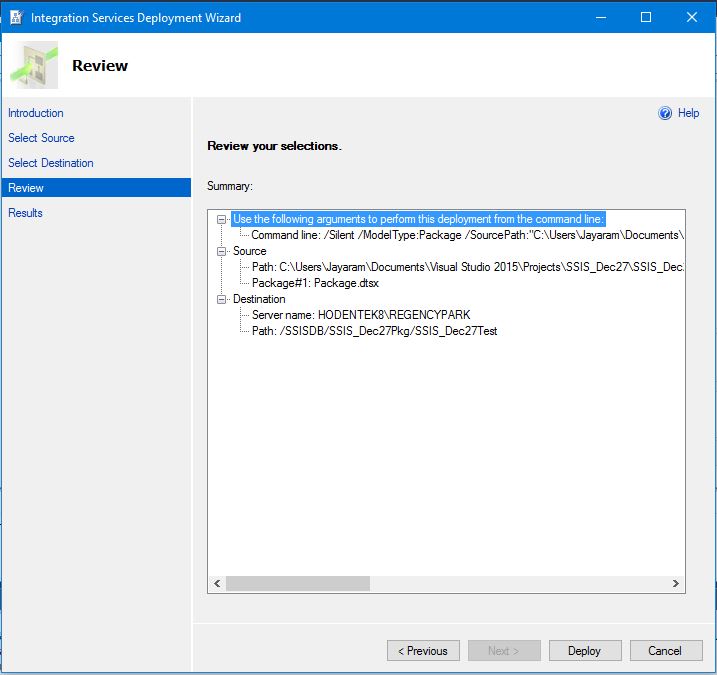
Click Next. The Review you selections section of the Review page is displayed.

deploy_05

Just check the Source and Destination paths and click Deploy.

After some processing the results are displayed in the Result page of the wizard as shown.

deploy_06

Looks like the deployment failed for some reason. Clicking the link Failed brings up the next window.
deploy_07FailedLink.png

The message appears to indicate failing to find a stored procedure. Searching for the package on the SQL Server instance using PowerShell did indicate the creation of folders and projects but did not find the package.
deploy_08.png

On a hunch, the SQL Server Data Tools was closed and opened with administrative privileges and
the package was deployed to the same folder in the SQL Server.

This time the deployment was successful with any errors.


deploy_09.png

The next image shows the package in the Integration Services Catalogs in SQL Server Management Studio.

deploy_10.png

For getting a jump start on SSIS review my popular book and describes some 20 routine tasks that you can configure. The version may be different but the procedures have not changed much.


https://www.packtpub.com/networking-and-servers/beginners-guide-sql-server-integration-services-using-visual-studio-2005

Wednesday, January 6, 2016

Installing SQL Server 2012 SP3 on Windows 10

Service pack SP3 for SQL Server 2012 fixes many of the bugs and adds other enhancements. The list is long, please go here for details.

http://support.microsoft.com/En-us/enkb/3072779

Download your copy if SP3 executable from here:
https://www.microsoft.com/en-us/download/details.aspx?id=49996

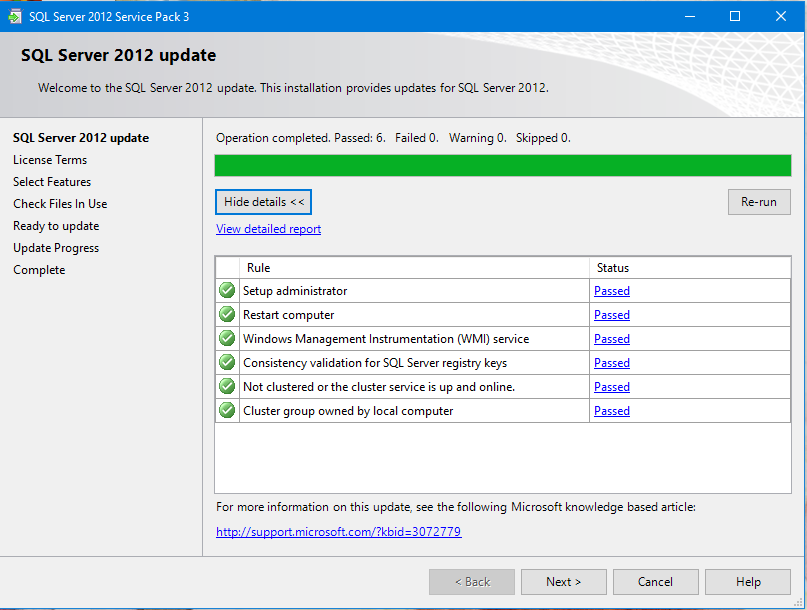
When this executable is clicked the program begins to kick in with this initial window. SQL Server 2012 update checks the files.


SP3_01

Click Next brings in the License Agreement window.


SP3_02
After agreeing click Next.

SP3_03

Selected features for the only existing version of SQL Server 2012, the Regency Park instance.


 SP3_04

This is the present version on this computer. Click Next.


SP3_05

The Check Files in Use command is processed. There were two files active, the Full text directory service and the WD Backup service. These were flagged during ‘Check files in USE’. These were stopped in Control Panel|…|Services window and clicked on the Refresh recheck.


 SP3_06

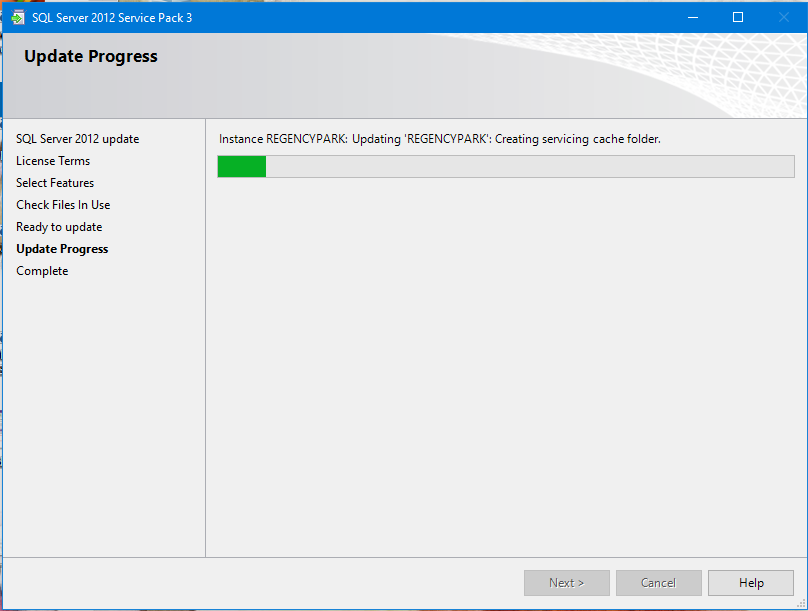
Clicking Update begins the process of the upgrade.

SP3_07


 SP3_08

The upgrade completed successfully. The next two windows shows the same window as above but scrolled to show more info.

SP3_09


  SP3_10

The following changes were made to the program listing in the Control Panel.


SP3_11

After SP3 installation a configuration manager app gets added to All Apps on Windows 10

The version details are as follows:

Developer Edition
11.3.6020.0


Monday, January 4, 2016

Magic Quadrant: Microsoft is tops in Operational Database Management Systems

Operational Database Management System (ODBMS) which is a more appropriate name than OLTP there has many new entrants to the business. It is not just RDBMS anymore as you have Big Data, NoSQL, etc.

Microsoft is tops in Gartner's Magic Quadrant for Operational Database Management Systems for 2015. Oracle is a little behind Microsoft and IBM is trailing.

Here is the picture of the Quadrant:


Thursday, December 31, 2015

Wishing you all the very best of everything in 2016

Wishing you all the very best of everything in 2016
Hau’oli Makahiki Hou!

We wish our readers the very best in 2016 and a Happy New Year. We hope to continue writing interesting posts. HodentekMSSS blog mostly covers Microsoft SQL Server.

It was a very productive year which started with the Introduction to Structured Query Language class in the beginning of the year. HodentekMSSS blog has covered most of the developments in SQL Servers including the great tools. 

The number of posts this year exceeded the last years' and with SQL Server 2016 there will be a lot to learn and write about. I hope to keep the number at the same level in 2016.

Most of my readers are from USA, India, UK, Canada, France and Russia plus the many others from other parts of the world. The most interesting and satisfying part of writing the blog is to find who reads the blog. When I see people from war torn countries reading about something technical makes me very happy.

Reader locations for December 2015 from Cluster Maps


MsssMapDec2015


HodentekMSSS posts over the years


Group Photo: Introduction to Structured Query Language at PCATT 2015


Here is a group photo of the class who took this course during February-March of 2015 at the Pacific Center for Advanced Technology Training in Honolulu.


I wish all my students a very Happy New Year.

The next class is starting Jan 28, 2016

Wednesday, December 30, 2015

How is row storage index different from Column Storage Index?

First of all ColumnarStorage Index  is a new feature in SQL Server 2012 and upward versions. This new indexing type is designed to speed up disk I/O operations in queries retrieving data from data warehouses where it is typically used. In data warehousing with ColumnarStorage Index; data is stored in columnar fashion. Hence if the data consists of large number of columns but only few columns are regularly called upon in a query, then having those columns (indexed) arranged to store data in the sense of columnar storage will be more efficient.

Probably this Mickey Mouse picture shows these two different index types.
Microsoft puts it this way,

"An xVelocity memory optimized columnstore index, groups and stores data for each column and then joins all the columns to complete the whole index. This differs from traditional indexes which group and store data for each row and then join all the rows to complete the whole index.
"
There are many restrictions on creating Columnar Storage Index, the first of which is that you can only do it if you have SQL Server 2012 Enterprise edition.

These are the basic restrictions for the columnstoreindex:
  • Cannot have more than 1024 columns.
  • Cannot be clustered. Only nonclustered columnstore indexes are available.
  • Cannot be a unique index.
  • Cannot be created on a view or indexed view.
  • Cannot include a sparse column.
  • Cannot act as a primary key or a foreign key
  • Cannot be changed using the ALTER INDEX statement. Drop and re-create the columnstore index instead. (You can use ALTER INDEX to disable and rebuild a columnstore index.)
  • Cannot be created with the INCLUDE keyword.
  • Cannot include the ASC or DESC keywords for sorting the index. Columnstore indexes are ordered according to the compression algorithms. Sorting is not allowed in the index. Values selected from a columnstore index might be sorted by the search algorithm, but you must use the ORDER BY clause to guarantee sorting of a result set.
  • Does not use or keep statistics in the manner of a traditional index.
  • Cannot contain a column with a FILESTREAM attribute. Other columns in the table that are not used in the index can contain the FILESTREAM attribute.
  • Also, when it comes to updating a table, you cannot update a table with a columnstore index.
More info here.

When Identity Security Becomes a Wall — Not a Shield

After a breach that forced a reset of my digital identity, I hit a roadblock I never anticipated: multi-factor authentication (2FA) locked m...