Monday, January 22, 2018

Restoring legacy database to SQL Server 2017 using Microsoft SQL Operations Studio

You can restore a database to SQL Server using the SQL Server Management Studio(SSMS). It is a feature rich tool for restoring and backing up databases. Besides restoring and backing up SSMS can carry out a ton of other tasks.

Here is an example of using SSMS to restore a database to SQL Server.

Why use Microsoft SQL Opertions Studio?

For one thing it has small foot print and it is free (preview now). It is lightweight and can do only a few of the things. You can restore a database with fewer clicks than with SSMS.

On my Windows 10 Professional, I have installed SQL Server 2017 Developer edition. I will restore the Northwind database from its backup file on CodePlex. Being a preview, Microsoft SQL Operations Studio has a few kinks and I have a workaround to bypass the kink and get the result.

Watch the video for the restore opeation:
https://www.youtube.com/edit?o=U&video_id=-KOXjlRACSU

Restore operation using Windows PowerShell
https://hodentekmsss.blogspot.com/2016/03/easy-way-to-backup-sql-server-database.html

Read many more related PowerShell posts here.

Friday, January 19, 2018

Generating query output in JSON is easy using Microsoft Operations Studio

Installing the January Preview (latest as of now) Microsoft SQL Operations Studio is easy. Follow the steps here .

Connecting to SQL Server 2016 is explained in details here.

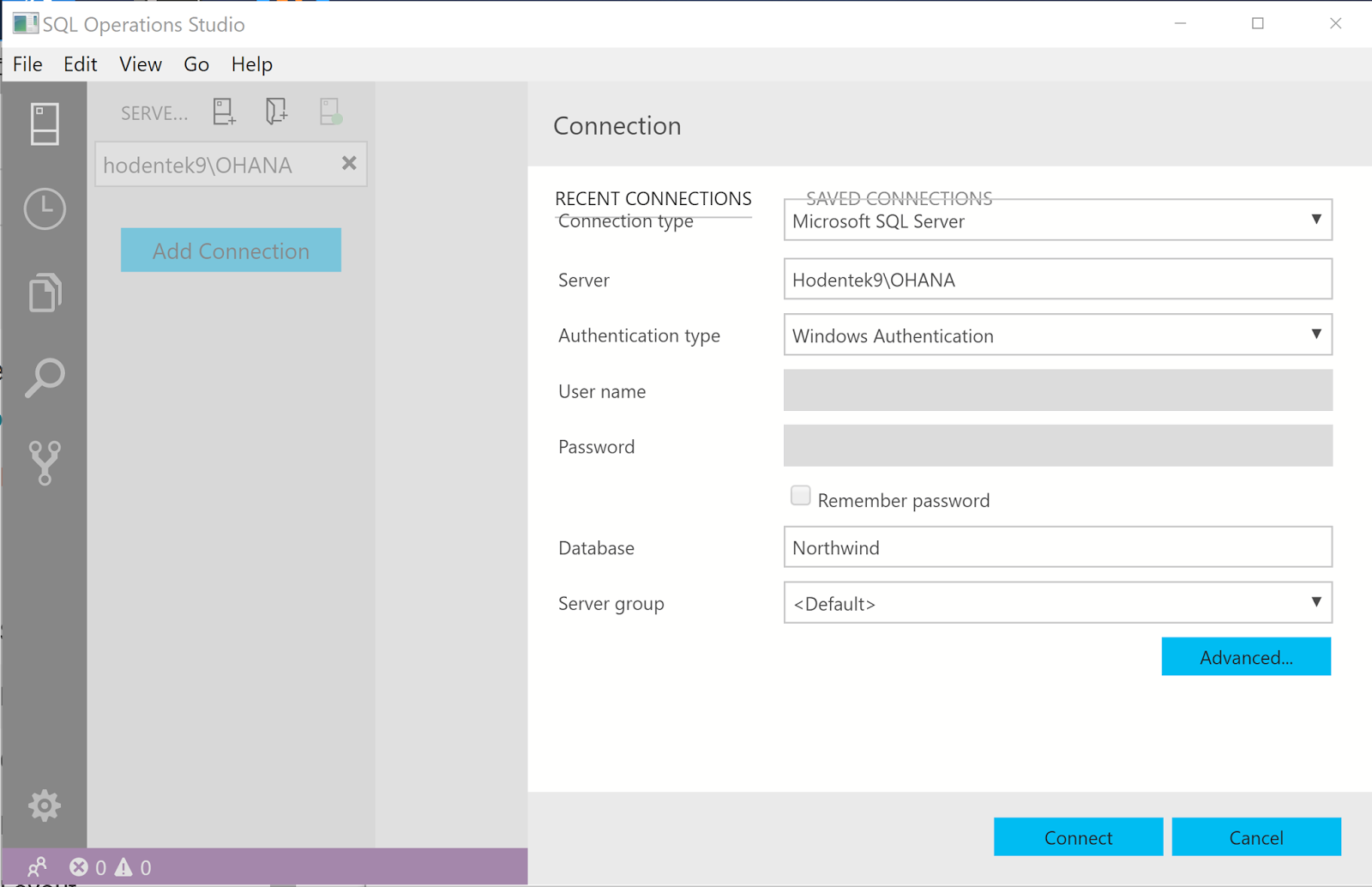
Connection is very easy, especially if you are using Windows Integrated authentication as shown here:


SQLOPS_JanPublicPreview_01

This screen in the January Preview is not quite what I expected. The two tabs (RECENT CONNECTIONS which is active and SAVED CONNECTIONS greyed out) in the background does not do anything.

Just click Connect and you are connected as shown.


SQLOPS_JanPublicPreview_02


Either we can run a new query or browse and get a saved query (with extension .sql).  I am trying a saved query from an earlier connection with an earlier version.


SQLOPSStudio_03

The query is displayed in the MSFT SQLOPS application as shown. But I see a reddish no-no on the connection on the left.


SQLOPS_JanPublicPreview_03
Anyway, just click Run to execute the query and the response appears in a pane below as shown.


SQLOPS_JanPublicPreview_04

Since this is a query from a query using another connection, the connection screen is displayed as shown.

Enter the conneciton information as before. The data entered is accpeted and the query is executed as shown.


SQLOPS_JanPublicPreview_05

Now click on the Save as JSON on the right. You will save it to the default folder that opens. After saving to folder JSON fromatted query result is displayed as shown.


SQLOPS_JanPublicPreview_06

It could not be simpler than this, really.

Read related article here:
https://hodentekmsss.blogspot.com/2016/06/exporting-data-from-sql-server-2016-as.html

Thursday, January 18, 2018

Installing Microsoft SQL Operations Studio (preview) on Windows 10

Screen shots taken while installing the January Public Preview (ver 0.25.4) of Microsoft SQL Operations Studio (MSFT SQLOPS) are included in this post. The details of this version are as shown:


SQLOPS_JANPreview.png


MSFT SQLOPS will be installed on a Windows 10 Professional on a Dell Laptop.


SQLOPS_JanPublicPreview9_Win.png

We will use the installer route to install. You start installing by double clicking the installer file you downloaded.


SQLOPS_JanPublicPreview2


SQLOPS_JanPublicPreview3

Accept license terms and click Next.


SQLOPS_JanPublicPreview4


SQLOPS_JanPublicPreview5


SQLOPS_JanPublicPreview6


SQLOPS_JanPublicPreview7


SQLOPS_JanPublicPreview8

It is installed and it is launched as shown


Microsoft SQL Operations Studio January Preview - enhancements & Fixes

I had the November 2017 version (0.23.6) after which a December version (0.24.1) was released. I skipped this version for no better than I had other things to do.

The present version is 0.25.4 


These are the enhancements (taken from Microsoft site):

  • Saved Server connections are available in the Connection Dialog.
  • Enable Hot exit. Hot exit is off by default, to enable see Hot exit setting.
  • Tab-coloring based on Server Group. Tab coloring is off by default, to enable see Tab color setting.
  • Change Server name to Server in the Connection Dialog.
  • Fix broken Run Current Query command.
  • Fix drag-and-drop breaking scripting bug.
  • Fix incorrect pinned Start Menu icon.
  • Fix missing Azure Account branding icon.

Microsoft SQL Operations Studio- January Public Preview is ready

You can downlaod it from here for all of the three platforms, Windows, macOS and Linux.
https://docs.microsoft.com/en-us/sql/sql-operations-studio/download

Before using review the following:

What is SQLOPS?
https://hodentekmsss.blogspot.com/2017/12/light-weight-database-management-and.html

Description of user interface:
https://hodentekmsss.blogspot.com/2017/12/sql-operations-studio-user-interface.html

Connecting to SQL Server 2016 using SQLOPS:
http://hodentekhelp.blogspot.com/2017/12/how-do-you-connect-to-sql-server-using.html

It is very easy to download and run immediately (Windows Installer and ZIP).

Using Installer:
Download and run the SQL Operations Studio (preview) installer for Windows.
Start the SQL Operations Studio (preview) app.
Link to click: https://go.microsoft.com/fwlink/?linkid=866480

Using the ZIP file:
Download SQL Operations Studio (preview) .zip for Windows.
Browse to the downloaded file and extract it.
Run \sqlops-windows\sqlops.exe
Link to click: https://go.microsoft.com/fwlink/?linkid=866479

Supported platforms:
Windows
Windows 10 (64-bit)
Windows 8.1 (64-bit)
Windows 8 (64-bit)
Windows 7 (SP1) (64-bit) - Requires KB2533623
Windows Server 2016
Windows Server 2012 R2 (64-bit)
Windows Server 2012 (64-bit)
Windows Server 2008 R2 (64-bit)
+
macOS
macOS 10.13 High Sierra
macOS 10.12 Sierra

Linux
Red Hat Enterprise Linux 7.4
Red Hat Enterprise Linux 7.3
SUSE Linux Enterprise Server v12 SP2
Ubuntu 16.04

Uninstall:
Since it is preview, if you need to uninstall at a later date:
------------------------------------------
If you installed SQL Operations Studio (preview) using the Windows installer, then uninstall the same way you remove any Windows application.

If you installed SQL Operations Studio (preview) with a .zip or other archive, then simply delete the files.
-------------------------------------------
Enjoy!

Connecting to SQL Server using Microsoft SQL Operation Studio

It is so easy to connect to SQL Server database.

Read here: What is Microsoft SQL Operations Studio?

Read here: Microsoft SQL Operations Studio User Interface

Watch this video: Connecting to SQL Server 2016 Developer edition database using
Microsoft SQL Operations Studio


Wednesday, January 17, 2018

Hands-on Learning Event in Honolulu 1 : Introduction to Structured Query Language


Database skills are essential in whatever organization and in whatever position and it is crucial that you have this in your arsenal (Resume')

Databases, organized repositories of information, have become indispensable in today's world. In this introductory course you will learn about relational databases and the basics of Structured Query Language (SQL) including sorting; grouping result sets; using DDL, DML, DCL, and TCL. All SQL statements will initially be written for one table. Most practical, modern and relational databases will include a large number of tables and SQL queries have to access information from several tables. This course will introduce you to querying more than one table. With this skill you will be able to query two or more tables in a database.

This is a hands-on course which will take you from installing SQL Server 2016 to learning the ins and outs of SQL Server Management Studio and of course a full dose of SQL. The course covers most of the requirements to take Microsoft's certification (98-364), the Microsoft Technology Associate. During each meeting, you will be assessed for your knowledge, competency and proficiency in SQL.

What's new in this session
  • SQL Server Using Powershell 
  • JSON and XML
The class runs from Feb 6 to March 13 at Honolulu Community College.
(Register Online)

Feb 6 - March 13; TTH: 5:30 pm to 7:30 pm; 10 Mtgs

When Identity Security Becomes a Wall — Not a Shield

After a breach that forced a reset of my digital identity, I hit a roadblock I never anticipated: multi-factor authentication (2FA) locked m...