Showing posts with label Power Shell. Show all posts

Tuesday, March 20, 2018

Hands-on Learning Event in Honolulu 1 : Introduction to Structured Query Language


Database skills are essential in whatever organization and in whatever position and it is crucial that you have this in your arsenal (Resume')
Databases, organized repositories of information, have become indispensable in today's world. In this introductory course you will learn about relational databases and the basics of Structured Query Language (SQL) including sorting; grouping result sets; using DDL, DML, DCL, and TCL. All SQL statements will initially be written for one table. Most practical, modern and relational databases will include a large number of tables and SQL queries have to access information from several tables. This course will introduce you to querying more than one table. With this skill you will be able to query two or more tables in a database.
This is a hands-on course which will take you from installing SQL Server 2016 to learning the ins and outs of SQL Server Management Studio and of course a full dose of SQL. The course covers most of the requirements to take Microsoft's certification (98-364), the Microsoft Technology Associate. During each meeting, you will be assessed for your knowledge, competency and proficiency in SQL.

What's new in this session:

SQL Server Using Powershell
JSON and XML

 Section 1 - Apr 24 - May 24; TTh; 5:30 pm - 7:30 pm; 10 meetings (Register Online)

Monday, January 22, 2018

Restoring legacy database to SQL Server 2017 using Microsoft SQL Operations Studio

You can restore a database to SQL Server using the SQL Server Management Studio(SSMS). It is a feature rich tool for restoring and backing up databases. Besides restoring and backing up SSMS can carry out a ton of other tasks.

Here is an example of using SSMS to restore a database to SQL Server.

Why use Microsoft SQL Opertions Studio?

For one thing it has small foot print and it is free (preview now). It is lightweight and can do only a few of the things. You can restore a database with fewer clicks than with SSMS.

On my Windows 10 Professional, I have installed SQL Server 2017 Developer edition. I will restore the Northwind database from its backup file on CodePlex. Being a preview, Microsoft SQL Operations Studio has a few kinks and I have a workaround to bypass the kink and get the result.

Watch the video for the restore opeation:
https://www.youtube.com/edit?o=U&video_id=-KOXjlRACSU

Restore operation using Windows PowerShell
https://hodentekmsss.blogspot.com/2016/03/easy-way-to-backup-sql-server-database.html

Read many more related PowerShell posts here.

Friday, March 27, 2015

Creating a table using Power Shell and SQL Server Management Objects

Review this previous post    http://hodentekmsss.blogspot.com/2014/11/accessing--
sql-server-via-smo-using.html

In the above post you will get an introduction to Power Shell and SQL Server
Management Objects. You also learn how to access the SQL Server and carry out a
few tasks like listing out all the databases.

Review this post for creating a database using Power Shell and SQL Server
Management Objects:
http://hodentekmsss.blogspot.com/2015/02/creating-database-using-power-shell-
and.html

In the above post you will learn how to create a new database in SQL Server using
SMO and Power Shell. Using Transact-SQL or the SSMS you can easily create a
database. Using PowerShell is another option to create a database using a script.

Having created a database you would want to create tables in the database.

This post shows how you may create a table. This script has been tested to work with
Power Shell ver. 4.0.

Launch SQLPS from Start | Run and type-in SQLPS and click OK.


PS_SMOTable01.png

Let us get connected to the instance of SQL Server (RegencyPark) on this computer
(Hodentek8) by (declaring) running the command shown.

PS SQLSERVER:\>  $server= new-object Microsoft.Sqlserver.management.smo.server
'Hodentek8\RegencyPark'

Let us create a database named 'Feb6'.
Declare a name for the database as shown here:
PS SQLSERVER:\SQL\HODENTEK8\REGENCYPARK> $dbname= "Feb6"

Now create a database object variable in the instance using SMO:
PS SQLSERVER:\> $db=new-object  Microsoft.Sqlserver.management.smo.Database
($server,$dbname)

Now create the database using the create () function.
PS SQLSERVER:\>  $db.Create()
When you run the above command you will have created a database called Feb6 in the
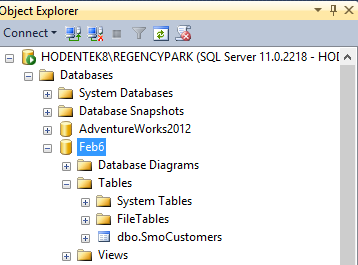
SQL Server instance as shown (this may take a few seconds and you will not get any response except if there are errors) in SQL Server Management Studio:


PS_SMOTable02.png

In creating the table run the following lines of command in PS SQLSERVER:\>:

We declare a name for the table as 'SmoCustomers' and instantiate the table object
by running the following:
$tbname = "SmoCustomers"
$tb = new-object  Microsoft.Sqlserver.management.smo.Table ($db, $tbname)

We assume the table to have three columns (fields) named 'Field1, Field2 and
Field3. Field1 is of int data type and the two others are nvarchar(num) data type.

Typically instantiate a column object and its data type and add that column to the
$tb.Columns. Carry out this for the three columns by running these lines in PS
SQLSERVER:\>.

$colField1 = New-Object Microsoft.SqlServer.Management.Smo.Column ($tb, "Field1")
 $colField1.DataType = [Microsoft.SqlServer.Management.Smo.Datatype]::Int
 $tb.Columns.Add($colField1)


$colField2 = New-Object Microsoft.SqlServer.Management.Smo.Column ($tb, "Field2")
 $colField2.DataType = [Microsoft.SqlServer.Management.Smo.Datatype]::NVarchar(25)
 $tb.Columns.Add($colField2)

$colField3 = New-Object Microsoft.SqlServer.Management.Smo.Column ($tb, "Field3")
$colField3.DataType = [Microsoft.SqlServer.Management.Smo.Datatype]::NVarchar(25)
$tb.Columns.Add($colField3)

Now create the table by running the following code:
$tb.create ()

 
Here is the complete line-by-line code:
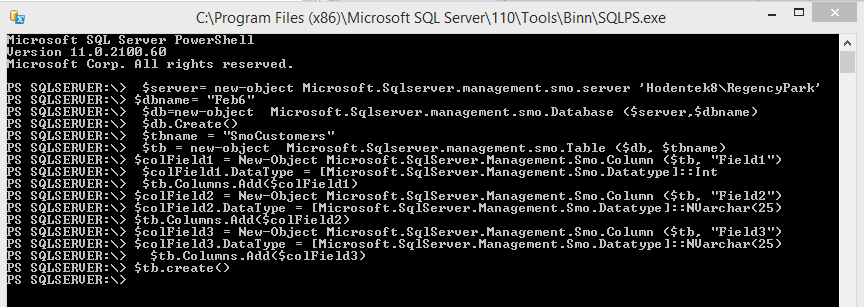
PS_SMOTable03.png
Again do not look out for a response but check for the table in Feb6 database you
created earlier.


PS_SMOTable04.png

Monday, December 15, 2014

Honolulu learning event: Basic SQL

You are welcome to attend my course at the Pacific Center for Advanced Technology Training (PACTT). Please register at the PCATT.org site.

Summary:

Databases, organized repositories of information, have become indispensable in today's world. In this introductory course you will learn about databases and the basics of Structured Query Language (SQL) including sorting, distinct, and aggregate functions and grouping of data. All SQL statements will initially be written from one table. Most practical, modern and relational databases will include a large number of tables. SQL queries have to access information from several tables. This course will then introduce you to querying more than one table. With this skill you will be able to query two or more tables in a database. This is a hands-on course.


New in 2015: You will also get an introduction to Power Shell.

Dates: (Section 1) Section 1 - Feb 17 - Mar 12, 2015; TTh; 5:30 pm - 7:30 pm; 10 mtgs.
Venue: Honolulu Community College;

Note: SQL Server 2012 Express will be used and a knowledge of SQL Server is not assumed. Students will be using the free version.

For details : Access http://pcatt.org/index.php/search and look up the course or write to:
Hodentek@live.com with course name in the Subject line.

Saturday, April 12, 2014

Starting Power Shell from SQL Server 2012

It's quite easy as Power Shell is integrated with SQL Server 2012.

It is quite easy to start from SQL Server 2012.

I have SQL Server Express 2012.

I open the SQL Server Management Studio 2012 from it shortcut in All Programs as shown.


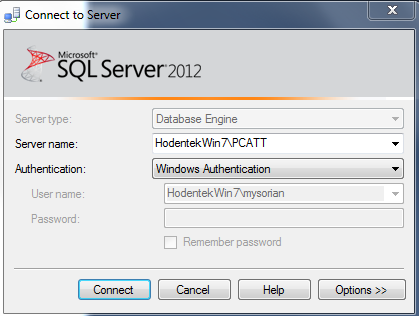
In the Connect to Server dialog I fill in the details as shown.


Make sure you have started the SQL Server Windows Service from Control Panel.


If you still cannot connect, you may have connection problems.

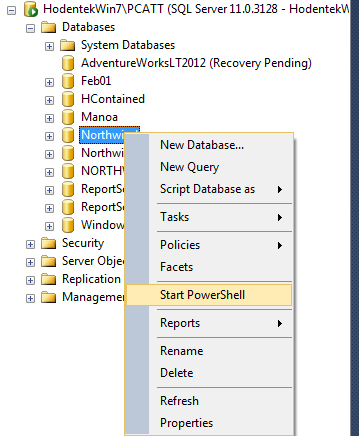
Once connected to SQL Server click open a database node as shown. I have chosen Northwind database node, but you can choose any other node including System Databases or even Reporting Services.

Right click database node to display options.


Click on Power Shell to open DOS window for SQL Server Power Shell as shown.


You are in guys!


Well you have to learn how to work with Power Shell and SQL Server.


You can get a good intro to PowerShell/SQLServer 2012 here:

http://technet.microsoft.com/en-us/library/hh245198.aspx

Or you can get some hands-on help here:

You can buy this from here.

You can get details from http://hodentek.blogspot.com

For SQL Server PowerShell Provider go here:
http://hodentekmsss.blogspot.com/2014/08/how-do-you-use-sql-server-powershell.html


Friday, June 28, 2013

Do you want to learn SQL Server Reporting Services 2012 in record short time?

Learning SQL Server 2012 Reporting Services was released today by Packt publishers. This is my second book on Microsoft SQL Server Reporting Services (which may be called a second edition). It is enlarged to include Reporting Services Integration with SharePoint 2010. With 566 pages it is somewhat thicker than the first edition (Learning SQL Server 2008 Reporting Services). However, the book has a large number of screen shots like my first book and is somewhat thinner than most other books in this genre. The reviewers and technical editors have put in a lot of effort and time to make this happen.


I take this opportunity to thank the reviewers (Satya Shyam Jayanty and Ritesh Shah) for their meticulous reading of the manuscript; the technical editors, Azharuddin Sheik, Mausam Kothari, Varun Pius Rodrigues, and Lubna Shaikh and many others at Pakct Publishing for their excellent editing and Microsoft Forums' (MSDN, Technet and SharePoint) help for answering so many of my questions.

Summary of Hands-on tasks you learn:
  • Install SQL Server 2012, SharePoint Server 2010, and configure Reporting Services both native and SharePoint Integrated on Windows 7
  • Install SSDT and author reports, both local and remote, and deploy them to report servers
  • Develop desktop and web applications by using Report Viewer controls
  • Author different kinds of reports with the latest gadgets by working with Report Builder
  • Manage access to the report server, report scheduling, report delivery, report uploads, and downloads with Report Manager
  • Create Tabular Models with SQL Server Analysis Services and deploy them to SSAS Server using SSDT
  • Author Power View Reports from your SharePoint Site and export them as Power Point files
  • Learn to create Data Driven alerts in SharePoint and monitor them on SQL Agent on SSMS
  • Work with Windows Azure Reporting Services using Windows Azure Portal and SSMS
  • Write applications in SSIS and WPF to access reports and access native server reports from SharePoint Site
I hope this book is appreciated as much as the earlier one.

This book can now be bought from the publishers as well as other online book sellers:
http://www.amazon.com/Learning-Server-Reporting-Services-ebook/dp/B00DM23X5M/ref=sr_1_2?s=books&ie=UTF8&qid=1372453186&sr=1-2

If you are using SQL Server 2008 then this book is for you,

http://www.amazon.com/Learning-Server-2008-Reporting-Services/dp/1847196187/ref=sr_1_1?s=books&ie=UTF8&qid=1372453239&sr=1-1
 
The links in the book are available here:
 

Saturday, May 11, 2013

Contents of my forthcoming book on SQL Server Reporting Services 2012

This book is totally hands-on, you learn by doing it all by yourselves in record time.

  • Install SQL Server 2012, SharePoint Server 2010, and configure Reporting Services both native and SharePoint Integrated on Windows 7
  • Install SSDT and author reports, both local and remote, and deploy them to report servers
  • Develop desktop and web applications by using Report Viewer controls
  • Author different kinds of reports with the latest gadgets by working with Report Builder
  • Manage access to the report server, report scheduling, report delivery, report uploads, and downloads with Report Manager
  • Create Tabular Models with SQL Server Analysis Services and deploy them to SSAS Server using SSDT
  • Author Power View Reports from your SharePoint Site and export them as Power Point files
  • Get a first hand experience with Power View Reports, get the full breadth and width of features
  • Don't know Power Shell. OK. Learn it here and apply it to SharePoint and Report Server APIs and WMI
  • Learn to create Data Driven alerts in SharePoint and monitor them on SQL Agent on SSMS
  • Work with SQL Azure Reporting Services using Windows Azure Portal and SSMS. Start signing up for the service end up enjoying the reports
  • Write applications in SSIS and WPF to access reports and access native server reports from SharePoint Site
  • For details follow this link here:

    http://hodentek.blogspot.com/2013/04/my-next-book-sql-server-reporting.html

    When Identity Security Becomes a Wall — Not a Shield

    After a breach that forced a reset of my digital identity, I hit a roadblock I never anticipated: multi-factor authentication (2FA) locked m...