Wednesday, October 5, 2016

Starting and stopping a SQL Server instance using PowerShell

Firstly let us see the status of the SQL Server 2016 on this computer. There are three SQL Servers 2012, 2014 and 2016. Let us take a look at the SQL Server named instance OHANA. It appears to be stopped as seen in the Services window of the Control Panel.


StoppedOHana

Keep the Services screen open.

It is possible to start the SQL Server (OHANA) from the Services screen, but we want to start it using PowerShell.

Launch Windows PowerShelll ISE with Administrator Permission. Type in Start-Service to see the intellisense drop-down as shown.


StartService_00.jpg

Access the parameters available by just typing a hyphen (-) and waiting,


StartService_01.jpg

Pick the DisplayName parameter.

Now you need to provide a display name for SQL Server (OHANA).

Start-Service -DisplayName 'SQL Server (OHANA) '

Run the code or hit F8.

This will produce an error as shown:
PS C:\WINDOWS\system32> start-Service -DisplayName 'SQL Server (OHANA) 'start-Service : Cannot find any service with display name 'SQL Server (OHANA)
'.
At line:1 char:1
+ start-Service -DisplayName 'SQL Server (OHANA) '
+ ~~~~~~~~~~~~~~~~~~~~~~~~~~~~~~~~~~~~~~~~~~~~~~~~
    + CategoryInfo          : ObjectNotFound: (SQL Server (OHANA) :String) [St
   art-Service], ServiceCommandException
    + FullyQualifiedErrorId : NoServiceFoundForGivenDisplayName,Microsoft.Powe
   rShell.Commands.StartServiceCommand


You notice that there is an extra space between (OHANA) and the single quote.

Now, remove that white space and hit F8.

You get the following response:


StartService_02.jpg

In the ControlPanel |..|Services window click Action | Refresh.

You will notice that the SQL Server (OHANA) has started.

You can also stop the SQL Server with the following statement:

PS C:\WINDOWS\system32> Stop-Service -DisplayName  'SQL Server (OHANA)'

WARNING: Waiting for service 'SQL Server (OHANA) (MSSQL$OHANA)' to stop...

Refresh the Services windows and verify that the server has stopped.

Tuesday, October 4, 2016

SQL Server Configuration Manager shortcut is missing in my Windows 10

Under Microsoft SQL Server 2016 desktop apps I should have found the SQL Server Configuration Manager. I see the Reporting Services Configuration Manager but not the SQL Server Configuration Manager.


When you search for it specifically also you do not find it.


Where is it?

The following is the reason for this is given here: TechNet.

Because SQL Server Configuration Manager is a snap-in for the Microsoft Management Console program and not a stand-alone program, SQL Server Configuration Manager does not appear as an application in newer versions of Windows (8,10)

In Windows version 10  if you have to open SQL Server Configuration Manager for SQL Server 2016  the following item should be searched in  the  search charm of Windows 10:

SQLServerManager13.msc

When this is found you just click and display the SQL Server Configuration Manager as shown:


From the Help menu you can find the version.


Thursday, September 29, 2016

Querying a SQL Server Database in SSMS 2016 using R - 1

I described in an earlier post how to query a SQL Server Database using the ODBC DSN which uses the RODBC package.

After the integration of R with SQL Server 2016, it is possible to query a SQL Server database from within SQL Server Management Studio. However at present there are limitations for certain types of data such as XML.

In order to use R in SQL Server Management Studio make sure;
  • The server has started and you can connect to it
  • The Launch Pad service has started as shown:
QueryWithR_00.png

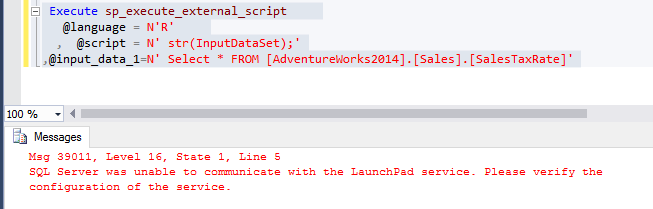
If this service has not started you get the MSG 39011 message as shown.


QueryWithR_01

After launching Launch Pad Service the query runs as shown.


QueryWithR_02

The result is to be understood as result set containing 29 rows and seven columns. It has returned informational message.

If you specify the columns your message will have information about those columns only.


QueryWithR_03

This query shows what data types have no support.


QuerywithR_04


String_split() is a new function in SQL Server 2016

When compared to an earlier version, SQL Server 2016 has two new string functions shown in the next image.


String2016.png

The syntax for the new function:
STRING_SPLIT ( string , separator )

Let us take this string:

'quote, substring, toLowerCase, toUpperCase, charAt,
      charCodeAt, indexOf, lastIndexOf'

Now write the following code in the query pane of SQL Server 2016 as shown. When the query is evaluated we see that the string is split at the comma (,) as shown. The white spaces are preserved.


Friday, September 23, 2016

The latest update to SQL Server Management Studio does not really update

Most recent upgrade to SSMS was released.

Download the latest here (https://msdn.microsoft.com/en-us/library/mt238290.aspx)

SSMS-Setup_ENU.exe:

New build is supposed to be this:
SQL Server Management Studio (16.4.1, build version 13.0.15900.1).


You probably had this version (13.0.15600.2) like I had.


SSMS_9_23_2016

The latest has some bug fixes as well as some new changes.

The link above gives access to the changelog links to issues fixed and new items or features.

These are new in this update:

New 'Read-SqlTableData', 'Read-SqlViewData', and 'Write-SqlTableData' cmdlets to view and write data using PowerShell.
Trello Read-SqlTableData Card
Microsoft Connect item #2685363

New 'Add-SqlLogin' cmdlet to enable new login management scenarios using PowerShell.
Microsoft Connect item #2588952

I downloaded and executed the downloaded program. I saw the usual splash screen such as this one:


After restarting it takes a while to finish the uploading and completing. I am in no great hurry but for a busy shop this is some what of a problem.

But after all this the program has not made any change to SSMS. This is what I see in the SSMS  | About after upgrading.

SSMS_9_23_2016_NewIsIt
The build version should have been this:
build version 13.0.15900.1
but it is still the old one, 13.0.15600.2

Hello! Microsoft

Building up a table in SQLite using Visual Studio 2015

SQLite's Build Table...creates a UI interface to design the columns to create a script for creating a table.

It will be assumed that you have installed the necessary extensions.
-
If you do not have SQLite follow this link.
If you do not have Visual Studio 2015 Community go here.
--
This is how the SQL Compact/SQLite Toolbox connections look like. There are three nodes, Tables, Views and Triggers and they are all empty.


Table_SQLite_00

Right click table to get this drop-down


Table_SQLite_01


Click on Build Table(beta)...
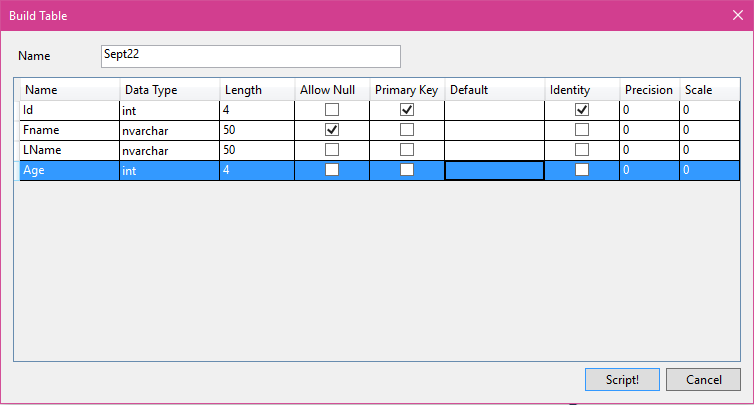
Build Table window appears as shown.


Table_SQLite_02


Give a name to the table(herein Sept22) and insert the columns you want in the table as shown where the Fname column with nvarchar() data type has been added (still incomplete).


Table_SQLite_03

We have finished adding a few more columns as shown.


Table_SQLite_04

Now the option is to click Script!. Click Script!.
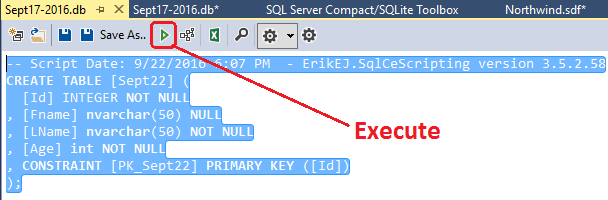
The script is created as shown.
---
-- Script Date: 9/22/2016 6:07 PM  - ErikEJ.SqlCeScripting version 3.5.2.58
CREATE TABLE [Sept22] (
  [Id] INTEGER NOT NULL
, [Fname] nvarchar(50) NULL
, [LName] nvarchar(50) NOT NULL
, [Age] int NOT NULL
, CONSTRAINT [PK_Sept22] PRIMARY KEY ([Id])
);

-----
Now all that remains is to run this code. Click on the icon for execute as shown.


Table_SQLite_05

This creates the table as shown.


Table_SQLite_06

Of course the table is empty it has only the meta data that we have incorporated.

Sunday, September 18, 2016

String_escape() new in SQL Server 2016

When compared to an earlier version, SQL Server 2016 has two new string functions shown in the next image.


String2016.png

The syntax for the new function:
STRING_ESCAPE(text, type)

text is nvarchar expression representing the object to be escaped and type is the the rule to be applied and presently the rule is only for type 'json'. This was required because SQL Server 2016 supports JSON and some of the special characters in the data may not give the correct JSON format.

The return type of json supported are shown in this table.


String_escape_0

Some of these tested in the SQL Server Management Studio 2016 are shown here:


Form Feed is seldom used and I do not know what the purpose is and the same with backspace.

Read more here:
 https://msdn.microsoft.com/en-us/library/mt684589.aspx


When Identity Security Becomes a Wall — Not a Shield

After a breach that forced a reset of my digital identity, I hit a roadblock I never anticipated: multi-factor authentication (2FA) locked m...